Secure your Palm with a screen lock
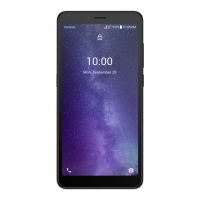
From the lock screen of your device, you can quickly access
the following:
Camera: Open the camera from the lock screen.
Messaging: Open messaging from the lock screen.
Gesture Pad: Swipe up from the bottom of the screen to
access Gesture Pad.
Lock Screen Message: Include a message to display on the
lock screen. You can change it in the settings menu.
Make an emergency call from the lock screen
You can make an emergency call even if the device is locked,
allowing anyone to use your device to call for help in an
emergency. To access emergency calling from the lock screen:
1. Swipe the screen up to display the Emergency call
feature.
2. Tap Emergency Call to open a dial pad.
3. Dial the emergency number (911 in North America)
and tap Call .
Wallpapers
Choose a personal or preloaded picture to set as your lock
screen background. To access wallpaper settings:
1. Access device settings.
2. Tap Display > Wallpaper.
3. Choose from your photos or preloaded wallpapers.
4. Tap Set lockscreen wallpaper.
Widgets
You can add widgets—app extensions that run on the Widget
Panel. To access your widgets, swipe the Home screen left.
To add a widget to your Palm:
1. On the Home screen, scroll to the bottom and tap
Manage.
2. Swipe the screen left and turn widgets on.
3. Tap Add widget.
4. Drag a widget to an open spot on the widget panel,
and release it.
5. Tap the touch button to stop managing.
To remove a widget:
1. On the Home screen, scroll to the bottom and tap
Manage.
2. Swipe the screen left to reveal the Widget Panel.
3. Touch and hold a widget to activate.



 To Next Page