29
4. Tap to return the < User Management > menu.
To edit the information of a user:
1. In the Settings menu, choose <User Management>.
2. Choose the user that you want to edit.
3. Tap the information that you want to edit, and then modify.
4. Tap <OK> and to return the < User Management > menu.
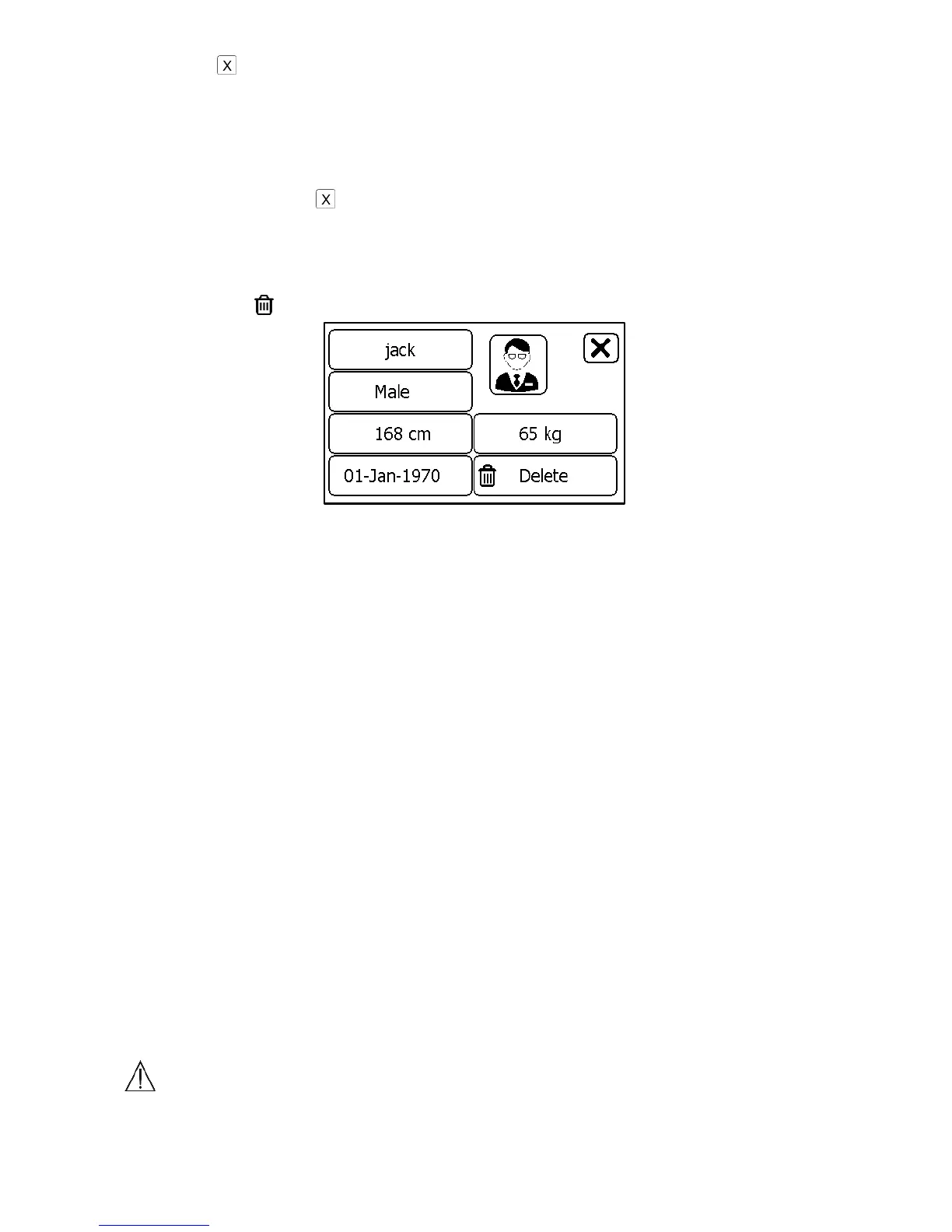
To delete a user:
1. In the Settings menu, choose <User Management>.
2. Choose the user that you want to delete.
3. Tap the button.
4. Choose <Yes> to confirm.
The <Guest> user cannot be edited or deleted.
5.9 Identify Software Version
Choose <About> in the <Settings> menu to identify the software version
of your device. Telling the version information when reporting a problem
may help to identify and solve your problem.
5.10 Turning On/Off Bluetooth
Checkme has built-in Bluetooth wireless connectivity, which enables
exporting measured records to mobile phones and pads running iOS or
Android platform.
To turn on the Bluetooth:
1. Press the Home button to enter Main Screen.
2. Slip your finger from right to left to switch to the second page.
3. Tap the <Bluetooth> icon, then the device will enter Bluetooth mode,
and the screen will show the Bluetooth icon in the middle of screen.
Data can only be exported in Bluetooth mode. Pressing the Home button
will exit Bluetooth mode.
Warnings and Cautionary Advices
Do not press Home button when data is being exported.


 To Next Page