028 -0427-15 _UI-V T8350_ A4 _ EN www.viconics.com June 2020
71
VT8350 [ User Interface Guide ]
6/7 Configuration
Language English
Units °C
Low backlight 60 %
Night backlight 5 %
RH display Disable
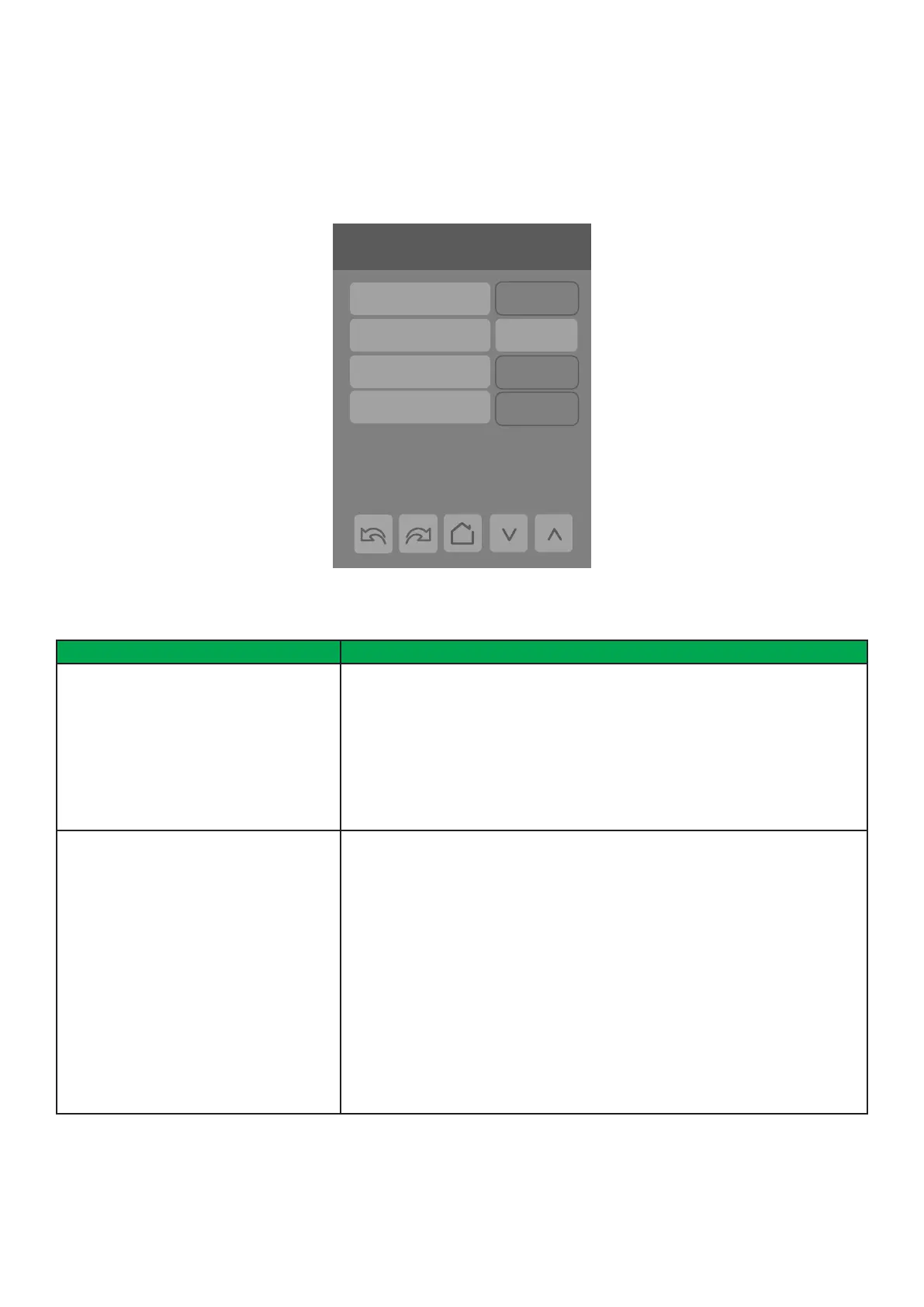
Ecosystem Settings
Network status Not det.
Permit timeout 0 min
Paired devices 0
Permit join Off
PARAMETER DETAILS
Conguration Parameters Default Value Signicance and Adjustments
Network status
Default value: Not det.
Read Only
ZigBee Network Status
Shows current status of ZigBee network.
Pwr on: ZigBee module detected but not congured
No NWK: ZigBee congured but no network joined
Joined: ZigBee network joined
Online: Communicating
Display Readings: Pwr on, No NWK, Joined and Online
Permit join
Default value: Off
Permit Join
Setting to ‘On’ allows the Room Controller to pair with a ZigBee device. Value
must be set to ‘On’ to pair with initial device and then set to ‘Off’ if user wants to
prevent additional ZigBee devices from joining the network. Changing this value
to “Off” on the Coordinator prevents any new ZigBee devices from joining the
network.
Permit join can be On/Off when the Room Controller is a coordinator, however the
parameter is read only when the Room Controller is a router. Permit join stays On
for 3 hours.
On: Allows Room Controller to pair with ZigBee wireless device
Off: Prevents Room Controller from pairing with ZigBee wireless device, or
prevent any additional ZigBee devices from joining network.
Choices: On or Off
ECOSYSTEM SETTINGS
The Ecosystem Settings screens show the network status, the number of paired devices as well as information for each paired
device. A maximum of 20 ZigBee wireless devices can be paired to each Room Controller. Tap the forward arrow to obtain
information on each paired ZigBee device.



 To Next Page