31
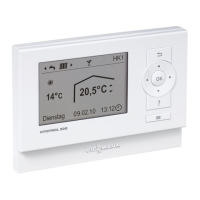
On the "Climate info" home screen you can check the
following information for the room in which the Vitotrol
is installed:
Current outside temperature
Humidity in the room
Current room temperature
You can check the current room temperature and cur-
rent temperature level in your heating circuits with .
Checking the energy consumption
The "Energy cockpit" menu enables you to check the
following energy consumption data:
■
Gas consumption in m
3
(shown in blue) and in kWh
(shown in yellow) respectively
Gas consumption for central heating: "Gas con-
sumption for heating"
Gas consumption for DHW heating: "Gas consump-
tion DHW"
■
"Electricity consumption" in kWh
The energy consumption is shown in the form of a bar
chart for the current and previous month respectively.
Displaying the "Energy cockpit"
Press the following buttons:
1.
Operating button
C
: See Fig. 8, page 20.
2. to select "Energy cockpit".
3. to select "SHOW".
4. to check the required energy consumption
data.
Calling up device information
In the "Device info" menu you can call up the following information for the Vitotrol 300-E:
Shown on display Explanations
"S/N" Serial number
"Software version"
"WiFi Status" WiFi signal strength
"WLAN Addresses"
"Low Power Radio Status" Signal strength of low power radio
"Credentials"
"Access Point Status" Status of access point ("On"/"Off")
"PSK" WiFi password
"SSID" WiFi name
Displaying the "Device info"
Press the following buttons:
1.
Operating button
C
: See Fig. 8, page 20.
2. to select "Device info".
3. to select "SHOW".
4. to call up the required information.
Diagnosis and service checks
Checking room temperatures and humidity
5839615
Diagnosis


 To Next Page