6 ViewClix support: www.viewclix.com/help or email to help@viewclix.com
Get the ViewClix Mobile App
To download and install the ViewClix app from the Apple App Store or Google Play
Store, follow the steps in email that was sent after ordering the ViewClix frame.
The app will guide you through logging into your ViewClix account to link your mobile
device with the ViewClix frame.
Share pictures with the ViewClix frame
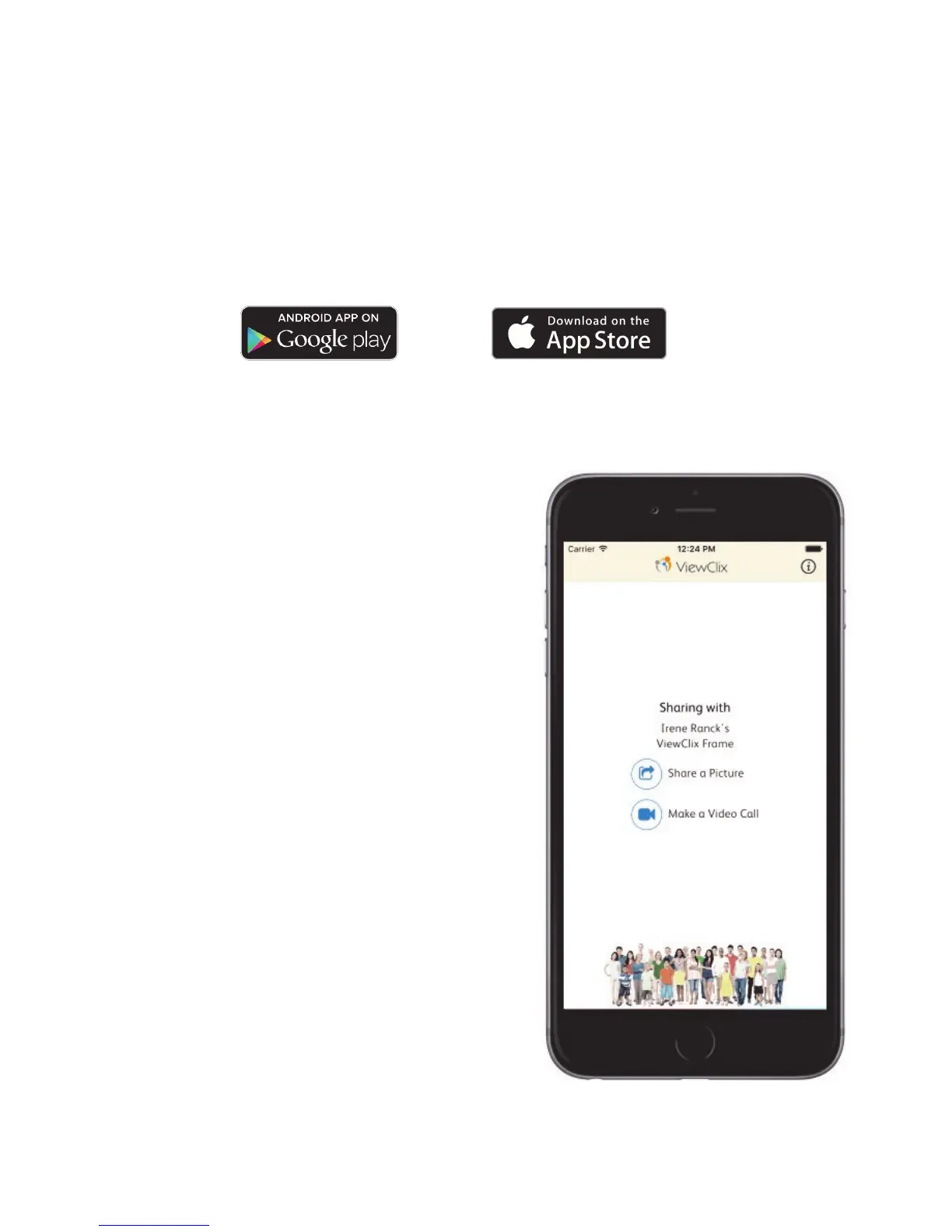
The main screen on the ViewClix app is simple:
you can touch the button to ‘Share a Picture’ or
‘Make a Video Call’.
Touch ‘Share a Picture:’
For Apple devices: You’ll then select an
album to select pictures.
For Android devices: You’ll see a collec-
tion of pictures
Select from 1 to 4 pictures to share and then
you can enter caption and conrm sharing.
The picture(s) will be uploaded to the
ViewClix Cloud and in a minute or two, the
picture(s) will automatically appear in the
SlideShow.
Repeat to share more images.
TIP: When you upload more than one picture,
you’ll see a small pencil icon in the
corner of each picture, Tap on that icon
to add caption text for each picture.


 To Next Page