EasyManua.ls Logo

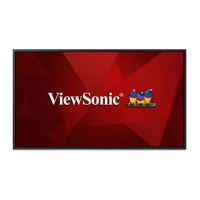
ViewSonic CDE4600-L - User Manual

ViewSonic CDE4600-L
38 pages
Print Icon
To Next Page IconTo Next Page
Loading...
CDE4600-L/CDE5500-L
LCD Monitor
User Guide
Model No. VS15661/VS15798
IMPORTANT: Please read this User Guide to obtain important information on installing
and using your product in a safe manner, as well as registering your product for future
service. Warranty information contained in this User Guide will describe your limited
coverage from ViewSonic Corporation, which is also found on our web site at http://
www.viewsonic.com in English, or in specific languages using the Regional selection
box in the upper right corner of our website. “Antes de operar su equipo lea cu
idadosamente las instrucciones en este manual”

Questions and Answers

  • K
    Kimberly EdwardsAug 14, 2025
    How to fix ViewSonic CDE4600-L Monitor when no picture is displayed?
    • B
      Brian WattsAug 14, 2025
      If your ViewSonic Monitor displays no picture, several factors could be at play. First, ensure the power cord is securely plugged in and the main power switch on the back of the display is turned on. Next, verify that the selected input has a signal connection to the display. Finally, confirm that the monitor is not in standby mode.
  • M
    Mrs. Stacey Young DDSAug 17, 2025
    How to adjust ViewSonic CDE4600-L screen size to fill the display?
    • C
      Chris WebbAug 17, 2025
      If the display image on your ViewSonic Monitor doesn’t fill up the full size of the screen, the zoom mode might not be correctly set. You can use the Zoom mode or Custom zoom function in the Screen menu to fine-tune display geometry and time frequency parameters.
  • S
    sarah48Aug 21, 2025
    Why does my ViewSonic CDE4600-L have after-images?
    • P
      Peter MeltonAug 21, 2025
      After-images on your ViewSonic monitor after it's powered off can occur if a still picture is displayed for an extended period. To prevent this, avoid displaying still images like logos, video games, or computer images for prolonged periods, especially in 4:3 normal mode, as this can cause a permanent after-image.
  • K
    Keith MontoyaAug 25, 2025
    Why is there picture but no sound on my ViewSonic CDE4600-L?
    • S
      Scott BullockAug 25, 2025
      If you can see a picture on your ViewSonic monitor but can't hear any sound, there are a few things to check: 1. Ensure that both the video and sound input cables are correctly connected. 2. Make sure the volume isn't turned all the way down by pressing the [VOL DOWN] or [VOL UP] button. 3. Check if the [MUTE] is turned on and switch it off using the [MUTE] button. 4. If you're using external speakers, ensure they are connected and the volume is adjusted to a suitable level.
  • C
    Charles JohnsonAug 28, 2025
    What to do if I hear sound but no picture on my ViewSonic CDE4600-L?
    • J
      Jessica RyanAug 28, 2025
      If you can hear sound but there's no picture on your ViewSonic Monitor, the issue might be with an improperly connected source signal cable. Ensure that both video inputs and sound inputs are correctly connected.
  • D
    Dustin SmithAug 31, 2025
    Why is the color abnormal on my ViewSonic Monitor?
    • L
      Lauren GarciaAug 31, 2025
      If the color on your ViewSonic Monitor appears abnormal, it might be due to a loose signal cable. Make sure that the signal cable is firmly attached to the back of the display.
  • S
    Samuel AguirreSep 3, 2025
    What causes picture distortion on ViewSonic Monitor?
    • S
      sanchezjaySep 3, 2025
      If your ViewSonic Monitor's picture is distorted with abnormal patterns, it could be due to a couple of reasons: 1. The signal cable might not be connected properly. Ensure that the signal cable is firmly attached. 2. The input signal might be beyond the display's capabilities. Check the video signal source to see if it is beyond the range of the display. Please verify its specifications with this display’s specification section.
  • E
    Eugene Nguyen Jr.Sep 6, 2025
    How do I stop interference on my ViewSonic CDE4600-L Monitor?
    • C
      Caitlin RiveraSep 6, 2025
      If you're experiencing interference or audible noise with your ViewSonic Monitor, it could be caused by surrounding electrical appliances or fluorescent lights. Try moving the display to another location to see if the interference is reduced.
  • D
    Donald DavisSep 10, 2025
    Why some pixels do not light up on my ViewSonic CDE4600-L?
    • D
      Deborah BrownSep 12, 2025
      This display is manufactured using an extremely high level of precision technology; however, sometimes some pixels of the display may not display. This is not a malfunction.

Summary

Compliance Information

FCC Statement

Device compliance with FCC Rules, operational conditions, and interference protection limits.

CE Conformity for European Countries

Industry Canada Notice

Compliance with Canadian RSS-210 for radio interference and licensing requirements.

R&TTE Compliance Statement

Device compliance with R&TTE Directive and its conformance standards for EU member states.

Declaration of RoHS2 Compliance

Safety Precautions

Unpacking and Installation

Parts and Functions

Connection

Operation

Change your settings

Input mode

Cleaning and Troubleshooting

Troubleshooting Guide

Common issues, possible causes, and remedies for display problems.

Technical Specifications

CDE4600-L Specifications

Detailed technical data for the CDE4600-L model, including display, terminals, and power.

CDE5500-L Specifications

Detailed technical data for the CDE5500-L model, including display, terminals, and power.

RS232 Command Table

Limited Warranty

General Warranty Coverage

Details on what ViewSonic's warranty covers regarding product defects and repair options.

General Warranty Exclusions

Exclusions from warranty coverage, including misuse, damage, and wear.

Mexico Limited Warranty

ViewSonic CDE4600-L Specifications

General IconGeneral
Resolution1920 x 1080
TypeLED
Panel TypeIPS
Aspect Ratio16:9
Contrast Ratio1200:1
Viewing Angle178°/178°
Response Time8 ms
Input ConnectorsHDMI, DisplayPort, VGA, USB
Built-in SpeakersYes
Speakers2 x 10W
Weight22.5 kg
Screen Size46 inches
Display Size46 inches
Output ConnectorsHDMI, VGA
VESA MountYes
Power Consumption120W

Related product manuals