EasyManua.ls Logo

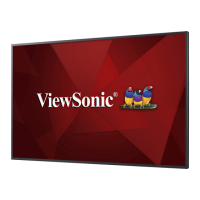
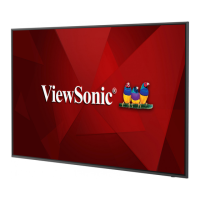
ViewSonic CDE30 Series - User Manual

ViewSonic CDE30 Series
110 pages
Print Icon
To Next Page IconTo Next Page
Loading...
IMPORTANT: Please read this User Guide to obtain important information on installing and using your product in
a safe manner, as well as registering your product for future service. Warranty information contained in this User
Guide will describe your limited coverage from ViewSonic® Corporation, which is also found on our web site at
http://www.viewsonic.com in English, or in specific languages using the Regional selection box of our website.
CDE30
Commercial Display
User Guide
Model No. VS19112 | VS19113 | VS19114 | VS19115 | VS19116 | VS19117
P/N: CDE4330 | CDE5530 | CDE6530 | CDE7530 | CDE8630 | CDE9830

Table of Contents

Other manuals for ViewSonic CDE30 Series

Questions and Answers

  • S
    Samantha TateAug 17, 2025
    Why is there no sound on my ViewSonic CDE30?
    • S
      shannon39Aug 17, 2025
      If your ViewSonic Monitor has no sound, first press the Mute/Unmute button. If that doesn't work, adjust the volume. Finally, check the audio cable to ensure it is properly connected.
  • M
    Mary BergAug 19, 2025
    How to fix 'No PC signal' on ViewSonic CDE30?
    • E
      Erin DavisAug 19, 2025
      If your ViewSonic Monitor is displaying 'No PC signal', check the display settings and resolution. If the issue persists, adjust the Hs & Vs (synchronization) settings using the OSD menu.
  • E
    Erik ManningAug 22, 2025
    Why does my ViewSonic CDE30 turn off unexpectedly?
    • R
      Ruth LeeAug 22, 2025
      If your ViewSonic Monitor unexpectedly turns off, check if Sleep mode is enabled. Also, verify if there is a power outage in your area. If neither of these is the cause, turn on the display and see if the problem is with the signal and control system.
  • J
    Jeffrey HarrisAug 25, 2025
    How to fix poor picture quality on ViewSonic CDE30 Monitor?
    • T
      Tara HartAug 26, 2025
      If your ViewSonic Monitor displays a poor picture, you should first adjust the chroma, brightness, and contrast settings in the menu. If the issue persists, check the signal cable to ensure it is properly connected.
  • C
    Christian CunninghamAug 28, 2025
    What to do if the picture on my ViewSonic CDE30 Monitor is unclear or cuts in and out?
    • M
      Matthew BlackAug 28, 2025
      If your ViewSonic Monitor's picture is unclear or cuts in and out, start by checking the signal cable. If the problem continues, check if other electronics are interrupting the signal.
  • K
    Kristen WhiteAug 31, 2025
    What to do if my ViewSonic CDE30 Monitor has no picture or sound?
    • B
      Brian DouglasAug 31, 2025
      If your ViewSonic Monitor displays no picture and no sound, verify the power status first. Then, check the signal cable to ensure it's properly connected. Lastly, confirm that the internal PC is correctly installed.
  • A
    Anthony CastilloSep 2, 2025
    How to troubleshoot a ViewSonic Monitor remote control that is not working?
    • J
      Joshua PierceSep 2, 2025
      If the remote control for your ViewSonic Monitor isn’t working, check if anything is obstructing the display’s remote control receiver. Also, make sure the batteries in the remote control are installed correctly and replace them if needed.
  • S
    Shane ClarkSep 5, 2025
    How to fix one speaker only issue on ViewSonic Monitor?
    • E
      Edward NunezSep 5, 2025
      If the sound is only coming from one speaker on your ViewSonic Monitor, adjust the sound balance in the menu. Also, check the sound control panel settings of the computer and ensure the audio cable is properly connected.
  • M
    megan54Sep 8, 2025
    Why does my ViewSonic CDE30 Monitor display false color?
    • K
      Kristine PrinceSep 8, 2025
      If your ViewSonic Monitor is showing false colors, check the connection. If the issue persists, adjust the chroma, brightness, and contrast settings.
  • Z
    zsimmonsSep 12, 2025
    How to resolve background streaking on ViewSonic CDE30?
    • D
      danielramirezSep 12, 2025
      If you are seeing background streaking on your ViewSonic Monitor, first choose auto adjust. If the problem persists, adjust the clock and phase.

Summary

Safety Precautions

Introduction

Package Contents

Lists all items included in the display package for setup.

Wall Mounting Specifications (VESA)

Details VESA mounting patterns and compatible screws for various display models.

Product Overview

Visual identification of the front and rear panels for display models.

Control Panel Overview

Explains functions of physical control panel buttons.

I;O Panels - CDE4330 | CDE5530

Identifies and describes I/O ports on CDE4330/CDE5530 models.

I;O Panels - CDE6530 Series

Identifies and describes I/O ports on CDE6530 series models.

Remote Control Functions

Details remote control buttons and operations for navigation and settings.

Inserting Remote Control Batteries

Step-by-step instructions for installing batteries in the remote control.

Remote Control Receiver Range

Illustrates effective working range and angles for remote control signal.

Making Connections

Connecting External Devices

Guides connecting external devices via USB Type-C and HDMI.

RS-232 Serial Connection

Connect display to PC via RS-232 for remote control.

USB and Network Connections

Connects USB peripherals and network cables (LAN port).

Media Player Connection

Connect media player to display via HDMI for content playback.

SPDIF Audio Connection

Connect external sound system using SPDIF port.

Video Output Connection

Output video to external device (projector) via HDMI OUT.

Using Your Display

Powering On;Off Your Display

Step-by-step guide for turning the display on and off.

Initial Launch Setup Wizard

Details initial setup: language, network, time zone selection.

Home Screen Navigation

Overview of main interface and accessing apps from Home Screen.

General Settings Configuration

Configure basic Network, Device, and System settings.

Network Settings

Configure Ethernet, Wi-Fi, Wireless Hotspot, and Bluetooth.

Device Settings Configuration

Settings for Signage Display, System Tools, Display, Apps, and Keyboard.

System Settings

Details Date & Time settings, time zone, NTP server.

On-Screen Display (OSD) Menu

Navigating the OSD Menu

Use remote control buttons to navigate and adjust OSD menu options.

On-Screen Display (OSD) Menu Structure

Hierarchical view of settings in Picture, Screen, PIP, Tiling, and Audio menus.

Picture Settings Adjustment

Adjust Brightness, Contrast, Sharpness, Color, and picture quality.

Eye Health and Blue Light Filter

Information on eye care, breaks, and blue light filter benefits.

Screen Settings Configuration

Adjust Zoom Mode, Screen Reset, and other screen display parameters.

Picture-in-Picture (PIP) Settings

Configure PIP modes, size, position, source, and audio.

Audio Settings Adjustment

Adjust Balance, Treble, Bass, Volume, Mute, and SPDIF.

Time Settings Configuration

Set Off Time, Date and Time, Schedule, OSD duration.

Advanced Settings Configuration

Panel Saving, Power Save, Boot Source/Logo, and advanced features.

Embedded Applications and Settings

vCastReceiver & vCastSender

Use vCast app for screen sharing from laptops and mobile devices.

Cast Sender for Desktop Devices

Cast content from Windows, Macbook, and Chrome devices.

Cast Sender for Mobile Devices

Cast content from iOS and Android devices, including AirPlay.

Other Default Applications & vSweeper

vSweeper for data clearing, file management, and other default apps.

Folders Application

Navigate and manage files/folders on display storage.

RS-232 Protocol

RS-232 Hardware Specifications

Details RS-232 connector types, pin assignments, and cable requirements.

LAN and RS-232 Communication Settings

Covers LAN/RS-232 hardware, communication settings, and command references.

RS-232 Protocol: Set-Function Listing

Details Set-Function command format, parameters, and examples for remote control.

Appendix

Display Specifications

Technical specs for CDE models: dimensions, weight, power.

USB Media Support Formats

Lists supported photo/video formats, codecs, resolutions, bit rates for USB playback.

Subtitle Support

Details supported internal/external subtitle file extensions, containers, codecs.

Timing Table: Resolution and Refresh Rates

Lists compatible resolutions and refresh rates for HDMI PC, HDMI, and Type-C inputs.

Troubleshooting Common Issues

Solutions for common issues: remote control, power off, signal problems.

Maintenance and Cleaning

Guidelines for precautions, cleaning screen/case, and disclaimers.

Regulatory and Service Information

FCC, CE, RoHS compliance, ENERGY STAR, and disposal information.

Customer Service and Support

Contact info for technical support and service by country/region.

Limited Warranty Details

Explains warranty coverage, duration, exclusions, and service access.

Mexico Limited Warranty

Specific warranty terms and conditions for products sold in Mexico.

ViewSonic CDE30 Series Specifications

General IconGeneral
BrandViewSonic
ModelCDE30 Series
CategoryMonitor
LanguageEnglish

Related product manuals