EasyManua.ls Logo

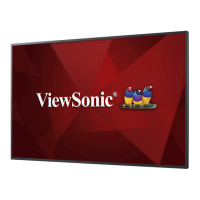
ViewSonic CDE4200-L - User Manual

ViewSonic CDE4200-L
50 pages
Print Icon
To Next Page IconTo Next Page
Loading...
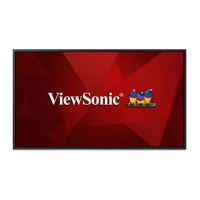
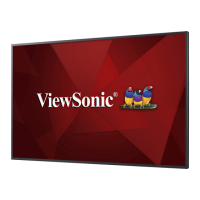
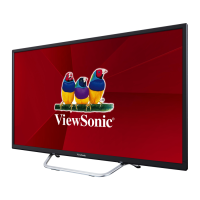
CDE4200-L
Full HD Large Format
LED Display
User Guide
Model No. VS15405
IMPORTANT: Please read this User Guide to obtain important information on
installing and using your product in a safe manner, as well as registering your
product for future service. Warranty information contained in this User Guide
will describe your limited coverage from ViewSonic Corporation, which is also
found on our web site at http://www.viewsonic.com in English, or in specific
languages using the Regional selection box in the upper right corner of our website.
“Antes de operar su equipo lea cu idadosamente las instrucciones en este manual”

Other manuals for ViewSonic CDE4200-L

Questions and Answers

  • C
    Chloe BakerAug 13, 2025
    How to troubleshoot no power on ViewSonic Monitor?
    • J
      Julia ContrerasAug 13, 2025
      If your ViewSonic monitor isn't powering on, ensure the AC power cord is properly connected to the wall outlet. Also, plug another electrical device into the outlet to verify it's supplying the correct voltage.
  • D
    davistammyAug 16, 2025
    Why does my ViewSonic Monitor power cut off suddenly?
    • J
      john53Aug 16, 2025
      If your ViewSonic monitor is suddenly losing power, ensure the sleep timer is turned off and that the PC or video signal cable is connected properly. If the internal temperature of the unit has increased, remove any objects blocking the vent or clean as necessary.
  • P
    Pamela TurnerAug 20, 2025
    Why is there no picture on my ViewSonic Monitor?
    • K
      Kristina FritzAug 21, 2025
      If your ViewSonic monitor is displaying no picture, ensure that the cable connections to other components are properly installed. Make sure that setup has been done correctly after connections. Verify the correct input is selected and the input signal is compatible.
  • T
    tamara32Aug 25, 2025
    How to correct strange color on ViewSonic Monitor?
    • J
      Jeremy BaileyAug 25, 2025
      To correct strange color issues on your ViewSonic monitor, first ensure that the video cable is securely connected. Note that the picture may appear dim in a brightly lit room. Adjust the display settings and check the input signal setting.
  • T
    Tracy KochAug 28, 2025
    What to do if ViewSonic CDE4200-L Monitor picture is cut off?
    • S
      Scott ClineAug 28, 2025
      If the picture on your ViewSonic monitor is cut off or has a sidebar screen, ensure the video signal cable is connected properly. Adjust the Screen Size setting on the Picture menu. You can also press ASPECT repeatedly on the remote control to switch to the display mode you prefer.
  • T
    Tammy CastroSep 1, 2025
    Why ViewSonic CDE4200-L Monitor unit cannot be operated?
    • K
      Kyle MoralesSep 1, 2025
      External influences such as lightning or static electricity may cause improper operation of your ViewSonic monitor. To resolve this, operate the unit after first turning on the power of the display and the AV System, or unplug the AC cord for 1 to 2 minutes, then replug again.
  • T
    Tyler JohnsonSep 4, 2025
    What to do if there is no sound on ViewSonic Monitor?
    • V
      Vanessa MoranSep 4, 2025
      If you're not getting any sound from your ViewSonic monitor, first check that your audio connections to other components are properly installed. Ensure the MUTE button hasn't been pressed. Also, verify your display audio settings, as the audio may be set to minimum. You can also try pressing VOL + on the remote control.
  • C
    Christopher KimSep 8, 2025
    How to fix ViewSonic Monitor remote control that is not working?
    • A
      Andre ThomasSep 8, 2025
      If the remote control for your ViewSonic monitor isn't working, ensure the batteries are inserted correctly and are not weak or dead (replace with new batteries if needed). Check for any fluorescent lights near the remote control sensor. Make sure the path of the remote control beam is clear and aimed at the sensor on the display. Try pressing on the remote control to see if you can turn on the display. Press MENU on the remote control to see if there is an OSD menu shown on the screen. Also, press only one button at a time and make sure it is the correct one for the operation you want to perform.

Summary

Important Safety Instructions

Safety Symbols and General Warnings

Explains safety symbols and provides essential guidelines for safe use.

Electrical and Power Safety

Guidelines for AC power cord, wall outlets, wiring, lightning, and overloading.

Important Safety Instructions (cont.)

Display Placement, Ventilation, and Wall Mounting

Guidelines for placement, ventilation, wall mounting, and preventing falls.

Important Safety Instructions (cont.)

Product Damage, Servicing, and Safety Checks

Warnings about broken pieces, liquid leakage, and the need for qualified service.

Getting Started

Getting Started (cont.)

Installing and Detaching the Stand

Step-by-step instructions for attaching and detaching the display stand.

Wall Mounting Installation

Guidelines and precautions for wall mounting the display.

Rear Panel Connections

Identifies and describes the various input/output ports on the rear of the display.

Getting Started (cont.)

Using the Display Features

Using the Display Features (cont.)

Remote Control Button Functions

Detailed description of each button on the remote control and its function.

Using the Display Features (cont.)

Input Source Selection and Parental Controls

Steps to select input sources and overview of parental control features.

Factory Reset and Display ID Settings

Steps to reset settings to factory defaults and set display ID for RS232.

Picture Settings Adjustment

How to adjust picture settings like brightness, contrast, and color.

Other Information

Troubleshooting Power and Picture Issues

Solutions for when the display does not power on or show a picture.

Other Information (cont.)

Product Specifications

Detailed technical specifications of the CDE4200-L display.

RS232 Protocol - Set-Function Commands

Details the format and description of Set-Function commands for display control.

RS232 Protocol - Set-Function Examples

Provides tables for Set-Function commands and examples.

RS232 Protocol - Remote Control Commands

Lists commands for mute, button lock, menu lock, and remote control pass-through.

RS232 Protocol - Get-Function Commands

Details the format and description of Get-Function commands for querying information.

RS232 Protocol - Get-Function Examples

Provides tables for Get-Function commands and examples.

Other Information (cont.)

RS232 Protocol - Get-Function Status and Remote Pass-through

Lists commands to get status and explains remote pass-through mode.

Mexico Limited Warranty

Mexico Service & Support Locations

ViewSonic CDE4200-L Specifications

General IconGeneral
BrandViewSonic
ModelCDE4200-L
CategoryMonitor
LanguageEnglish

Related product manuals