115115115
Screen Lock
Set a screen lock password and enable screen lock.
NOTE: If the user forgets the password, use the remote control and press
INPUT-0-2-1-4 to restore the password to default.
To set a screen lock password:
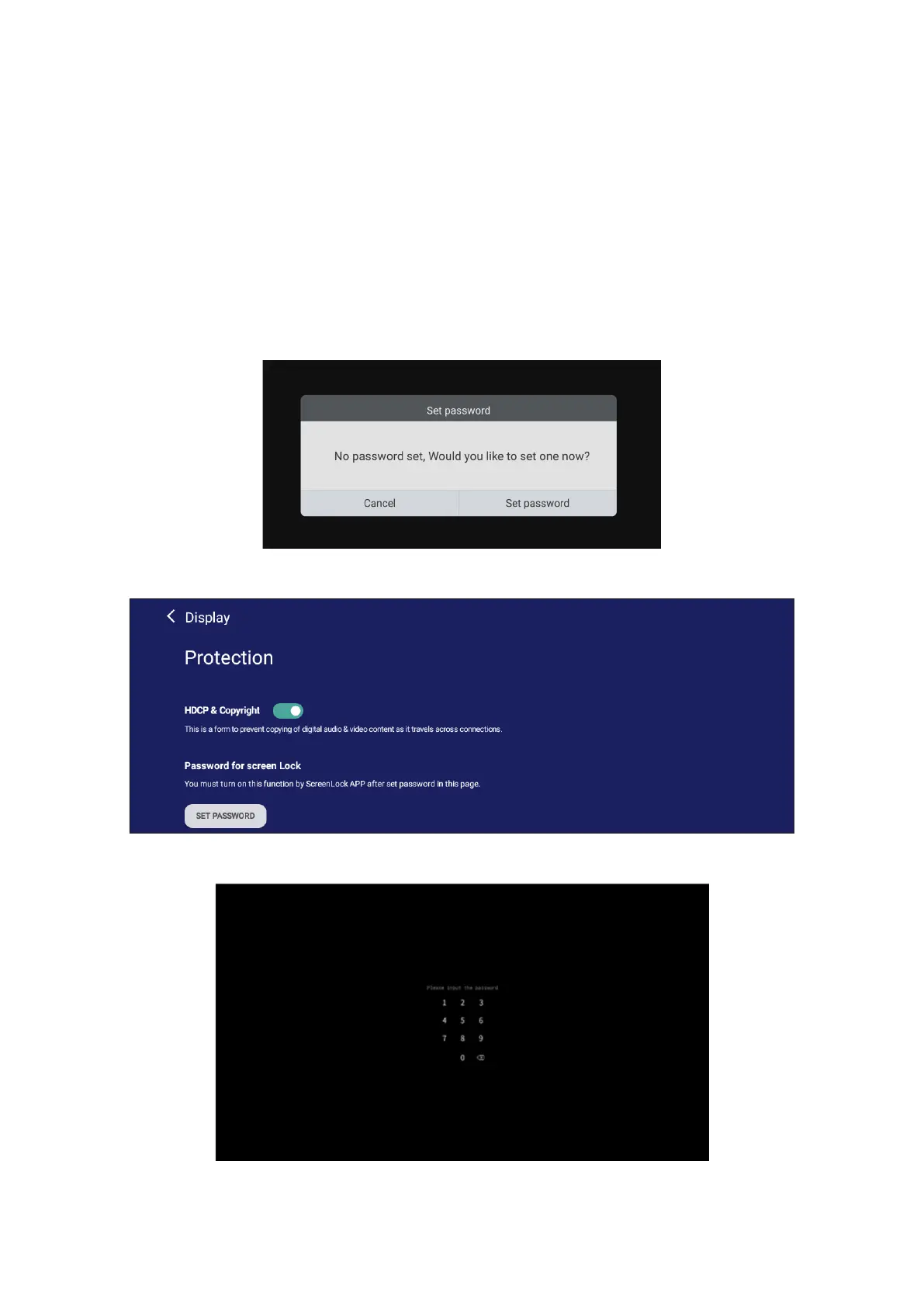
1. Go to: Sengs > Personal > Password for screen lock, or select the Screen Lock
icon in the apps list.
NOTE: If you select the Screen Lock icon and no password has been set, the
below prompt will appear:
2. Select Set Password, and input a new four (4) digit password. Then select OK.
3. Now when selecng the Screen Lock icon, the screen will be locked.







 To Next Page