EasyManua.ls Logo

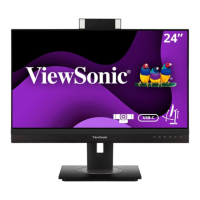
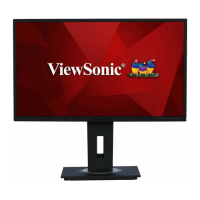
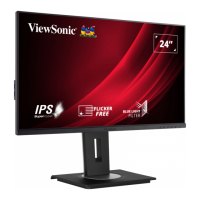
ViewSonic VG2455 - User Manual

ViewSonic VG2455
75 pages
Print Icon
To Next Page IconTo Next Page
Loading...
VG2455/VG2755/VG2455-2K/
VG2755-2K
Display
User Guide
Model No. VS17528/VS17529/VS17551/VS17552
P/N: VG2455/VG2755/VG2455-2K/VG2755-2K
IMPORTANT: Please read this User Guide to obtain important information on installing and using your product in
a safe manner, as well as registering your product for future service. Warranty information contained in this User
Guide will describe your limited coverage from ViewSonic® Corporation, which is also found on our web site at
http://www.viewsonic.com in English, or in specific languages using the Regional selection box in the upper right
corner of our website. “Antes de operar su equipo lea cu idadosamente las instrucciones en este manual”

Questions and Answers

  • D
    Denise RyanSep 12, 2025
    External device is connected, but no image appears on the ViewSonic Monitor screen: what to do?
    • S
      shelbyalvaradoSep 12, 2025
      First, ensure that the power is on. Next, check the connecting cable to make sure it is properly and securely connected. You may also need to adjust the brightness and contrast settings.
  • B
    Bobby ThompsonSep 12, 2025
    What to do if USB devices connected to the ViewSonic VG2455 do not work?
    • A
      Anita RobertsSep 12, 2025
      Make sure the USB cable is connected properly. If applicable, try changing to a different USB port. Some USB devices require a higher electric current, so connect the device directly to the computer.
  • I
    ian03Sep 9, 2025
    Why is there no audio output from my ViewSonic VG2455?
    • M
      Michael HunterSep 9, 2025
      If using headphones, make sure the mini stereo jack is properly and securely connected. Also, ensure that the volume is not muted and is not set to 0. Finally, check the Audio Input setting.
  • A
    Amanda WatkinsSep 8, 2025
    What to do if control panel keys do not work on ViewSonic VG2455?
    • B
      Bianca HoganSep 8, 2025
      Ensure you are pressing only one key at a time. If the keys still don't work, try restarting the computer.
  • Z
    Zachary FitzpatrickSep 7, 2025
    Why are some menus not selectable in the OSD on my ViewSonic Monitor?
    • L
      Lisa JohnsonSep 7, 2025
      Try restarting the computer. If that doesn't resolve the issue, adjust the ViewMode or the input source. As a final option, reset the monitor to factory settings.
  • B
    Brittany FloresAug 23, 2025
    What to do if my ViewSonic Monitor has no power?
    • A
      Anthony NelsonAug 23, 2025
      First, ensure the monitor is turned on by pressing the Power button. Next, verify that the power cord is correctly and securely connected to the monitor. Finally, test the power outlet by plugging in another electrical device to confirm it's supplying power.
  • C
    Corey FrancoSep 5, 2025
    What to do if the OSD Menu does not appear on the ViewSonic VG2455 screen?
    • R
      Ronald CookSep 5, 2025
      First, check whether the OSD Menu is locked by pressing and holding keys 2 and 3 for 10 seconds. If that doesn't work, turn off the monitor, unplug the power cord, plug it back in, and then turn on the monitor. As a last resort, reset the monitor to factory settings.
  • W
    William PerezSep 4, 2025
    Why does the screen appear yellow on my ViewSonic VG2455 Monitor?
    • K
      Kayla DixonSep 4, 2025
      Make sure the 'Blue Light Filter' is turned Off.
  • O
    olsonsarahSep 3, 2025
    How do I center the screen correctly on my ViewSonic VG2455?
    • H
      Hayden TuckerSep 3, 2025
      Adjust the resolution to the correct Aspect Ratio. If the issue persists, adjust the horizontal and vertical controls via the OSD Menu, or reset the monitor to factory settings.
  • L
    Laura BurnsSep 2, 2025
    How to fix blurred screen image on ViewSonic Monitor?
    • K
      Kathryn TerrellSep 2, 2025
      If the screen image or text is blurred on your ViewSonic monitor, adjust the resolution to the correct Aspect Ratio. If the issue persists, reset the monitor to factory settings.

Summary

Safety Precautions

Product Overview VG2455; VG2755

Product Overview VG2455-2 K; VG2755-2 K

Initial Setup

Installing the Stand

Provides step-by-step instructions for attaching the monitor stand.

Wall Mounting

Making Connections

Connecting to Power

Guides on how to connect the monitor to a power source.

HDMI Connection

Details on connecting the monitor via HDMI cable.

DisplayPort Connection

Details on connecting the monitor via DisplayPort cable.

USB Connection

Explains how to connect USB devices to the monitor.

Using the Monitor

Adjusting the Viewing Angle

Methods for adjusting monitor height, tilt, swivel, and pivot.

Tilt Angle Adjustment

Instructions for tilting the monitor forwards or backwards.

Using the Control Panel Keys

Hot Keys

Configuring the Settings

Specifications VG2455 and VG2755

Specifications VG2455-2 K and VG2755-2 K

Troubleshooting

No Power Issues

Solutions for when the monitor does not turn on.

Image Display Problems

Solutions for issues like no image, wrong colors, or blurred image.

OSD and Menu Navigation Issues

Solutions for OSD menu not appearing or keys not working.

Audio and USB Issues

Solutions for no audio output or USB device problems.

Maintenance

Customer Service

Limited Warranty

Exclusion of Damages

ViewSonic's liability limitations for damages.

Mexico Limited Warranty

What the warranty covers

Details of what is covered under the Mexico warranty.

Warranty Exclusions

List of conditions and damages not covered by the Mexico warranty.

Contact Information for Sales & Authorized Service within Mexico

ViewSonic VG2455 Specifications

General IconGeneral
Package typeBox
Package depth396 mm
Package width595 mm
Package height210 mm
Package weight9400 g
Panel typeAH-IPS
Pixel pitch0.275 x 0.275 mm
Screen shapeFlat
Display surfaceMatt
Display diagonal23.8 \
Display technologyLED
Native aspect ratio16:9
Maximum refresh rate60 Hz
Viewable size, vertical297 mm
Contrast ratio (dynamic)50000000:1
Display number of colors1.67 billion colours
Viewable size, horizontal527 mm
Digital vertical frequency50 - 75 Hz
Digital horizontal frequency24 - 82 kHz
Display brightness (typical)250 cd/m²
HDMIYes
HDMI version1.4
USB hub version3.2 Gen 1 (3.1 Gen 1)
DisplayPort version1.2
USB upstream port typeUSB Type-B, USB Type-C
Number of upstream ports2
USB Type-A downstream ports quantity3
Pivot angle0 - 180 °
Tilt angle range-5 - 40 °
Cable lock slot typeKensington
Number of OSD languages14
Panel mounting interface100 x 100 mm
NVIDIA G-SYNC-
Compatible operating systemsWindows 7, Windows 8, Windows 8.1, Windows 10, macOS
AC input voltage100 - 240 V
AC input frequency50 - 60 Hz
Power consumption (standby)0.3 W
Power consumption (typical)17.8 W
Operating temperature (T-T)0 - 40 °C
Operating relative humidity (H-H)20 - 90 %
RMS rated power4 W
CertificationcTUVus, FCC-B, ICES003, Energy Star 8.0, EPEAT Silver, CEC, MX-CoC, Mexico Energy, CE, CE EMC, CB, RoHS, ErP, REACH, WEEE, EAC, UkrSEPRO, BSMI, PSB, RCM, GEMS, CCC, China RoHS, China Energy Label
Product colorBlack
Country of originChina
Market positioningBusiness
Cables includedAC, USB, USB Type-C
Harmonized System (HS) code85285210
Weight and Dimensions IconWeight and Dimensions
Depth (with stand)202 mm
Width (with stand)539 mm
Height (with stand)512 mm
Weight (with stand)6400 g
Depth (without stand)52 mm
Height (without stand)320 mm
Weight (without stand)4000 g

Related product manuals