EasyManua.ls Logo

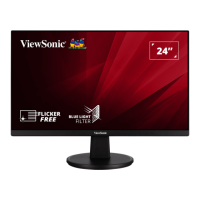
ViewSonic VS2447-mh - User Manual

ViewSonic VS2447-mh
47 pages
Print Icon
To Next Page IconTo Next Page
Loading...
VS2447-mh
Display
User Guide
Model No. VS18522
P/N: VS2447-MH
IMPORTANT: Please read this User Guide to obtain important information on installing and using your product in
a safe manner, as well as registering your product for future service. Warranty information contained in this User
Guide will describe your limited coverage from ViewSonic® Corporation, which is also found on our web site at
http://www.viewsonic.com in English, or in specific languages using the Regional selection box in the upper right
corner of our website.

Questions and Answers

  • H
    Heather LongSep 12, 2025
    Why some menus aren’t selectable in the OSD of ViewSonic VS2447-mh?
    • K
      Karla MillerSep 12, 2025
      If some menus aren’t selectable in the OSD on your ViewSonic monitor, try adjusting the ViewMode or the input source. If that doesn't work, reset the monitor to factory settings.
  • L
    Lisa GreenAug 25, 2025
    How to fix ViewSonic VS2447-mh when it has no power?
    • J
      Joshua SmithAug 25, 2025
      To resolve a ViewSonic monitor with no power, verify that you have turned on the monitor by pressing the power button. Also, ensure the power cord is properly and securely connected to both the monitor and the power outlet. Try plugging another electrical device into the same outlet to confirm the outlet is supplying power.
  • T
    Tammy JohnsonAug 25, 2025
    What to do if the external device is connected, but no image appears on the screen of ViewSonic VS2447-mh Monitor?
    • B
      Brittany WilliamsAug 26, 2025
      If the external device is connected, but no image appears on the screen of your ViewSonic monitor, make sure the power is on and adjust the brightness and contrast via the OSD Menu. Check the connecting cable and make sure it is properly and securely connected; loose or broken pins in the cable connector could cause an improper connection.
  • A
    Anthony BrownSep 23, 2025
    Why are USB devices not working on my ViewSonic VS2447-mh?
    • J
      Jessica MorrisSep 23, 2025
      If USB devices connected to your ViewSonic monitor do not work, make sure the USB cable is connected properly. Try changing to another USB port, if applicable. Note that some USB devices require a higher electric current, so connect the device directly to the computer in such cases.
  • R
    Ricardo AndrewsSep 12, 2025
    Why does the screen appear yellow on my ViewSonic VS2447-mh?
    • J
      Jeffrey MoraSep 12, 2025
      If the screen on your ViewSonic monitor appears yellow, make sure the “Blue Light Filter” is turned off.
  • L
    Leslie LopezSep 18, 2025
    How to fix some menus that aren’t selectable in the OSD on ViewSonic VS2447-mh?
    • Z
      Zachary OchoaSep 18, 2025
      To resolve menus that aren’t selectable in the OSD on your ViewSonic monitor, adjust the ViewMode or the input source. You can also reset the monitor to factory settings.
  • E
    Edward SmithSep 5, 2025
    Why does my ViewSonic VS2447-mh screen image cut in and out?
    • C
      Courtney DavidsonSep 6, 2025
      If the screen image on your ViewSonic monitor cuts in and out, make sure the correct input source is selected. Check the video cable connector for bent or broken pins, as this could be the cause. Also, ensure the video cable connecting the monitor to the computer is properly and securely connected.
  • J
    Jeffery LopezSep 6, 2025
    How to fix a blurred screen on my ViewSonic Monitor?
    • R
      Rebecca HopkinsSep 6, 2025
      If the screen image on your ViewSonic monitor is blurred, adjust the resolution to the correct Aspect Ratio. If the problem persists, reset the monitor to factory settings.
  • H
    hlopezSep 18, 2025
    What to do if the OSD Menu on my ViewSonic Monitor is not working?
    • M
      Maureen EvansSep 19, 2025
      If the OSD Menu does not appear on the screen or the OSD controls are inaccessible on your ViewSonic monitor, check whether the OSD Menu is locked. If it is, press and hold the 3 and 5 key for 10 seconds. You can also try turning off the monitor, unplugging the power cord, plugging it back in, and then turning on the monitor. If the issue persists, reset the monitor to factory settings.
  • C
    christinastephensonAug 30, 2025
    How to fix blurred screen image on ViewSonic VS2447-mh Monitor?
    • K
      Kevin CraneAug 30, 2025
      To resolve a blurred screen image on your ViewSonic monitor, adjust the resolution to the correct Aspect Ratio. If the issue persists, reset the monitor to its factory settings.

ViewSonic VS2447-mh Specifications

General IconGeneral
Screen Size24 inches
Aspect Ratio16:9
Brightness250 cd/m²
Refresh Rate60 Hz
Color Support16.7 million colors
Resolution1920 x 1080
Contrast Ratio1000:1
ConnectivityHDMI, VGA
Viewing Angle178°/178°
Power Consumption25 W

Related product manuals