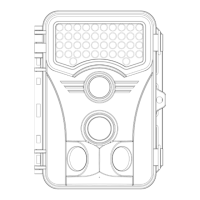
The Vikeri 4K Trail Camera is a versatile device designed for hunting, wildlife monitoring, or farm surveillance. It offers a range of features for capturing photos and videos, with various modes and settings to suit different needs.
Function Description
The camera operates in three primary modes:
- OFF: The camera is powered off and inactive.
- TEST: This mode allows users to set up the camera, perform function tests, and manually take photos or record videos. The LCD screen is active, displaying the current work mode, camera pixel parameters, and estimated remaining memory card capacity.
- ON: In this mode, the camera is fully operational. A blue light flashes for 15 seconds during preparation, after which the light and screen turn off, indicating that the camera has started working and is ready to detect motion and record.
The camera supports both photo and video capture, or a combination of both. Users can select different photo resolutions (5MP to 32MP) and video resolutions (VGA to 4K). It also offers a "Photo Series" setting to capture multiple photos in a single shooting event.
Motion detection is a key feature, with adjustable sensitivity (Low, Middle, High) to suit various environments. The "Shot Lag" setting allows users to define the interval between triggers, preventing excessive recording.
For specific monitoring periods, the "Target Recording Time" feature enables the camera to operate only during user-defined hours (e.g., PM 9:00 to AM 6:00).
The "Time Lapse" function transforms the camera from motion detection mode to interval photo mode. In "Normal" time lapse, the camera takes photos or records videos at set intervals. "TL video" mode automatically stitches these interval photos into a video. It's important to note that infrared (IR) functionality is disabled when Time Lapse is active.
Usage Features
Getting started with the Vikeri 4K Trail Camera involves a few simple steps:
- Unlocking and Battery Installation: Open the camera by unlocking the side locks, then open the battery cover to insert 4 or 8 AA 1.5V alkaline batteries. The camera is not compatible with 1.2V rechargeable batteries.
- SD Card: A 32GB SD card is pre-installed. The camera supports SD cards up to 256GB (Class 10).
- Powering On: Switch the power to "TEST" mode to configure settings.
- Formatting SD Card: It is recommended to format the SD card via the camera's menu (MENU → Format memory card → YES → OK) to ensure proper recognition and recording.
- Resetting Camera: If the camera malfunctions, a reset option is available (MENU → Reset settings → YES → OK).
- Setting Photo/Video Resolution: Adjust photo and video resolutions through the menu (MENU → Photo resolution/Video resolution).
- Video Length: Customize individual video lengths from 3 seconds to 10 minutes.
- Audio Recording: Users can choose whether to record sound with videos.
- Time and Date: Set the current time and date, and modify time and date formats.
- Photo Stamp: Select the time stamp format to display on photos.
- Password Protection: Set a 4-digit numeric password to protect the camera. If forgotten, a specific button combination (replay and up buttons simultaneously while switching from OFF to TEST) will remove it.
- Serial Number: Assign a 4-digit code name to the camera, which will appear on the photo stamp, useful for distinguishing between multiple cameras.
- MENU: Opens/closes setup or replay menu; stops video in replay mode.
- REPLAY: Previews photos and videos on the LCD screen.
- UP (↑): Moves cursor up; switches to video function in TEST mode; views next photo/video in REPLAY mode.
- DOWN (↓): Moves cursor down; switches to photo function in TEST mode; views previous photo/video in REPLAY mode.
- LEFT (←): Moves left; used for zooming in on photos.
- RIGHT (→): Moves right; used for zooming in on photos.
- SHOT: Takes a photo or records a video manually in TEST mode; zooms in on photos in REPLAY mode.
- OK: Confirms/enters in menu; zooms out on photos in REPLAY mode; starts/pauses video replay.
Other Functions:
- USB Boot: If the camera doesn't turn on, connect it to a computer via USB while holding the "UP" button. Once the system starts, release the button, insert fresh batteries, and unplug the USB cable.
- Playback: View photos/videos directly on the LCD screen. Use SHOT to zoom in, OK to zoom out, and OK to play/pause videos. MENU stops video playback.
- Delete Files: In REPLAY mode, press MENU to access the file menu and delete current or all files.
- Activate Slide Show: In REPLAY mode, press MENU and select "Activate slide show" to automatically display photos for 2 seconds each. Press OK to stop.
- Write Protection: Protect individual files from accidental deletion via the REPLAY menu. This protection prevents deletion but not data loss due to memory card failure.
- Export Files: Connect the camera to a computer via USB (camera off) to access files on the memory card like any storage device. The USB port also supports smartphone connection with an OTG component.
Installation:
The camera can be mounted on a wall using a metal plate, bolts, and stoppers, or on a tree using the provided installation belt. The belt can be shortened by passing it through multiple holes on the support. For added security, both the fixation kit and installation belt can be used together.
Maintenance Features
- Battery Recommendations: Use 1.5V AA alkaline batteries. If using 4 batteries, place them in either the upper or lower compartment. Avoid mixing dead and fresh batteries.
- External Power: The camera can be powered by an external 6V DC 1.5A adapter. It's recommended to remove alkaline batteries when using an adapter to prevent overcharging.
- Storage: Remove batteries if the camera will not be used for a long period.
- Water Exposure: Do not submerge the camera in water.
- Temperature: The camera can operate up to 160°F, but keep it away from fire.
- SD Card Handling: Always turn off the camera before inserting or removing the SD card. Do not remove the SD card or disconnect the camera from the USB port during formatting or data transfer to prevent data loss or corruption.
- Troubleshooting: If the camera freezes, has strange color blocks, or doesn't respond when connected to a computer, contact customer support. For issues with night vision or recording length, check battery levels. If fog appears inside the camera, it's due to temperature changes and will dissipate when temperatures normalize.
- Firmware Updates: The firmware can be updated by contacting customer service for the most recent version.

 Need help?
 General

 To Next Page