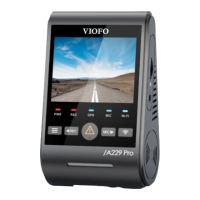
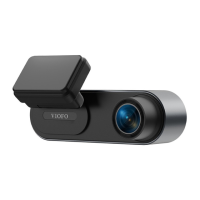
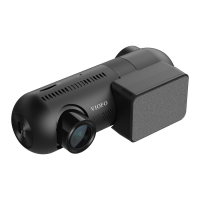
Review and Control on Smartphone
The VIOFO app allows you to control your camera remotely by using
a smartphone. Features include full camera control, live preview,
playback and video recording. While the Wi-Fi enabled, the camera
can be only controlled by the VIOFO app.
Turn on the Wi-Fi in the menu or long press the [ ] button.
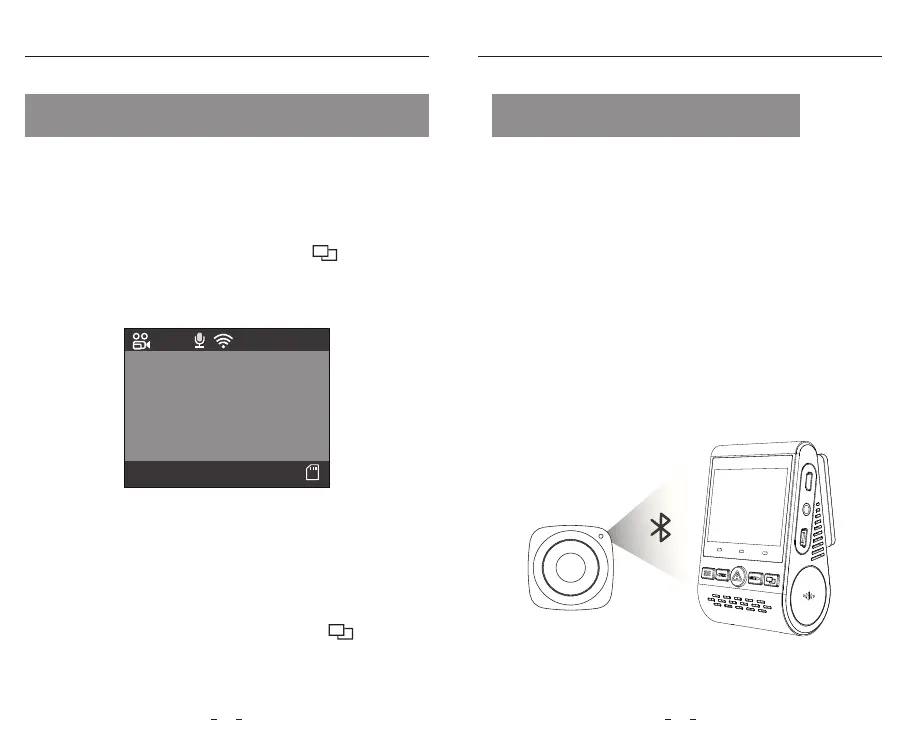
When the Wi-Fi is on, a Wi-Fi status icon and the password appear on
the camera LCD screen.
Review and Control on Smartphone Bluetooth Remote Control
23 24
Connecting the camera to a smartphone
• Open the Google play store on an Android device or Apple app
store on an iOS device.
• Download and install VIOFO APP.
• Run VIOFO APP.
• Turn on the Wi-Fi in the menu or long press the [ ] button.
• On the VIOFO app, follow app instruction to connect with the
camera.
SSID: VIOFO-A129P-*****
PWD: 12345678
2019-07-01
08:25:10
00:00:08
4K 30FPS
With the Bluetooth remote control (Optional) mounted in a
convenient location on your dashboard, you can safely protect
important videos from being overwritten, without needing to
take your eyes o the road. When you press the Bluethooth
remote, the camera will lock the current video le and take a
video snapshot.
Bluetooth Remote Control
Pairing with the dash camera
• Power on the camera.
• Press and hold the video lock button on remote control for
3 seconds to pair with the camera.
• If they get paired successfully, the LED indicator of the remote
turns blue.
VI OFO
USB
AV
Rear
REC
Wi-Fi
MIC

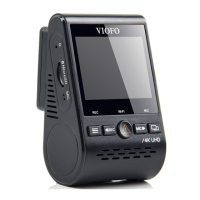

 To Next Page