Motion Detection
Should you wish to use Motion detect recording, it can be set per camera, per time period and
to detect in certain portions of the screen.
Right click to open the menu and select “MAIN MENU”.
Select “SETTING”
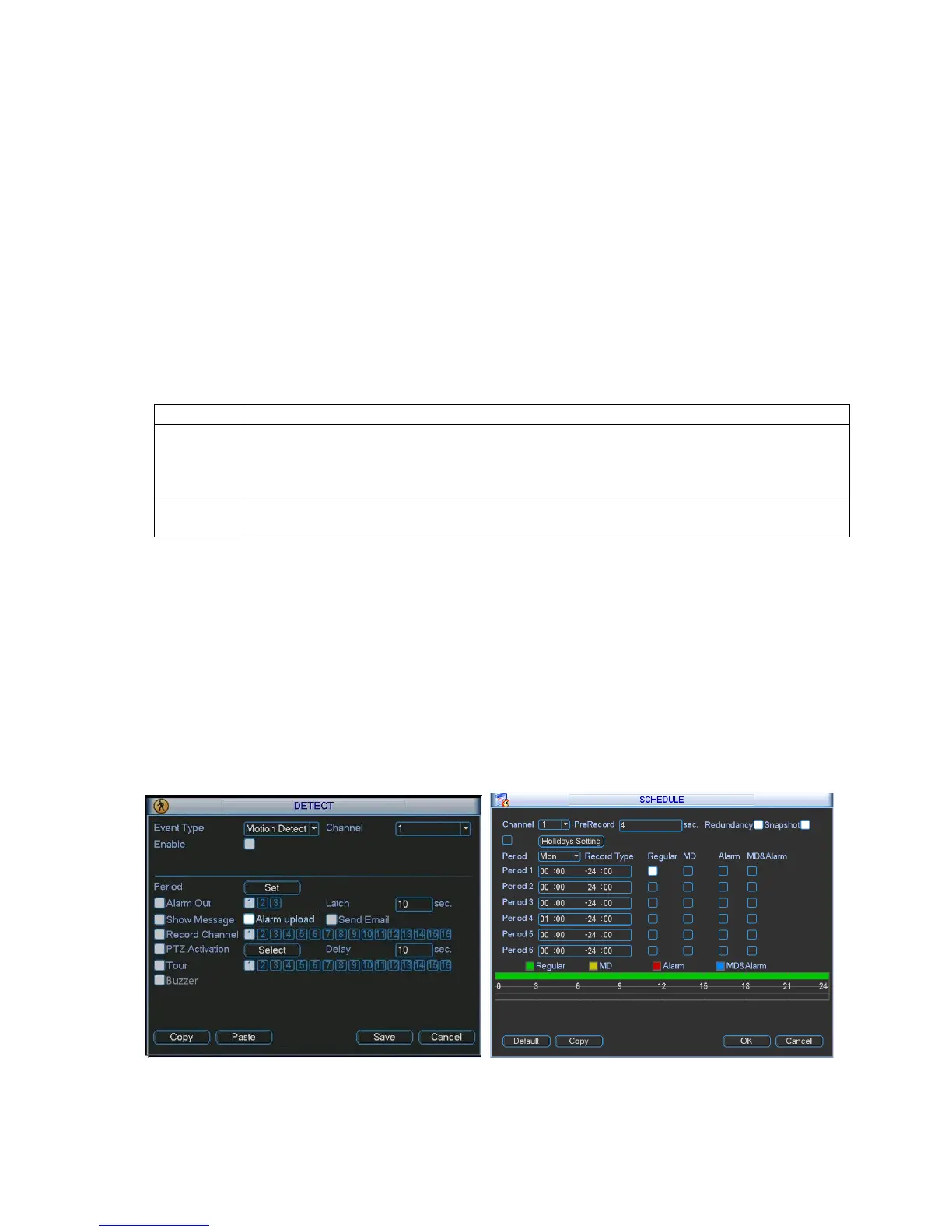
Select “DETECT”
Select „Motion Detect‟ from Event Type
Select channel from Channel drop down
Check the Enable box
Ensure Record Channel is checked, and a Region has been selected.
Click Save.
More Settings:
Time to wait after motion is detected, before checking for motion again.
Select region of feed within which motion detection will occur.
Click and drag with the mouse to arm/disarm areas of the feed.
Motion detected in red areas will cause recording, motion will not be detected in
grey areas. Press “ENTER” to save.
Select from 1 to 6 the sensitivity of the recording, 6 being the most sensitive to
movement.
Right click to open the menu and select “MAIN MENU”.
Select “SETTING”
Select “SCHEDULE”
Select a channel.
Choose a period and set the time options to the period you wish to motion record, bearing in
mind system uses 24 hour time.
Check MD for this period.
Click OK to save.


 To Next Page