Set Up the NVRs Networking
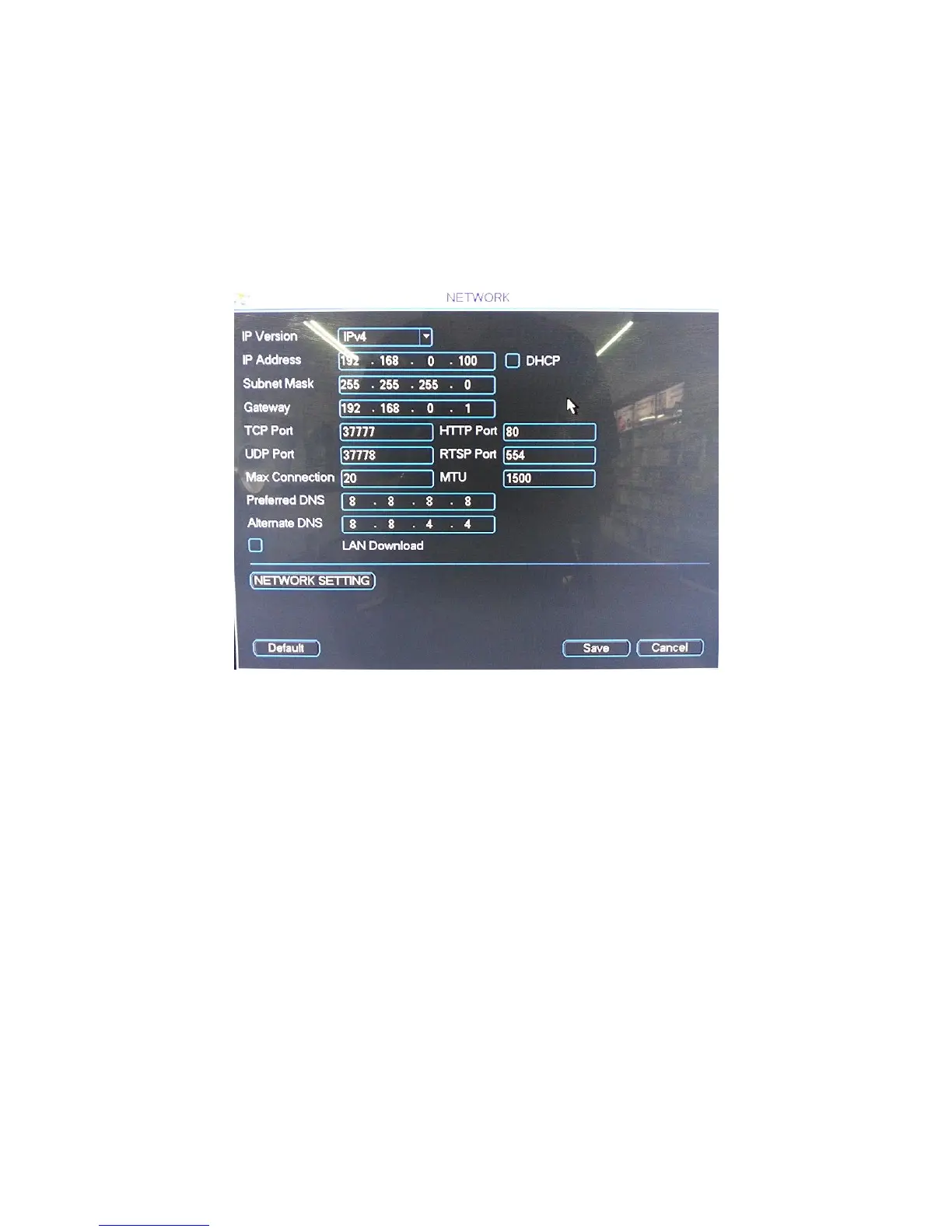
Right click to open the menu and select MAIN MENU, then select SETTINGS followed by NETWORK.
The device comes pre-configured to DHCP (which means it will automatically receive an IP
Address). If you wish to manually give it an IP Address, un-tick DHCP and then enter the IP
Address, Subnet mask, and Gateway.
In this example we have used 192.168.0.100
The inbuilt POE Switch uses a different IP address range that will in no way affect your network or the
NVR. This can be found under NETWORK SETTINGS and then double clicking on SWITCH SETTINGS.
While these settings can be changed we strongly recommend leaving it at its default configuration:
IP Address: 10.2.2.2
Subnet Mask: 255.255.255.0
Gateway: 10.2.2.1


 To Next Page