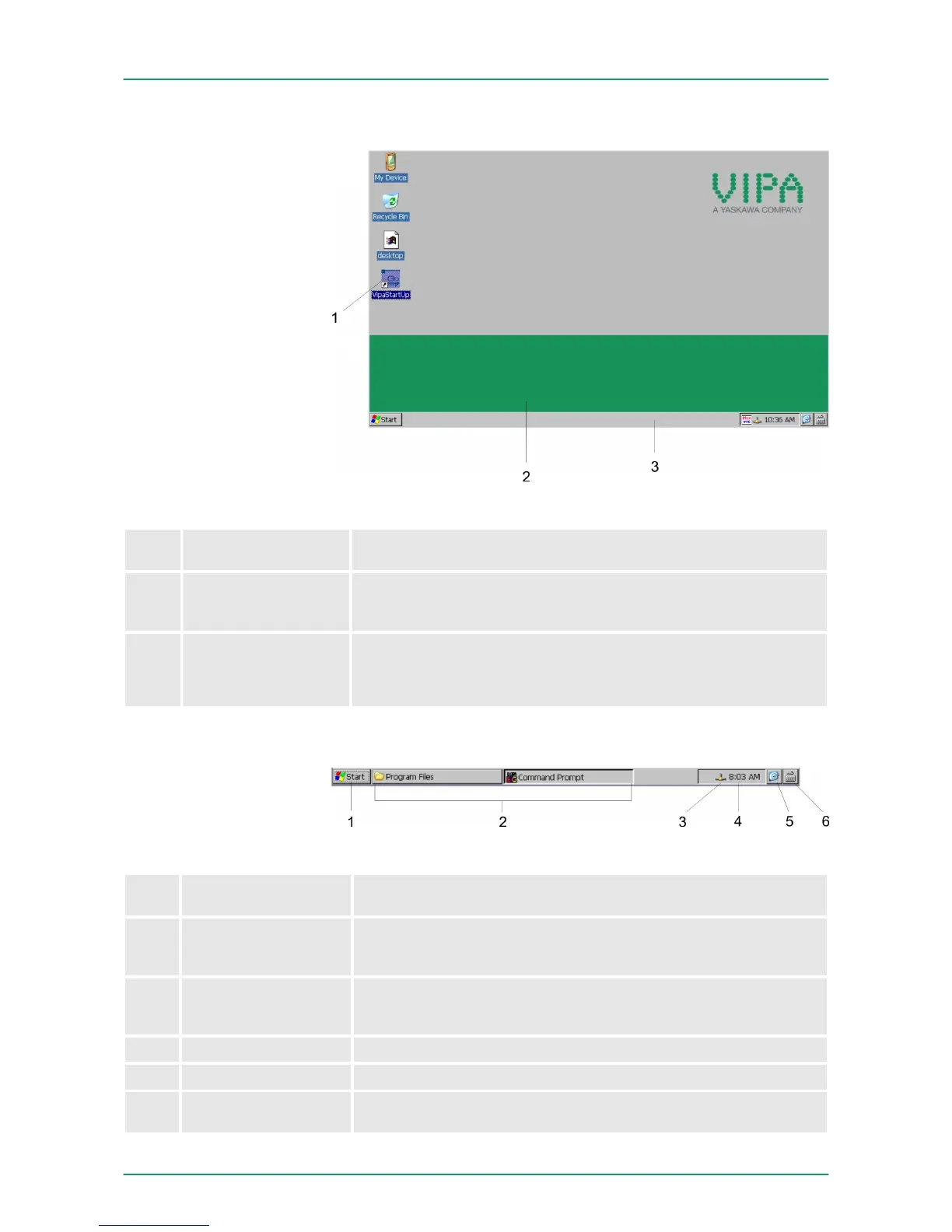
3.6.2 Structure
1 Icon Via icons on the desktop you gain direct access to the application
related to the icon.
2 Desktop
The desktop is the screen that is shown after login at Windows
Ò
CE. It contains e.g. links to the mostly used applications res.
system components.
3 Task bar The task bar is part of the desktop. When opening an application,
a document or a window, every running object is displayed as
button on the task bar. Via this buttons you may easily change
between the open windows.
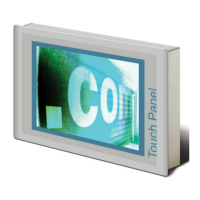
Basically the taskbar has the following structure:
1 Start button This button offers you access to all components of your Touch
Panel like e.g. applications, system settings, file browser etc.
2 Open applications For every open application a button is to be found in the task bar.
There is no button for minimizing. The switch between the appli-
cations is performed via this buttons.
3 Network connection As soon as your Touch Panel is connected via Ethernet you can
see here the Ethernet address. If there is no connection via
Ethernet, the symbol is displayed crossed out.
4 Time This area shows the time that you may change via double click.
5 Show desktop All windows are minimized and the desktop is shown.
6 Software keyboard This button displays a keyboard at the screen. "Hide Input Panel"
hides the keyboard again.
Taskbar
VIPA HMI Touch Panel Deployment under Windows CE 6.0 Core
Operating system WindowsÒ Embedded CE 6.0 Core> Structure
HB160 | TP-ECO | 62K-NHC0 | GB | 14-27 35


 To Next Page