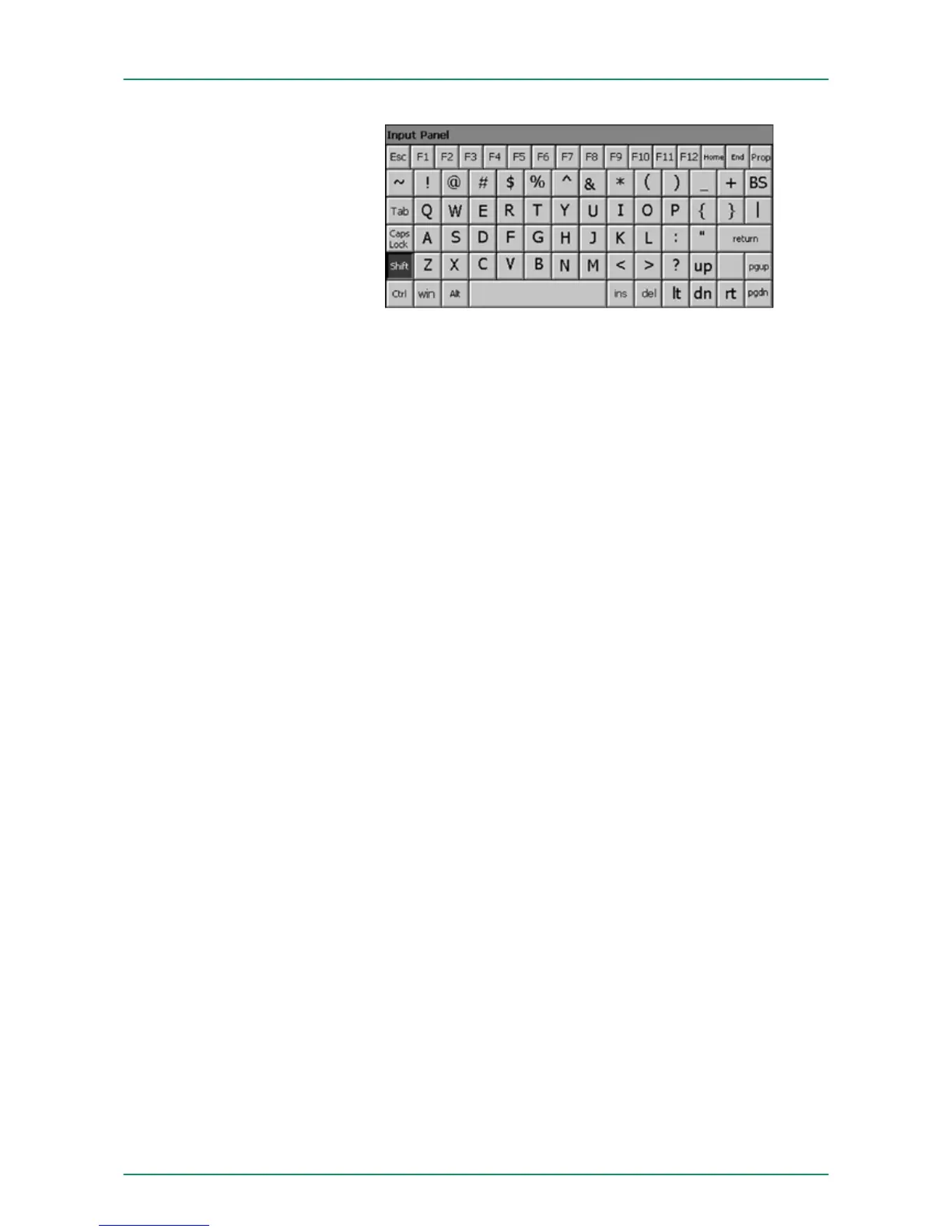
Home Position 1
End End
BS Backspace
up
dn ¯
lt ¬
rt ®
pgup Page
pgdn Page ¯
ins Insert
del Delete
Tab Tabulator
Shift
Caps/Lock
The software keyboard allows you to enter key entries without con-
necting an external keyboard. As soon as an entry is required the
software keyboard is automatically shown. Hide Input Panel hides the
keyboard again.
As many components of the Control Panel conform with the system
control of Windows
Ò
, most of the description is not necessary. The
description of the control panel components relevant for operating the
Touch Panel can be found in the following:
n Set display
Via ‘Start è Settings è Control Panel è Display’ the dialog win-
dows for the display properties opens. Here you may change the
settings for the monitor options. For example you may adjust the
brightness and contrast via the register Settings.
n Calibrate touch screen
If the touch screen does not always react to a double click or not
precisely recognize the position of an entry, you can call the
dialog Stylus via ‘Start è Settings è Control Panel’. In the reg-
ister Double-Tap you can use the grid pattern to preset a double
click velocity and test this on the symbol below. Click [OK] to
accept the value. The calibration of the touch screen is completed
via the register Calibration by following the instructions.
Meaning
Hide keyboard
System setting (Control
Panel)
VIPA HMI Touch Panel Deployment under Windows CE 6.0 Core
Operating system WindowsÒ Embedded CE 6.0 Core> Structure
HB160 | TP-ECO | 62K-NHC0 | GB | 14-27 37


 To Next Page