The Sentry 950 is a handheld reader designed for efficient and accurate reading of ERT® radio modules. Its primary function is to acquire and display information from these modules using a graphical interface on a touch LCD screen. Beyond basic reading, the device offers several advanced features, including signal strength checking, internal memory for data storage, and the ability to upload records to a Windows PC. The radio receiver boasts high sensitivity, enhancing its range and reliability, and also incorporates a wakeup tone transmitter.
Function Description:
The core function of the Sentry 950 is to read ERT® radio modules. This is achieved by accessing the "Reading" screen, either by pressing '0' on the keypad or touching the "Reading" button on the LCD. To initiate a reading, the radio must be turned on, which can be done by pressing '3' on the keypad or the "Radio ON/OFF" button on the display. If the "wakeup tone" option is selected, a wakeup tone will be transmitted, and a "wakeup" signal symbol along with a red antenna icon will appear on the display, indicating the radio receiver is active. For standard sensitivity mode, the device needs to be placed no further than 5 inches from the meter to obtain a reading. The Sentry 950 supports various ERT protocols, including SCM, SCM⁺, IDM, and DoD, ensuring compatibility with a wide range of modules.
Another key function is signal strength measurement. From the main screen, pressing '2' on the keypad or the "Signal Strength" button on the display leads to the "Signal Strength" screen. Here, a gauge with a needle visually represents the RF strength of the signal received from the module. The power meter scale is color-coded into three sections: red for poor signal, yellow for moderate, and green for a strong signal, providing an intuitive visual indicator of signal quality.
The device also functions as a data logger. It has an internal memory to store readings, which can be browsed and managed. The "Browse Memory" screen, accessed by pressing '4' on the keypad or the "Browse Memory" button, allows users to navigate through saved RF messages. The memory contents can be scrolled using '3' (Up) or '9' (Down) on the keypad or by touching the corresponding buttons on the display.
For data management, the Sentry 950 facilitates uploading stored memory contents to a PC. From the "Options" menu, pressing '7' or the "Upload Memory" button puts the device into a mode where it waits for a PC connection to download saved data. This operation requires the Sentry 950 Collection Software on the PC, and the unit connects via a USB cable.
Important Technical Specifications:
While specific numerical specifications like battery capacity or processor speed are not detailed in the provided text, several operational and connectivity aspects can be inferred as technical specifications:
- Display: Touch LCD screen with graphical interface.
- Input: Keypad and touch screen.
- Radio Module Compatibility: ERT® radio modules.
- Supported Protocols: SCM, SCM⁺, IDM, DoD.
- Sensitivity Modes: Standard sensitivity (requiring proximity of 5 inches or less) and High Sensitivity mode (indicated by a yellow 'H' icon), which increases the effective distance range.
- Memory: Internal flash memory for storing meter readings.
- Connectivity: USB cable for PC connection and data upload.
- Software Compatibility: Sentry 950 Collection Software for PC data upload.
- Power Management: Automatic power-down after two minutes of idle time. Battery status display (charging, charged, or percent charge).
- Firmware: Firmware revision level is displayed (e.g., FW 1.18A).
Usage Features:
The Sentry 950 is designed with user-friendly features to enhance its operational efficiency:
- Intuitive Interface: The main screen provides quick access to four sub-screens: Reading, Signal Strength, Options, and Browse Memory.
- Powering Up/Down: To power up, press and hold key '1' for four seconds. To power down manually, press and hold '1' from the main screen for at least four seconds until an audible beep. Automatic power-down after two minutes of inactivity conserves battery.
- Battery Status: The upper left corner of the main screen displays the battery status, indicating "charging," "charged," or the percentage of charge.
- Custom Messages: Users can write custom messages on the "Reading" screen by pressing the center window and using the keypad. Once typing begins, the keypad is dedicated to text input, requiring the touch screen for other actions.
- Autosave Function: An "Autosave" option, when selected, automatically stores meter readings in the internal flash memory. If not selected, readings can be manually saved by pressing '2' on the keypad or the "Save Record" button. An icon (diskette) appears next to the "Save Record" button when Autosave is active.
- ERT ID Filtering: The "ERT Filter" screen, accessed by pressing '4' or the "ERT Filter" button, allows users to enter a specific ERT ID. This filters out messages from other modules, ensuring only the device with the specified ID is read. This screen is exclusively navigated via the touch screen.
- Protocol Exclusion: On the "ERT ID Filter" screen, users can check one or more "Exclude" options to filter out selected protocols (SCM, IDM, DoD, SCM+).
- Adjustable Backlight: The brightness of the backlight can be adjusted from the "Options" screen. Pressing '4' or the '-' button lowers brightness, while '6' or the '+' button raises it.
- High Sensitivity Mode: This option, accessible via '8' on the keypad or the "High Sens" checkbox in "Options," increases the effective distance range of the device, useful for challenging reading environments.
- Beep Settings: The "Beep Settings" screen, accessed by pressing '3' or the "Beep Settings" button in "Options," allows users to configure beeps for every action, upon packet reception, or to disable them entirely.
- Wake Tone Transmission: The "Wake Tone" selection in "Options" causes the device to transmit an RF modulated tone for 10 seconds once the radio receiver is enabled.
- Decimal Point Settings: This feature in "Options" allows setting the number of decimal points for each ERT reading type.
- Memory Browsing: Users can easily scroll through saved memory contents using the 'Up' and 'Down' buttons on the display or '3' and '9' on the keypad.
- Data Upload Process: The device provides clear on-screen prompts during data upload, indicating "Ready to send memory contents," "Attached, Sending....." with a progress percentage, and a final confirmation window upon completion.
Maintenance Features:
The manual highlights several features related to data integrity and device management, which can be considered maintenance-related:
- Erase Memory Function: From the "Options" menu, pressing '5' on the keypad or the "Erase Memory" button leads to a red confirmation screen ("All Data Will Be Erased!!! Are You Sure?"). This feature allows users to clear the internal memory. The manual explicitly states that it is "a good practice to back up data before emptying memory," emphasizing data preservation.
- Firmware Revision Display: The firmware revision level (e.g., FW 1.18A) is displayed on the "Options" screen, which is useful for troubleshooting, updates, and ensuring the device is running the latest software.
- PC Connectivity for Data Backup: The ability to upload memory contents to a PC via USB and the Sentry 950 Collection Software serves as a crucial maintenance feature for backing up valuable reading data, preventing loss in case of device issues or memory erasure.
- Battery Status Monitoring: The continuous display of battery status (charging, charged, or percentage) allows users to monitor power levels and ensure the device is adequately charged for operation, preventing interruptions during readings.

 Need help?
 General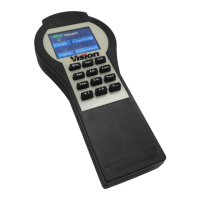

 To Next Page