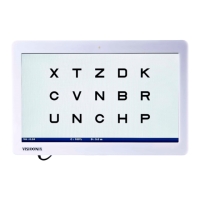
Display 3 lines of optotypes
➢ Press the "no mask" button.
Note: pressing this button enables alternative switching between 3 identical acuity lines and 3
different acuity lines.
6. Display optotypes on a red /green background
➢
Press the red/green button.
7. Display optotypes in white on a black ground
➢ Press the B/W button.
Note: in white-on-black-background mode he contrast and acuities can be varied.
8. Modify the information bar
Display/mask the information bar
➢ Press and hold the Infos button.
Magnify the information bar (momentary magnification)
➢ Press the Infos button when the information bar is displayed
9. Focus on an optotype/ Use cursor mode
The cursor mode adds bars above and under the optotype which indicates which optotype to read.
Activate / desactivate cursor mode
➢ Press the “Single letter” button.
Change the pointed optotype
➢ Use the left/right/up/down arrows


 To Next Page