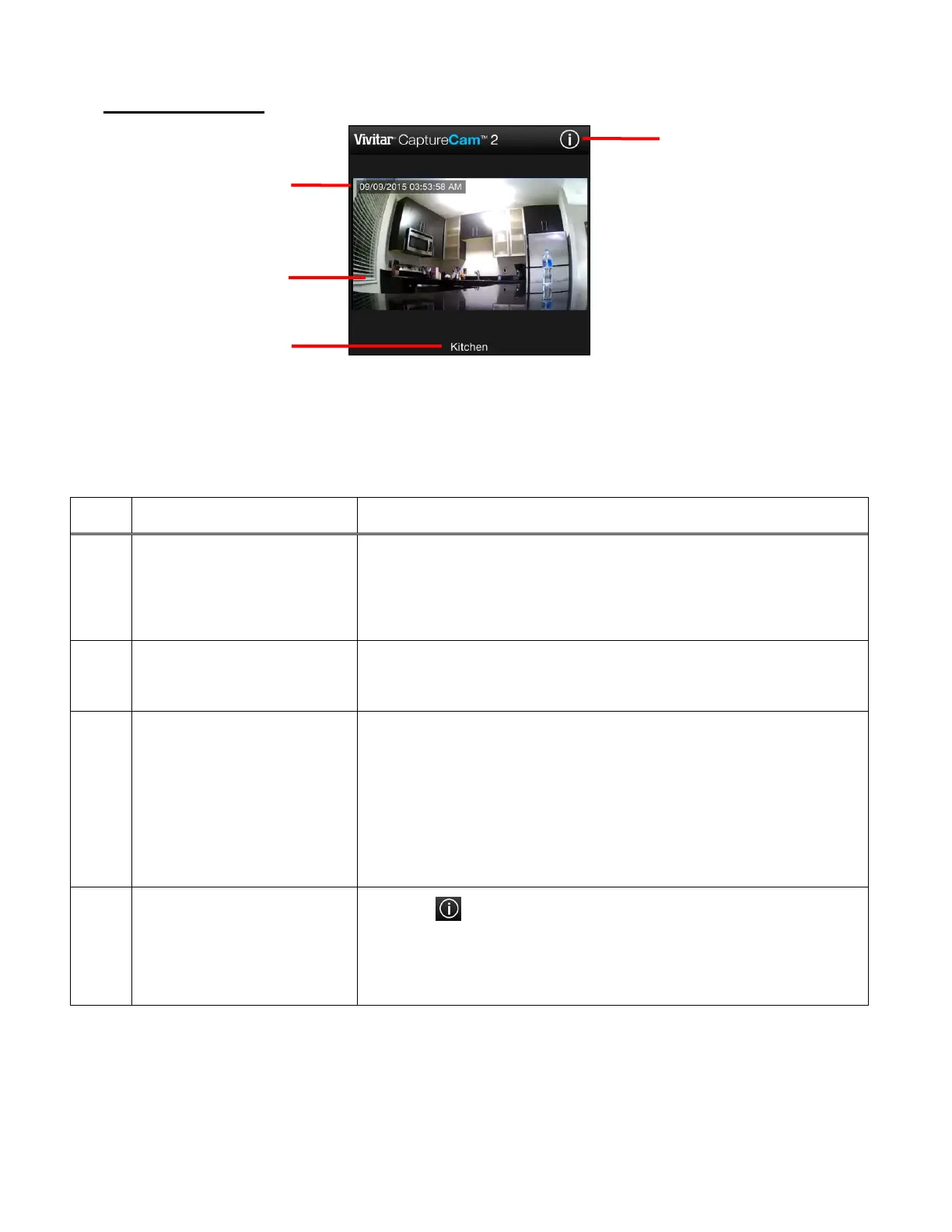
2. LIVE CAMERA
The Live Camera on the top section of the Home screen displays the large view of your selected
camera’s streaming video from the Camera List.
The following information appears on the Live Camera:
Displays the camera name you entered during the setup.
NOTE: You can change the camera name at any time via
the Camera Menu ‘Settings’ option.
Displays the selected camera’s live video stream. Tap to
open the Live Camera View – Full Screen.
Displays the current date and time based on the Time Zone
settings entered during the camera setup. You can change
the time and date via the Camera Menu ‘Settings’ option.
Then select ‘General Settings’ to change the time zone and
to control showing or hiding the date and time display.
Tap the App Information button to view the following
information regarding the application and camera:
About, Help, User Manual, License
2. Live Camera
Video Stream
This manual downloaded from http://www.manualowl.com



 To Next Page