CAPTURED DATA
You can view your recorded videos and captured snapshots in the Captured Data view.
Tap the Captured Data button from the Camera Live Video view to
access your saved images organized by:
SNAPSHOTS and VIDEOS
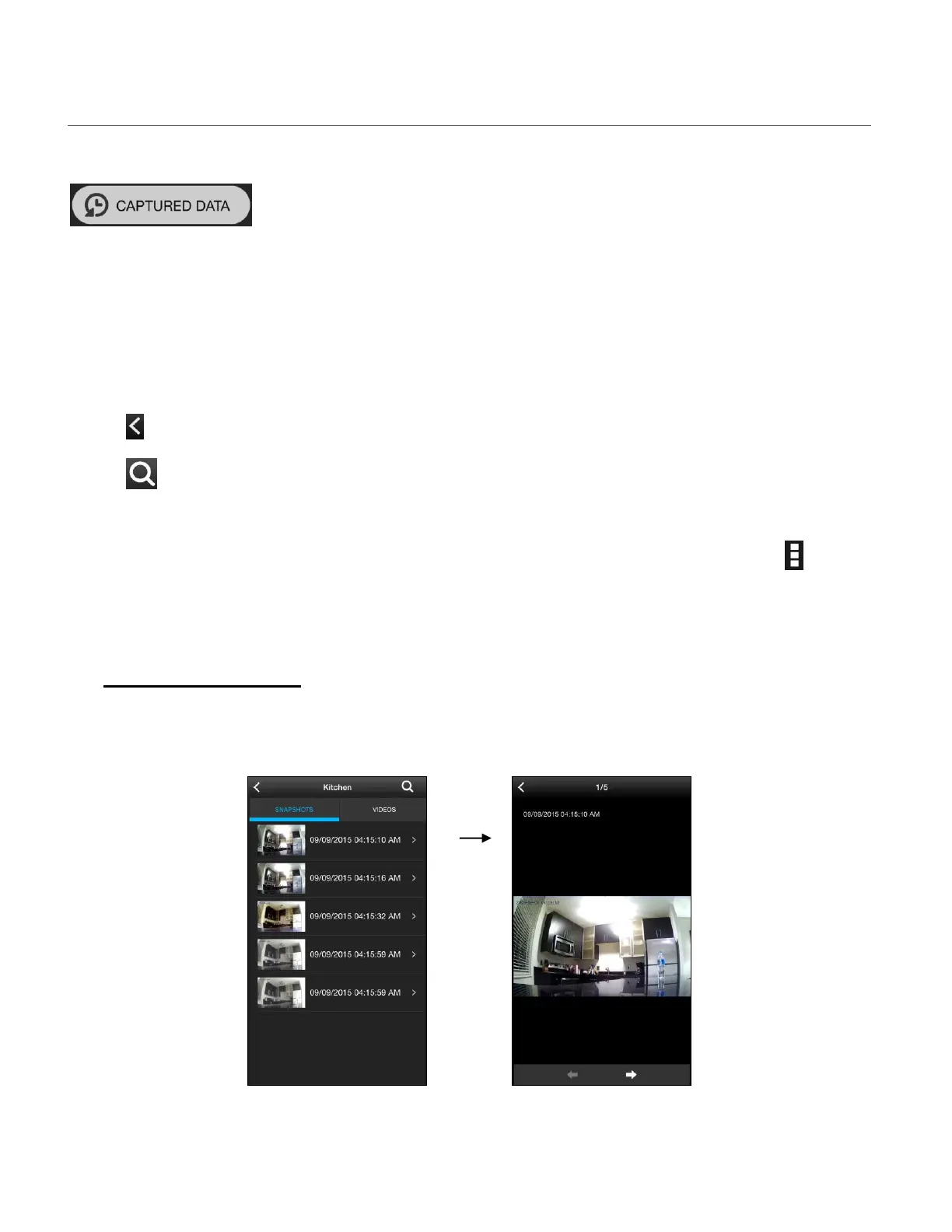
By default the Snapshots tab appears, showing the list of saved Snapshots.
Tap the Videos tab to view the list of captured videos
Each file is listed as a Thumbnail image with the file’s date and time next to it.
To return to the Home screen, tap the Return button.
To search for a specific photo or video, tap the Search button then enter the
MM/DD/YY HH:MM of the file you would like to find.
NOTE: You can also access the Captured Data from the Home Screen by tapping the
Camera Menu button and then tapping on the Captured data option.
1. SNAPSHOTS TAB
Captured Data Main Screen Selected Photo Full Screen View
with Photo tab selected
Tap on the Snapshots tab to open the list of captured photo files.
Your captured photos are saved to your mobile device automatically.
This manual downloaded from http://www.manualowl.com



 To Next Page