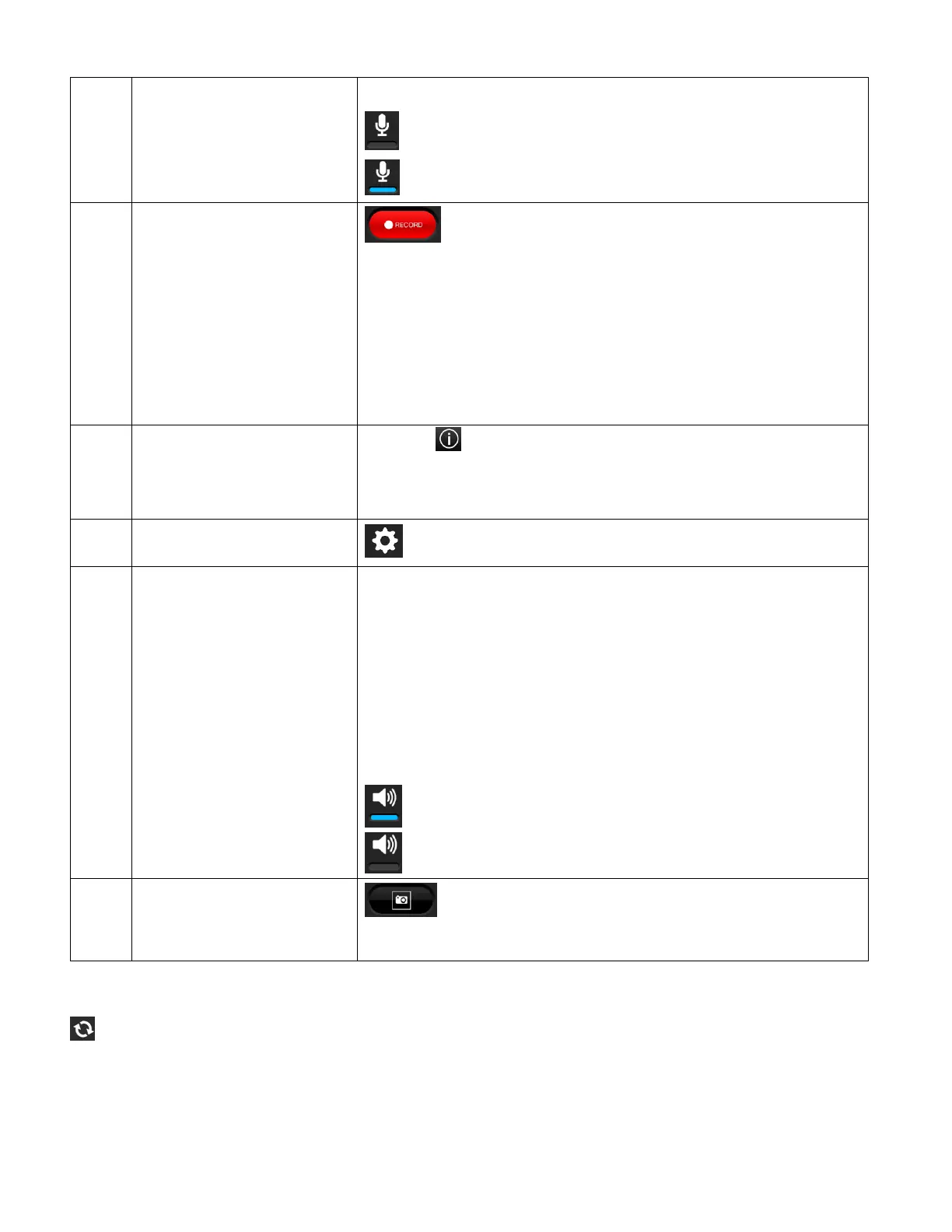
button to enable or disable this feature.
Microphone disabled.
Microphone enabled.
Tap the Record button to begin recording the live
streaming video manually.
REC When recording a blinking red record indicator
appears on the screen.
Tap the Record button again to stop recording.
The videos are saved to your camera’s memory card.
Tap the App Information button to view the following
information regarding the application and camera:
About, Help, User Manual, License
Tap the Settings button to open the Settings screen.
By default when entering Live Camera Video Stream View,
the speaker is ON and the audio of the live streaming video
can be heard via your mobile device.
To view the Live Camera Video Stream without hearing the
live audio tap the Speaker Volume button.
Tap the Speaker Volume button to enable or disable this
feature.
Speaker volume enabled.
Speaker volume disabled.
Tap the Take Snapshot button to take a photo.
The photo is saved to your mobile device.
NOTE:
Reconnect: When the camera and app are disconnect, the Reconnect icon appears in the
Live Video section instead of the live video. Tap the Reconnect icon to reestablish a connection
between your camera and the application.
This manual downloaded from http://www.manualowl.com



 To Next Page