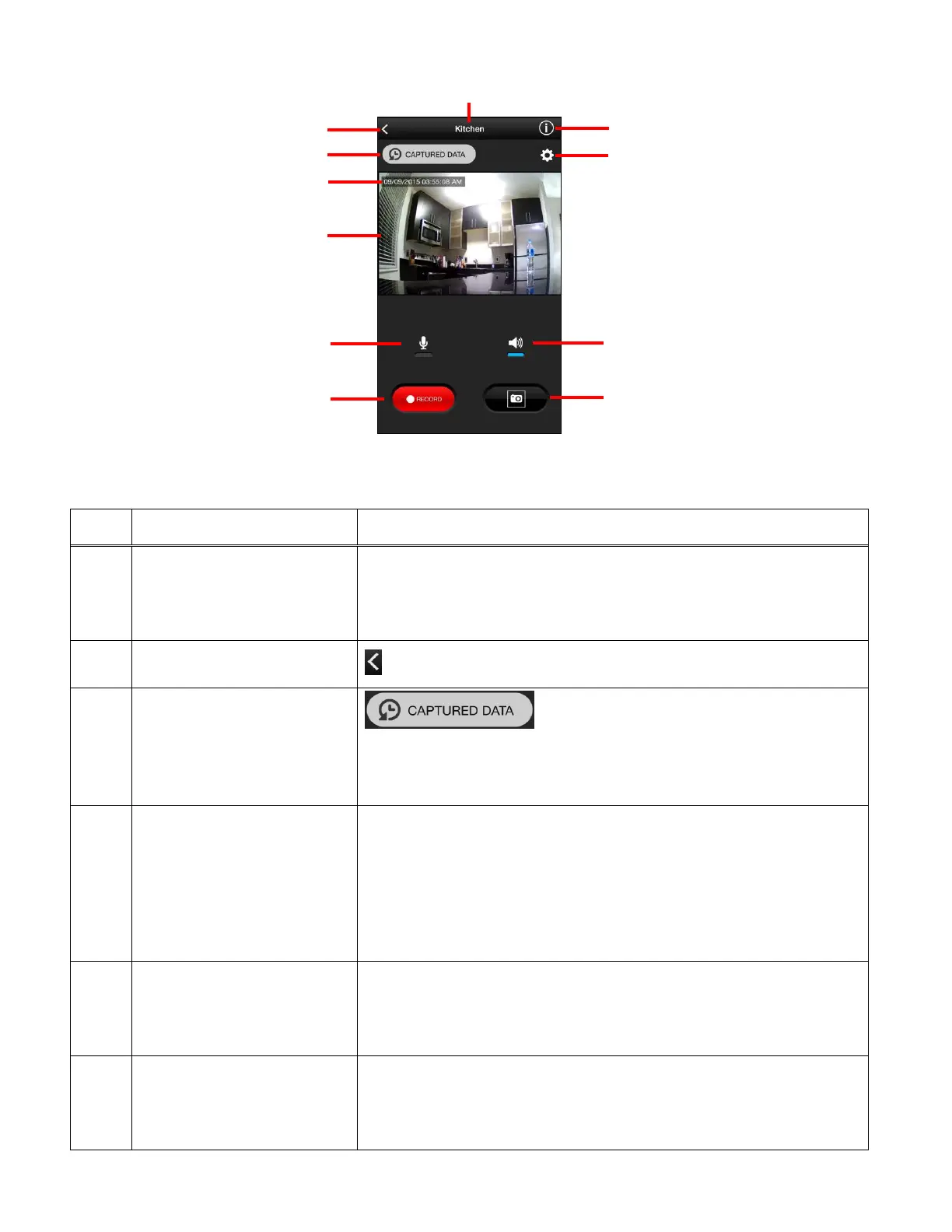
The following appears on the Live Camera Full Screen view:
Displays the camera name you entered during the setup.
NOTE: You can change the camera name at any time via
the Camera Menu ‘Settings’ option.
Tap the back button to return to the previous screen.
Tap the Captured Data button to open
the Capture Data screen where you can view the snapshots
you have taken and videos you have recorded.
Displays the current date and time based on the Time Zone
settings entered during the camera setup. You can change
the time and date via the Camera Menu ‘Settings’ option.
Then select ‘General Settings’ to change the time zone and
to control showing or hiding the date and time display.
Live Camera Video
Stream – Full Screen
View
Displays the selected camera’s live video stream in the full
screen view. Tap to view in full screen landscape view
without the app controls.
The microphone allows you to speak via the mobile app,
and those near the camera can hear you.
By default this feature in disabled. Tap the Microphone
5. Live Camera Video
Stream – Full Screen
This manual downloaded from http://www.manualowl.com



 To Next Page