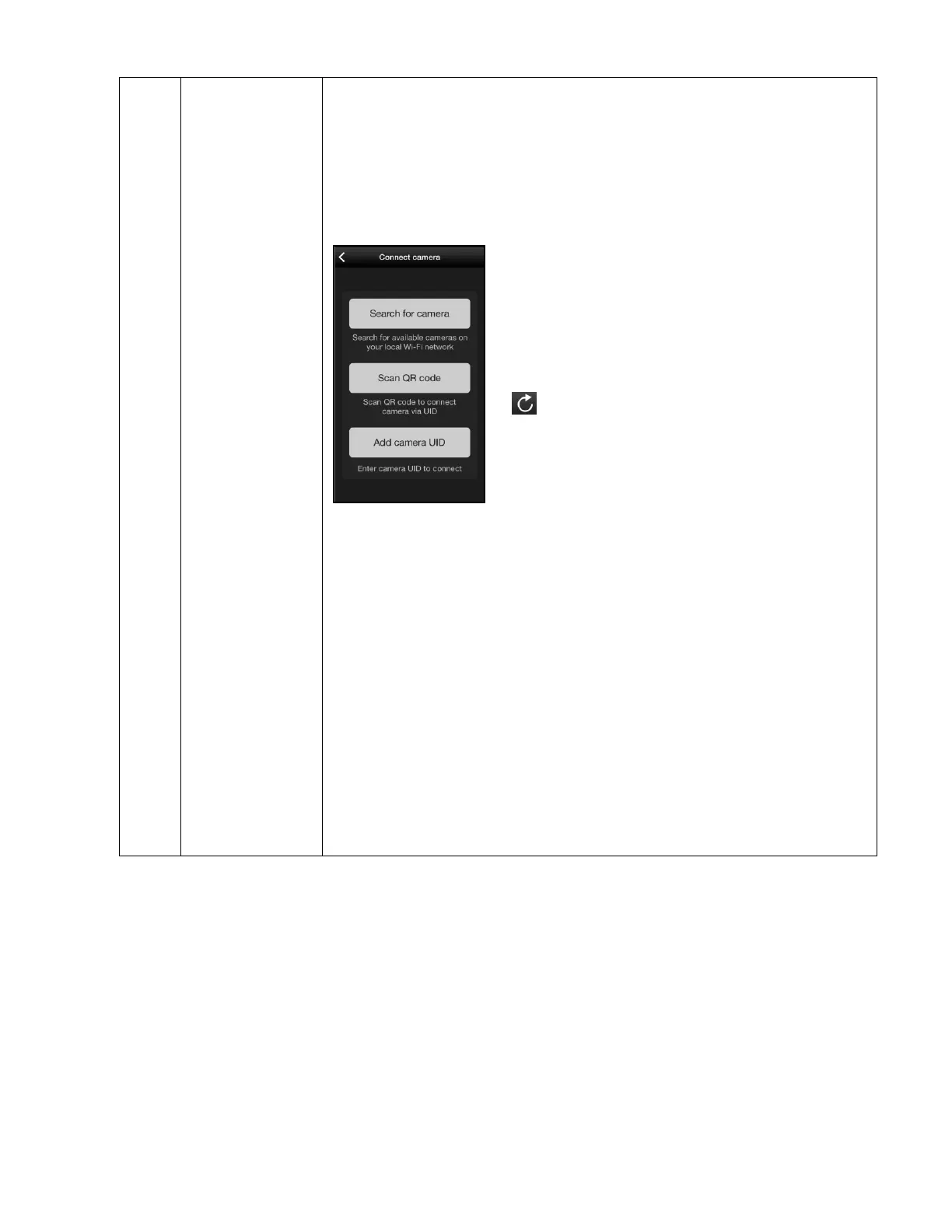
Tap Connect to camera to open the Connect camera screen.
This allows you to connect to a camera that has already been
setup using that camera’s QR code or camera UID.
The following options appear:
Search for camera, Scan QR Code, Add camera UID
Search for camera: Tap to search for
available cameras on your local Wi-Fi
network. After the search is complete, a list
of available cameras appears by the
camera’s UID number. If needed, tap the
Refresh button to refresh the camera
list. Tap the desired camera then tap Done
to connect and open the ‘Add camera’
setup screens. Follow the directions on the
screen to setup your selected camera.
Scan QR code: Tap to open the scan the QR code screen.
Make sure to allow Capture Cam 2 to have access to your
camera when the prompt appears. Once successfully scanned,
the ‘Add camera’ setup screens appear. Follow the instructions
on the screen to setup the camera.
Add camera UID: Tap to open the ‘Add camera’ screen with
the Connection Information. Enter the camera’s UID number
and enter the name of your camera as desired. You can also
change the password, enter the location and select the time
zone. Tap Done to complete the connection.



 To Next Page