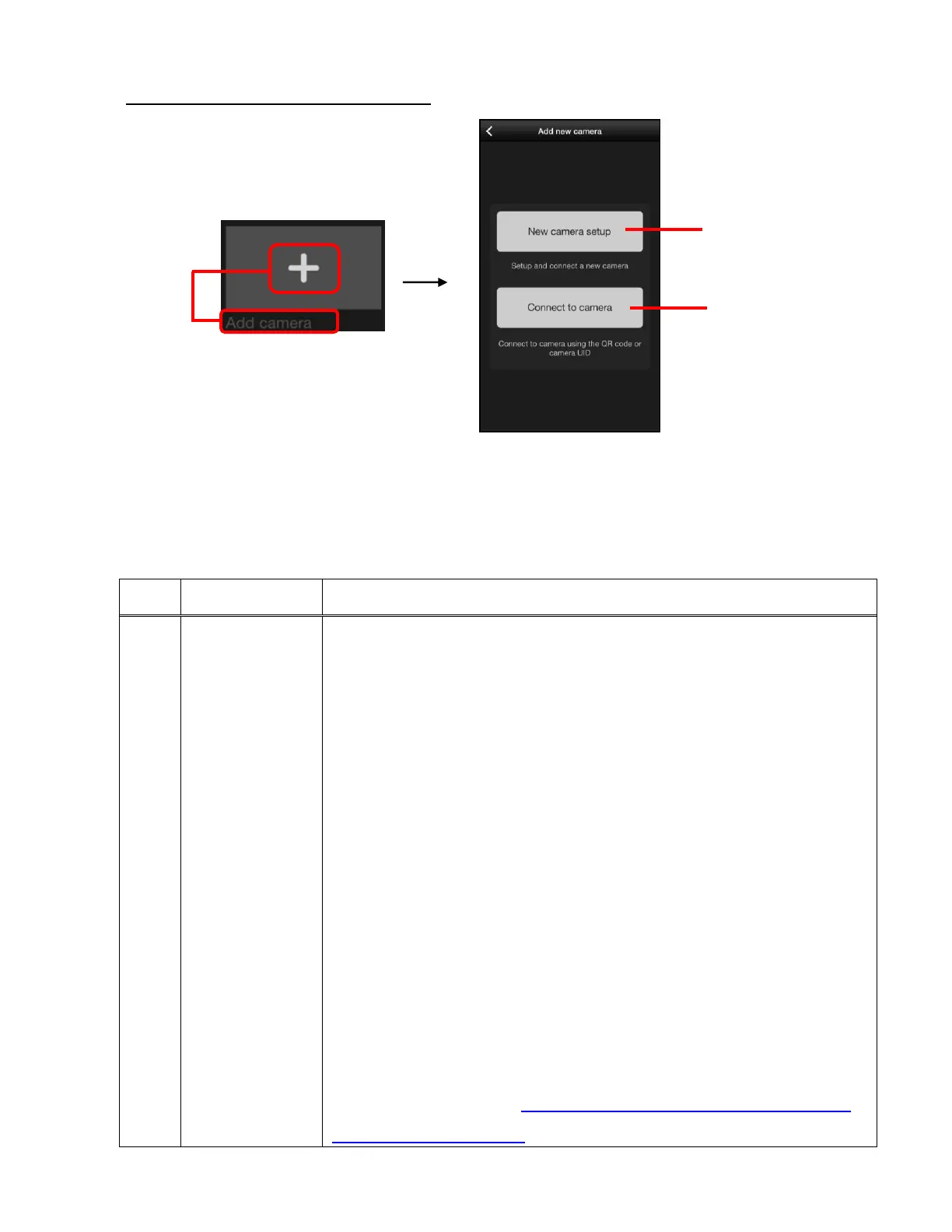
B. ADD NEW CAMERA (‘PLUS’ ICON)
Tap New Camera Setup to setup and connect to a new camera.
Follow the directions on screen to setup your new camera.
Plug in your camera and wait for the blue light to appear above
the camera lens. If the blue light is blinking tap YES to continue
the setup. If you see a red blinking light, use the Setup tool and
press the RESET button for 5 seconds to clear the setup data
and reset the camera settings, then wait for the blue light to
begin blinking and continue the setup.
Enter your mobile device Wi-Fi password if prompted and then
tap DONE to connect the camera to the mobile device’s Wi-Fi.
After the connection has successfully completed, you must
enter your camera name. Optional information to enter includes
changing the camera password (‘admin’ is the default
password), entering your location, and selecting the time zone.
Tap Done to complete the setup and enter the Home screen.
NOTE: Please refer to INITIAL SETUP: CONNECTING YOUR
CAMERA TO THE APP for more details.



 To Next Page