VIVOTEK
User's Manual - 11
WPS
Wireless Connection #1: Using the WPS Button
1� Make sure your AP (Access Point) and Operating System support WPS (Wi-Fi
Protected Setup) functions� WPS enables easy setup with compatible APs�
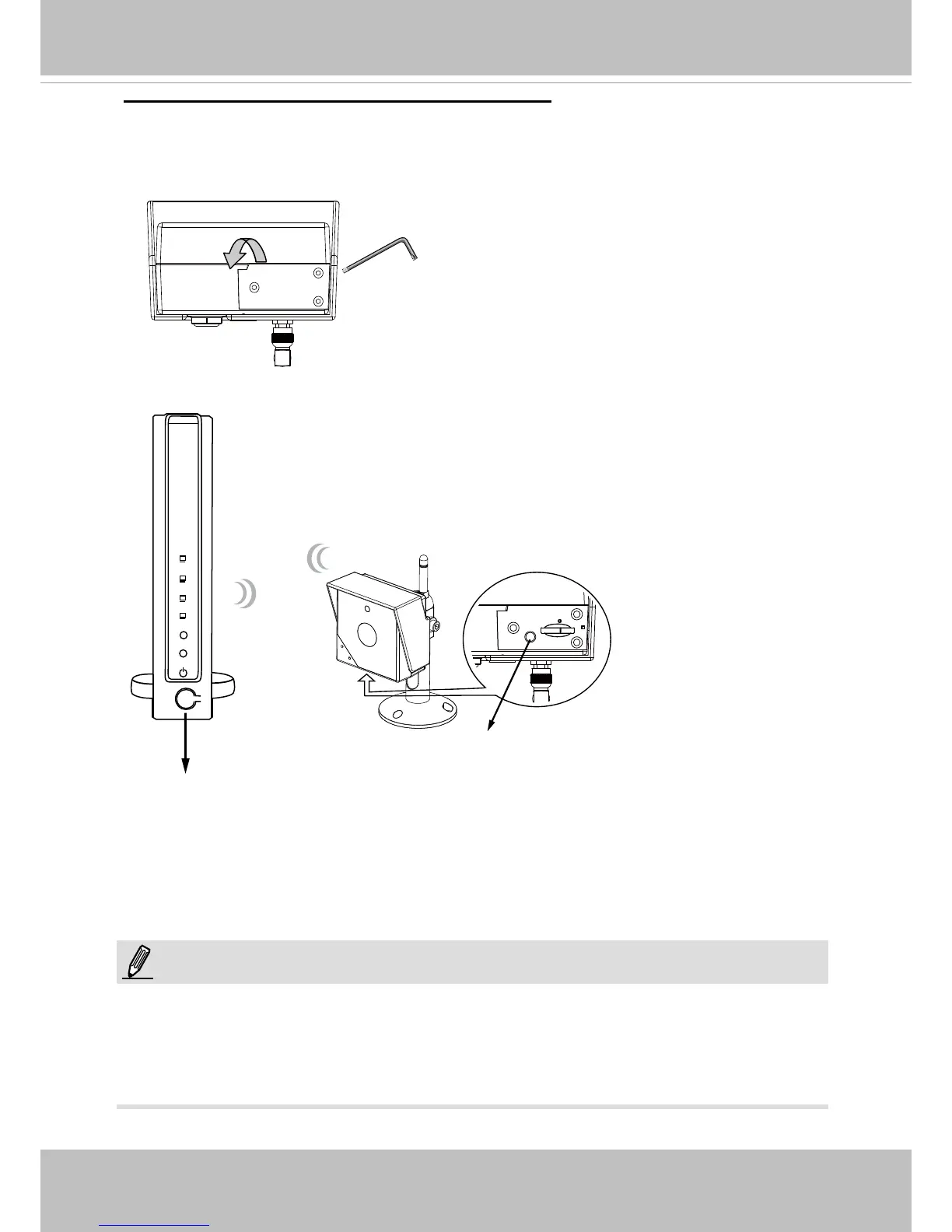
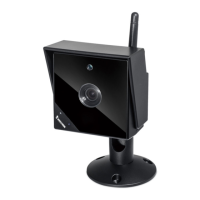
2� Use the included hex wrench to open the bottom cover�
3� Use the hex wrench to press the WPS button for 1 second� The LED will blink blue�
The camera LED should ash green. When WPS conguration is done, wireless
connectivity will be established and the security encryption, such as WEP or WPA-PSK,
will be synchronized with the AP. Use the IW2 utility to nd the camera. As for IP setting,
the camera's use of DHCP or static IP is determined by your conguration on the network
camera via the web-based conguration of rmware. The camera's default is DHCP.
NOTE:
WPS Button
WPS Button
Wireless AP
1. WPS may not work if your AP is congured with a "hidden" SSID.
2� If no WPS-enabled AP is detected, the camera will continue searching for AP for 2
minutes� After that, the wireless setup will be cancelled�
When powered on, the camera LED should light
red for a minute, and then turn blue� When lit
blue, the camera operates in the AP mode�
4� Press and hold down the WPS button on your AP (some router/AP will
have a virtual button on their management software instead)� Refer to
your AP's documentation for details using its WPS functions�


 To Next Page