VIVOTEK
User's Manual - 55
■ Max gain (Auto Gain Control):
You can manually set up the AGC level (4X or 8X). The default value is 4X.
■ Enable BLC (Back Light Compensation): Enable this option when the object is too dark or too bright
to recognize� It allows the camera to adjust to the best light conditions in any environment and
automatically give the necessary light compensation�
You can click Preview to fine-tune the image, or click Restore to recall the original settings without
incorporating the changes� When completed with the settings on this page, click Save to enable the
setting and click Close to exit the page�
Video quality settings for stream 1 / stream 2
Advanced mode
The Network Camera offers two choices of video compression standards for real-time viewing, so you
can choose MPEG-4 or MJPEG for dual streams�
Click the items to display the detailed configurations� You can set up two seperate streams for the
Network Camera for different viewing devices� For example, set a smaller frame size and a lower bit rate
for remote viewing on mobile phones; or set a larger video size and a higher bit rate for live viewing on
web browsers�
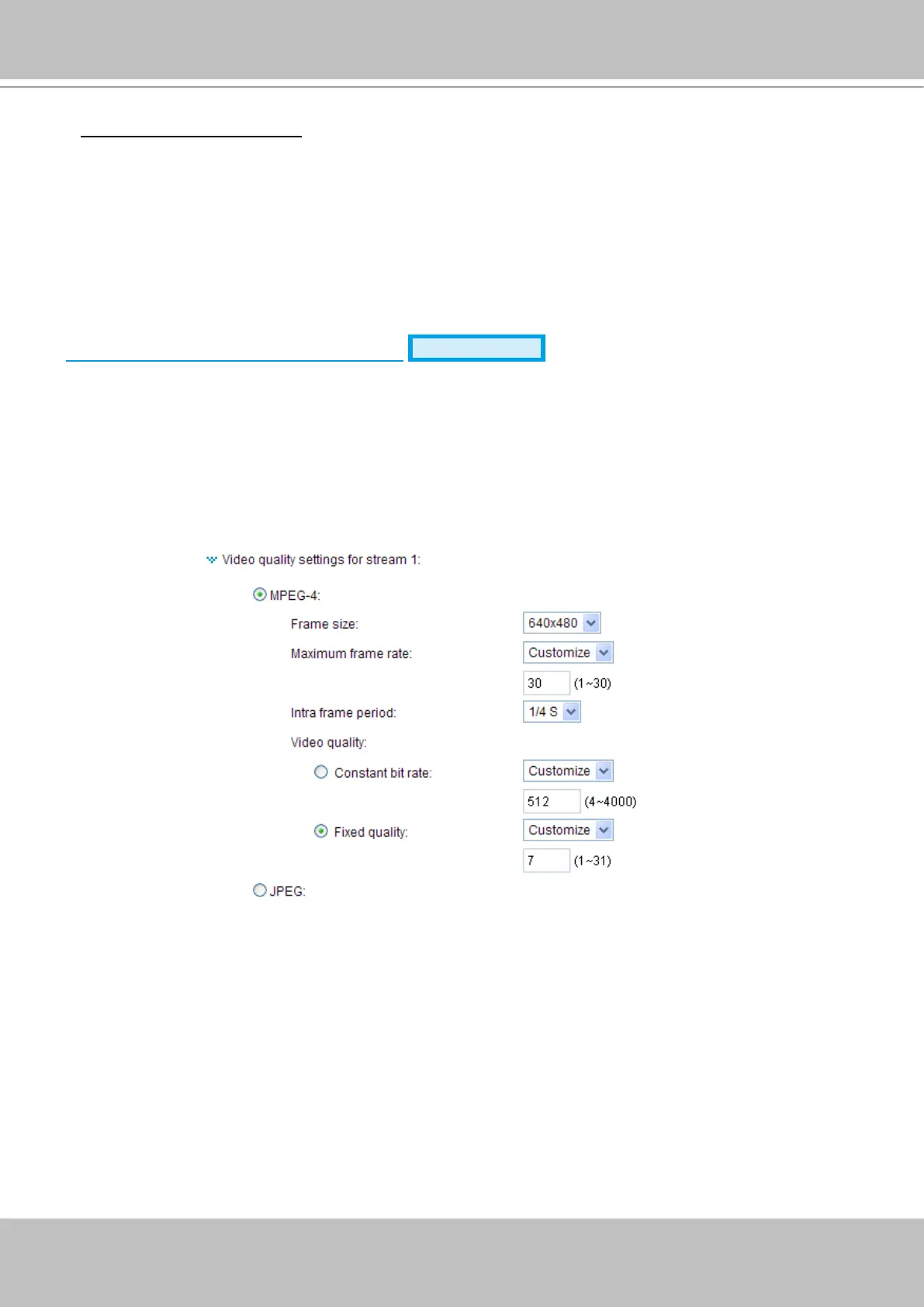
If MPEG-4 mode is selected, it is streamed in RTSP protocol� There are four dependent parameters
provided in MPEG-4 mode for video performance adjustment�
■ Frame size
Select the video size� Note that a larger frame size takes up more bandwidth� The frame sizes are
selectable in the following resolutions: 176 x 144, 320 x 240 and 640 x 480�
■ Maximum frame rate
This limits the maximum refresh frame rate per second� Set a higher frame rate for smoother video
quality�
If the power line frequency is set to 50Hz, the frame rates are selectable at 1fps, 2fps, 3fps, 5fps,
8fps, 10fps, 15fps, 20fps, and 25fps� If the power line frequency is set to 60Hz, the frame rates are
selectable at 1fps, 2fps, 3fps, 5fps, 8fps, 10fps, 15fps, 20fps, 25fps, and 30fps� You can also select
Customize and manually enter a value�
■ Intra frame period
Determine how often to plant an I frame� The shorter the duration, the more likely you will get better
video quality, but at the cost of higher network bandwidth consumption� Select the intra frame period
from the following durations: 1/4 second, 1/2 second, 1 second, 2 seconds, 3 seconds, and 4 seconds�



 To Next Page