EasyManua.ls Logo

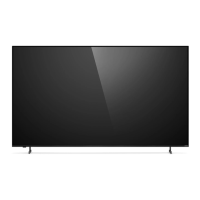
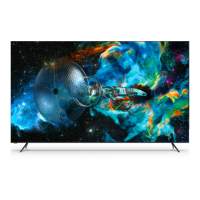
Vizio Quantum P Series - User Manual

Vizio Quantum P Series
47 pages
Print Icon
To Next Page IconTo Next Page
Loading...
Models:
P65Q9-H1, P65Q9-H61,
P75Q9-H1 & P75Q9-H61
P-Series
®
Quantum
User Manual

Table of Contents

Question and Answer IconNeed help?

Do you have a question about the Vizio Quantum P Series and is the answer not in the manual?

Vizio Quantum P Series Specifications

General IconGeneral
BrandVizio
ModelQuantum P Series
CategorySmart TV
LanguageEnglish

Summary

Wall-mounting the TV

Using the Remote

Completing the First-Time Setup

Choose your Wi-Fi network and enter the password

Connect the TV to a wireless network by selecting SSID and entering password.

Scan for channels

Search for available broadcast or cable TV channels.

Using the On-Screen Menu

Navigating the On-Screen Menu

Learn how to move through and select options in the TV's menu system.

Changing the Input Source

Switch between different connected video and audio sources.

Adjusting the Picture Settings

Adjusting the Color Temperature

Modify the white balance of the picture for optimal color display.

Adjusting Advanced Picture Settings

Fine-tune picture quality with advanced settings like noise reduction and motion control.

Adjusting the Audio Settings

Adjusting the Network Settings

Connecting to a Wireless Network

Connect the TV to a Wi-Fi network that is broadcasting its name (SSID).

Connecting to a Hidden Network

Connect to a wireless network whose name (SSID) is not broadcast.

Setting Up TV Channels

Using Parental Controls

Enabling or Disabling Program Ratings

Manage program content based on its rating by enabling the rating feature.

Locking and Unlocking Channels

Prevent children from viewing inappropriate channels by locking them.

Blocking and Unblocking Content by Rating

Block or unblock content based on its rating type.

Accessibility Settings

Changing the System Settings

Setting a System PIN Code

Adjusting the CEC Settings

Managing Mobile Devices

Using the Admin & Privacy Menu

Restoring the TV to Factory Default Settings

Reset all TV settings to their original factory defaults.

Viewing Data

SmartCast Home

What you can do with SmartCast Home

Discover, stream, and control content using apps and voice assistants.

Control your TV with the SmartCast Mobile App

Use your smartphone as a remote to control and configure your TV.

WatchFree

What you can do with WatchFree

Enjoy over 100 free live TV channels and thousands of free movies.

How to Launch WatchFree

Learn how to access and start watching entertainment on WatchFree.
Playing USB Media

Playing USB Media: Music

Playing USB Media: Video

Playing USB Media: Photo

Related product manuals