02 Get to know your navigation system
Keyboard
02
``
23
Entering and selecting options
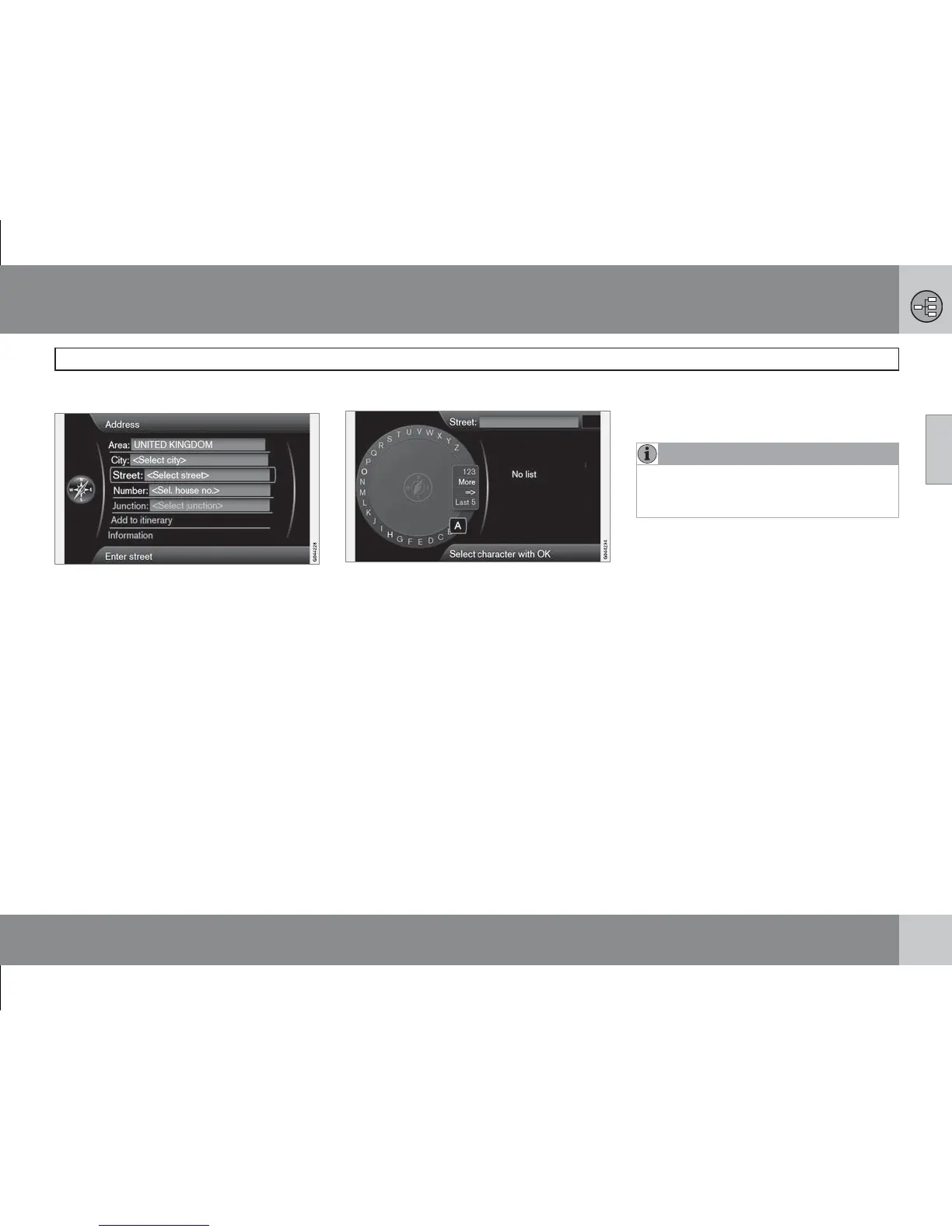
Screen view with text field or optional text.
This navigation system uses a "daisy wheel" to
enter specific information, e.g. type of POI,
place/town, area/country, address, street or
post code.
Activate an option
After marking a desired function/menu bar
using the thumb wheel or the TUNE knob,
press the thumb wheel/OK to see the next
level of functions/options.
Enter as follows
The daisy wheel.
1. Mark a text field.
2.
Press OK to call up the "daisy wheel":
3.
Select the characters using the thumb
wheelTUNE knob and enter them by
pressing thumb wheelOK.
Numerical keyboard
Another way of entering characters is using the
centre console's buttons 0-9, * and #.
When 9 is pressed, a bar appears with all char-
acters under the buttons:
W, x, y, z and 9.
Quick press the move/"loop" cursor through
these characters.
•
Stop using the cursor on the desired char-
acter to select it - the character is shown
on the enter line.
•
If the same character is wanted again,
Press thumb wheel/OK.
•
Delete/change using EXIT.
More options
NOTE
Muted characters cannot be selected in
combination with the relevant entered char-
acters.
In the daisy wheel's inset menu there are fur-
ther options that have more characters and
digits.
•
More (More) + OK - alternative characters
appear in the wheel.
•
123 + OK - digits appear in the wheel.
•
=> + OK - the cursor moves to the list to
the right of the screen where selections
using OK can be made.
•
Last 5 (Last 5) + OK - lists the last selected
destinations. Mark one of them + OK.



 To Next Page