03 Planning your trip
Specify a destination
03
``
35
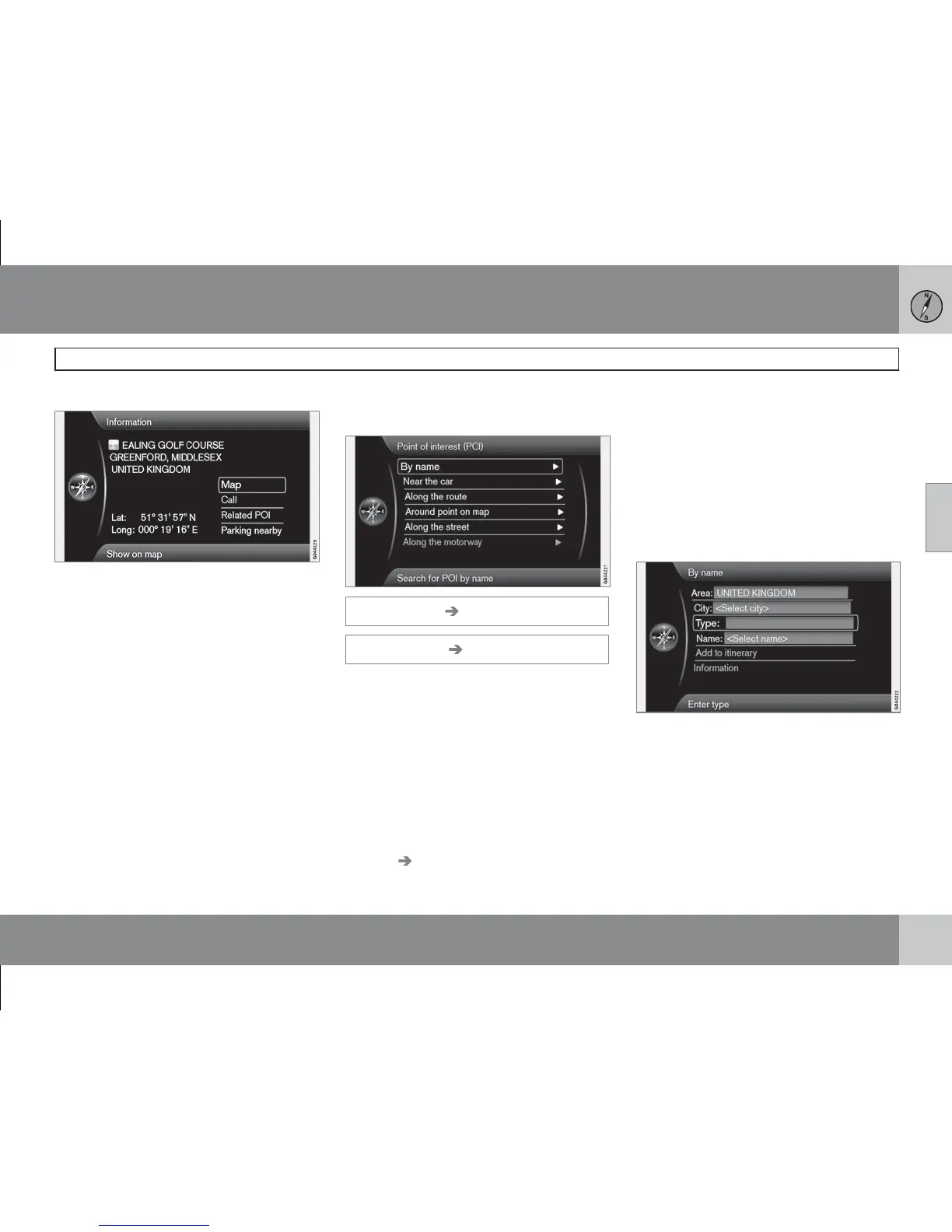
More about Information
Select an address/street + OK - then the fol-
lowing can be selected:
•
Map (Map) - Shows where on the map the
location can be found - sometimes with
additional information.
•
Call (Call) - Calls the facility if a telephone
number is given.
•
Related POI (Related POI) - Lists the facili-
ties associated with the selected location.
•
Parking nearby (Parking nearby) - Lists
parking where appropriate with the dis-
tance to the facility.
Facilities
(Point of interest (POI))
Set destination Point of interest (POI)
(Set destination Point of interest (POI))
The system contains a large number of search-
able facilities which can be specified as desti-
nations. The list of desired facilities can be
shortened by specifying which facility/facilities
the current search relates to:
•
Select Type: (Type) and specify which
facilities should be covered by the search
(it is the same approach as described on
page 47).
To select which facilities should be perma-
nently visible on the map, go to the menu
Settings
POI on map - see page 47.
All searches are made in the manner described
in the previous section City or street:
1.
Specify Area: (Area)/City: (City)/Type:
(Type)/Name: (Name).
2.
Then select Add to itinerary (Add to
itinerary) or
Information (Information) +
OK.
With name
(By name)
In addition to searching with main group, such
as Restaurant, the company name of the
facility can also be used, e.g. "Peppes Bod-
ega". The procedure is the same as when
searching with Address, see page 34.
When searching with Name: with e.g. "London
Airport", all combinations with "London" will be
shown when "Lo" is entered. The more letters
you input the more specific the reply.



 To Next Page