38 Trail Tech Voyager
Menu » Set Menu
Map Settings > Map Screen (1 & 2):
“Auto-Center” Automatically pans the map as
you move so that your currently location is
always in the center of the screen. Auto-center
does not function in pan/zoom mode (see page
22.) “Fixed” xes the map to one position on the
map.
Map Settings > Options > Track/Route Labels:
Turn on or off track and route labels.
Map Settings > P/Z Timeout:
The Map Pan and Zoom Screens have a timeout
function to keep you on the proper Map Screen.
By default the timeout is set after 30 seconds it
will revert you back to the Map Screen.
Options > Track/Route Labels(Clipping):
Clipping distance allows the track/route labels
to automatically turn off when zoomed out at
a certian point. This keeps the screen from
becoming cluttered with labels
Map Settings > Options > Waypoint Icons:
Select style of waypoint icons, basic “Dots” or
numbered “ID#’s”.
Map Settings > Options > Waypoint Labels:
Choose size of waypoint labels.
(off, small, or large)
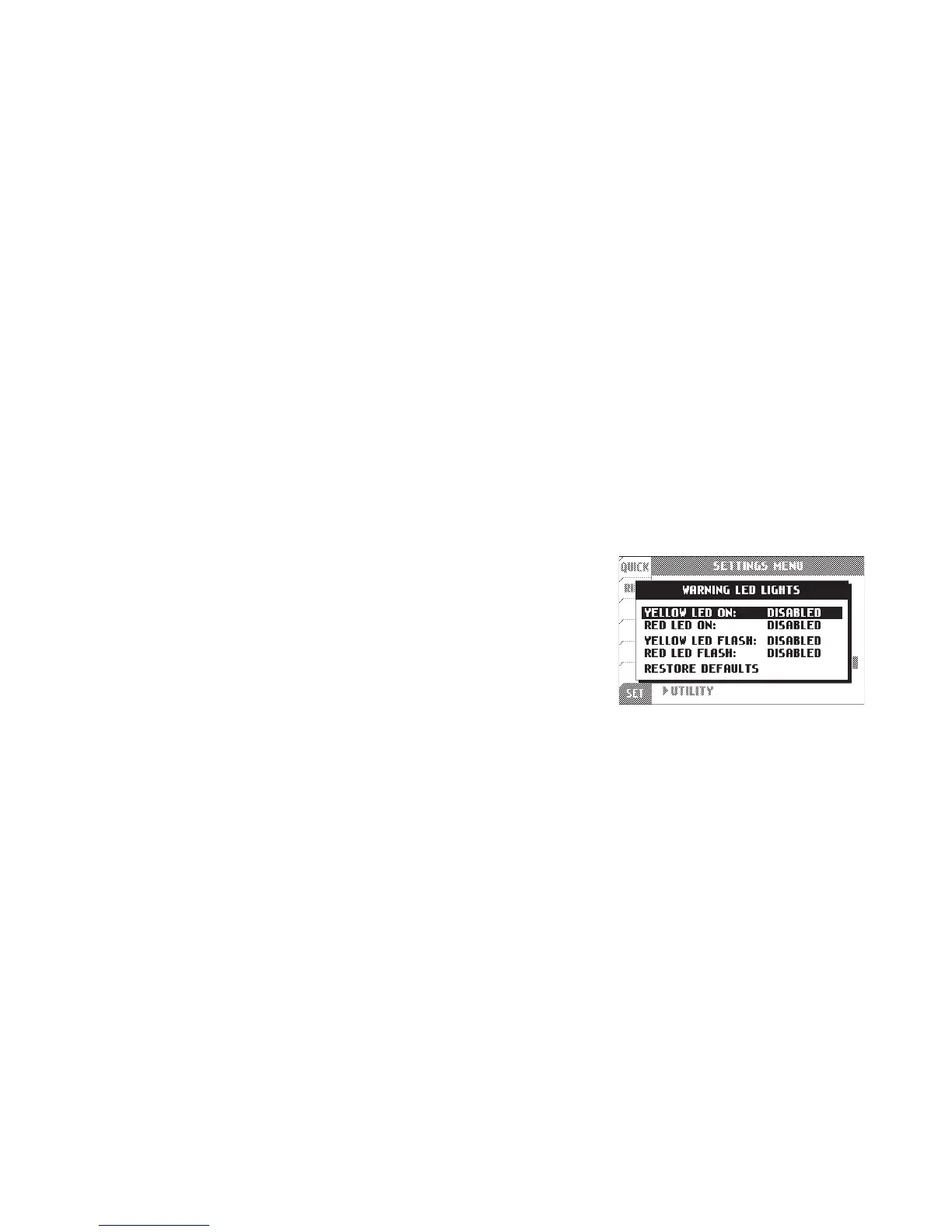
The warning
LED’s will turn
on or ash
when the
temperature
reaches set
points.
Warning LED Lights:
The warning LEDs are disabled by default. Here
are some suggested values:
Yellow LED on:
Red LED on:
Yellow LED ash:
Red LED ash:
90ºC (190ºF)
100ºC (210ºF)
110ºC (230ºF)
120ºC (250ºF)


 To Next Page