-3-
The APPisamobilephonecontrolsoftwareusedwithVSYSTODVRdevice.Thissoftwareisconnected
totheDVRdeviceviaWi-Fi,itcandirectlypreviewandplaybackthevideoonthemobilephone,easily
realizethatviewingthecameradocumentsonthescreenofmobilephone,settingor otheroperations.
Subvertingthecontrolmethodoftraditionalcameras,bringyouanewexperience.
Video File Format
Method 1: Scan the corresponding QR code to download
the latest APP from software download link of your browser.
Method 2: You can search "VSYSTO" on Google Play or
APP Store to download and install it.
DVR WiFi Default Name: F9_XXXX
Default password: 1234567890
Connection Steps:①Turn on the recorder
②Enter the WiFi setting interface of the phone, find the corresponding WiFi name, and enter the password
to connect to WiFi③Open mobile APP, connect the recorder
Tips:
※If "No network connection" is displayed when connecting to WiFi, please turn off the mobile data
network first, and then connect to the recorder WiFi according to the steps. If the prompt "Current
WLAN is unavailable, whether to switch to another network?" appears, you must click "No".
※After entering the APP, the recorder will pause recording. Please click the red recording button on
the APP to start recording. After exiting the APP, the recorder will start recording in 30 seconds.
※You don't need to connect to WiFi for daily riding. Connect when you need to watch the video.
※In case of connection failure, please contact customer service.
2023/02/21 15:12:01 REC OKB/S
2023/02/21 15:12:01 VSYSTO F9 OKPH
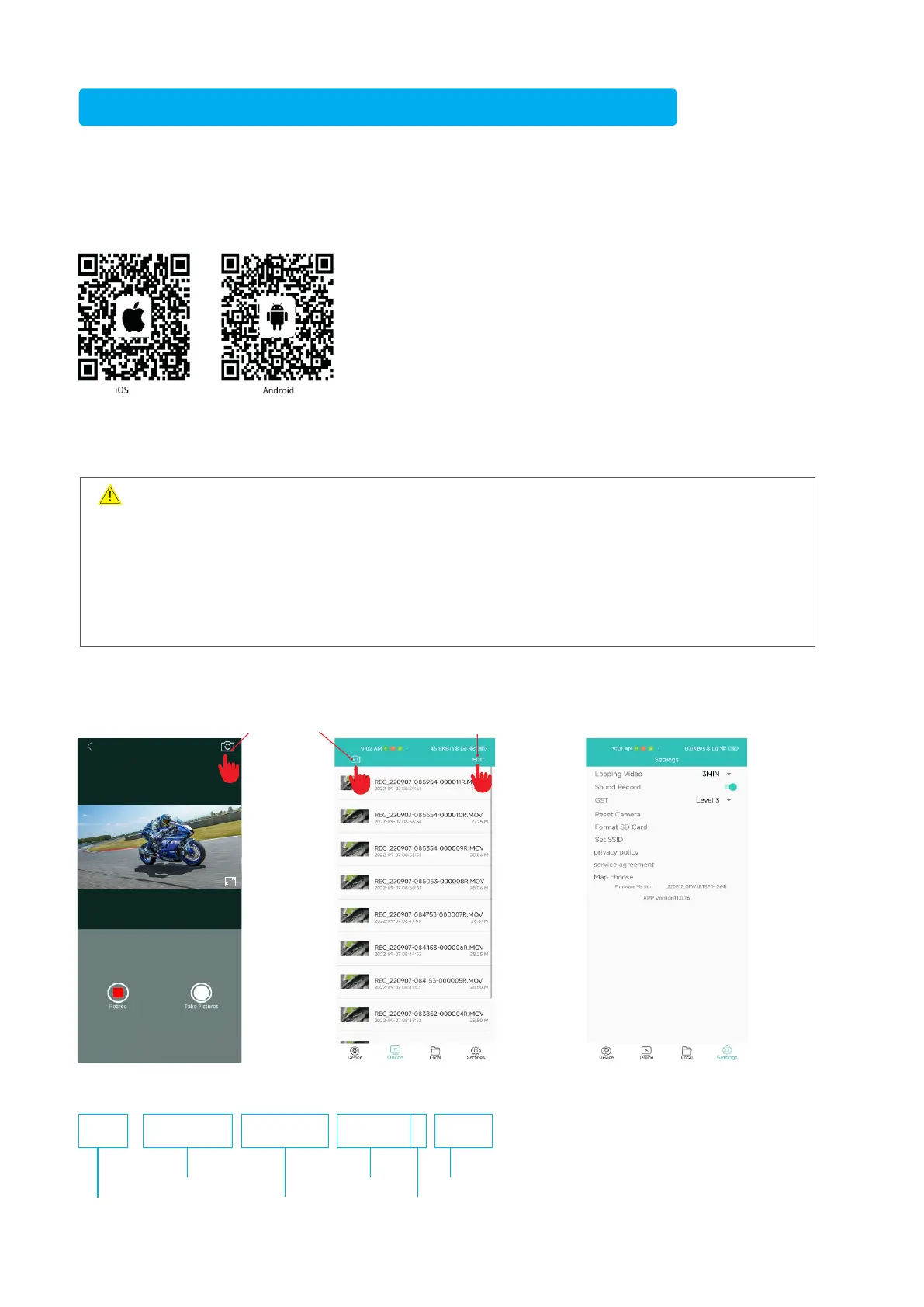
Click it to switch the
front and rear cameras
Click "Edit" to select the
file to download or delete
APP Setting Interface
※Pause recording video and then
set it; It is recommended to set Level
0 or Level 1 for GST (G-sensor
sensitivity). Do not set it too high.
REC_220525-173957-00053F.MOV
Recording Mode
Year-Month-Day
F-Front camera
R-Rear camera
Video FormatNumber
Video
Recording Time
Mobile Phone APP Installation and Operation
F9


 To Next Page