11
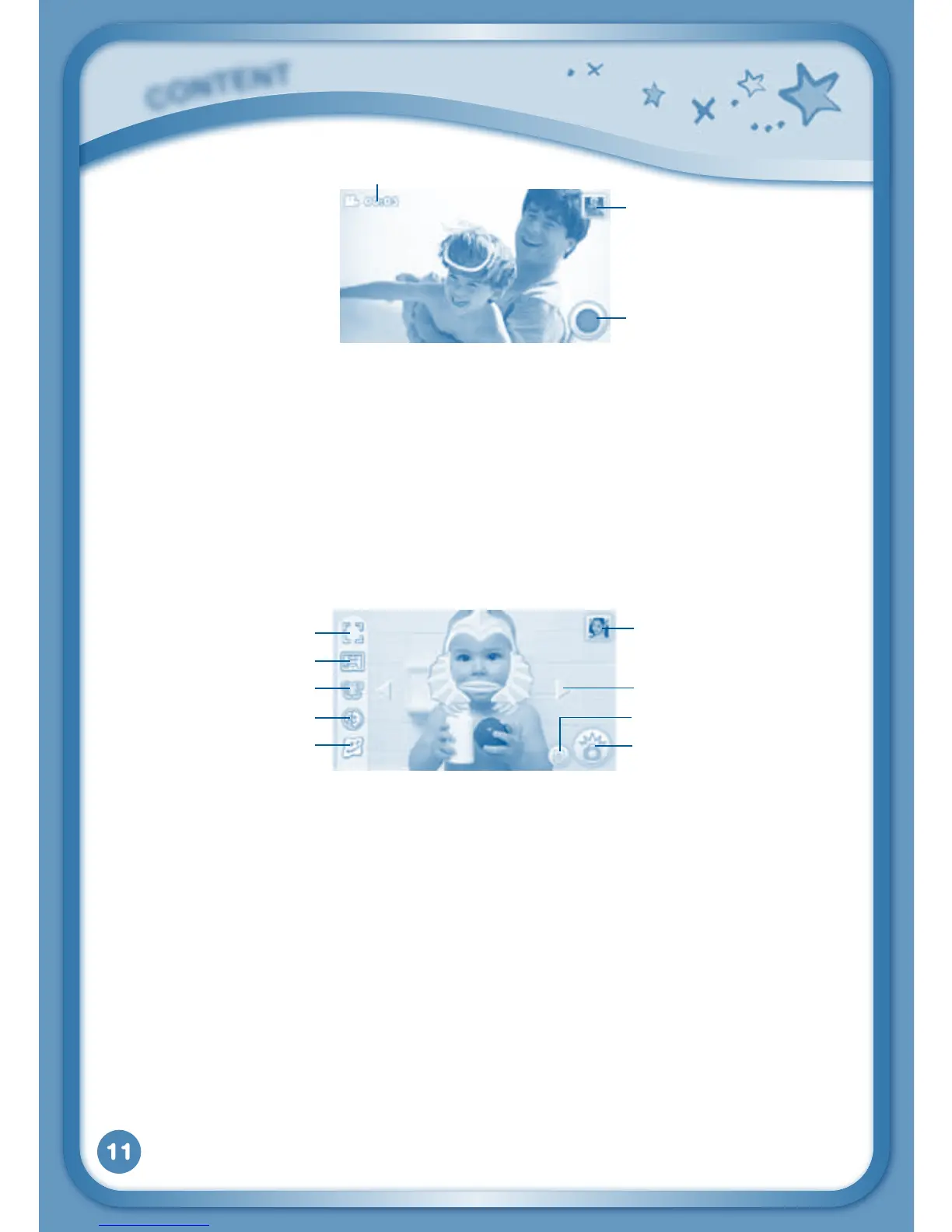
Time - This is the elapsed time of the video now recording.
Record button - Touch this to start/stop recording.
Thumbnail-Touchthistoviewthevideoyouhavejusttaken.
WARNING:Videorecordingmaytakeupmemoryquickly.ConnectyourInnoTab
®
2 to
LearningLodgeNavigator
®
and select “File Manager” to back up your videos to your
computer regularly. See Connecting to a Computer Section on page
18 for more details.
Camera
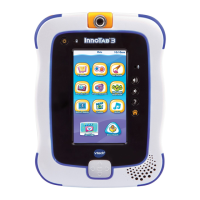
Touch the Camera icon to take photos with fun decorations and effects.
NormalMode-Touchthistotakeaphotowithoutanydecorationoreffect.
Frame Mode - Touch this to take a photo with a frame.
Sticker Mode - Touch this to take a photo with a silly sticker.
Kaleidoscope - Touch this to take a photos through a kaleidoscope.
Funny Face - Touch this to make a funny face photo.
Thumbnail-Touchthistoviewthephotoyouhavejusttaken.
Arrows - Touch these to see more stickers, frames, kaleidoscope effects,
or funny face effects.
Face Detection - Touch this to turn face detection on or off.
Shutter - Touch this to take a photo.
TIP:YoucanselectthephotoresolutionbychangingthePhotoSizeoptionsin
theSettingsmenu.Morememoryspaceisrequiredforhigherphoto
resolutions.
C
O
N
T
E
N
T
NormalMode
Thumbnail
Arrows
Shutter
Face Detection
Sticker Mode
Frame Mode
Kaleidoscope
Funny Face
Time
Thumbnail
Record button


 To Next Page