12
NOTE:Notalleffectscanbesavedonallphotoresolutions.
Videos
TouchtheVideosicontowatchmotionjpeg(MJPEG)andH.264format
videos you have transferred to your InnoTab
®
2 from your computer,
videos that you have purchased and downloaded from Learning Lodge
Navigator
®
, or videos that you have taken with the Video Recorder app on
your InnoTab
®
2.ExpandInnoTab
®
2 memory by inserting an SD memory
card (not included). Connect your InnoTab
®
2 to Learning Lodge Navigator
®
and select “File Manager” to transfer videos.
See the Connecting to a Computer section on page 18 for more details.
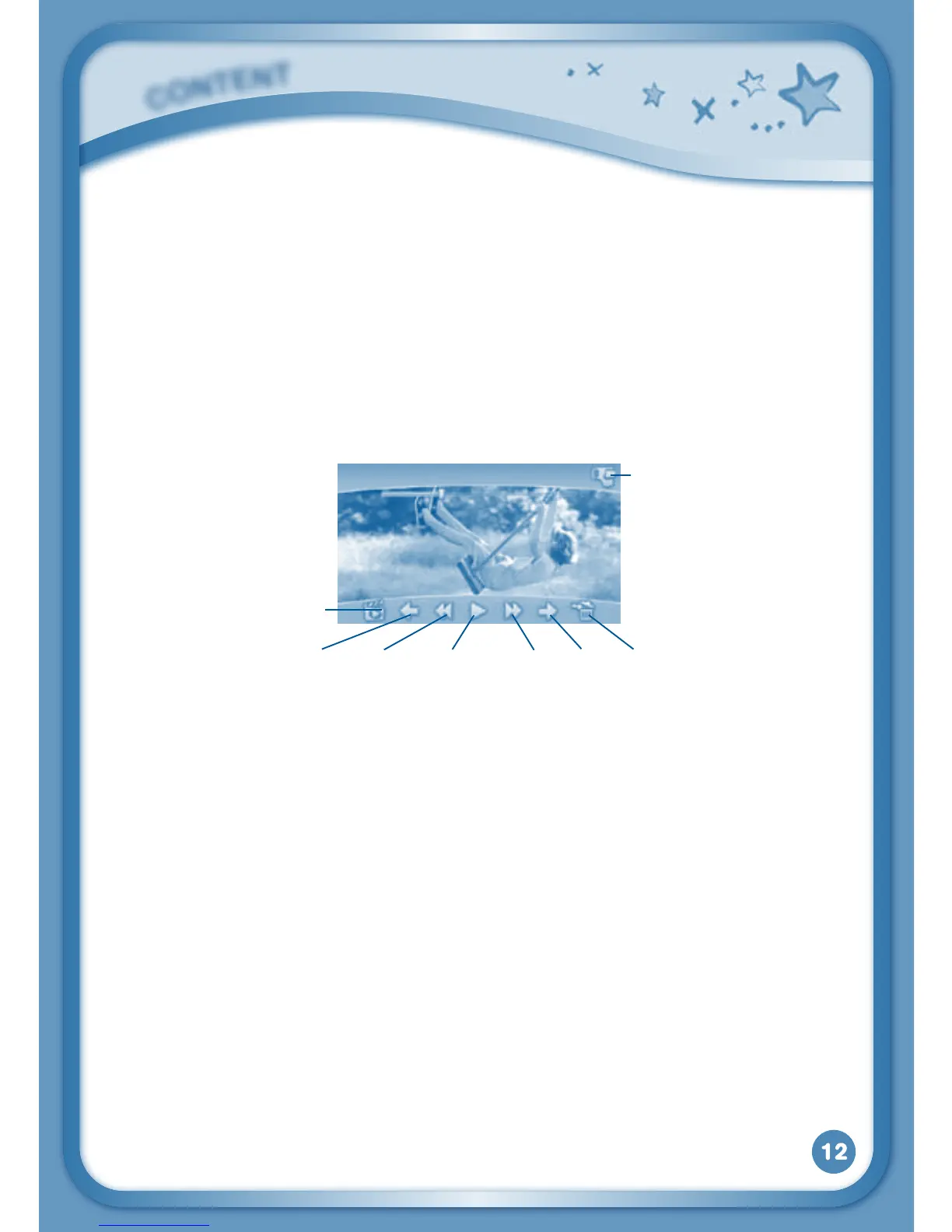
Album - Touch this to go to see a list of saved videos.
Previous – Touch this to go to the previous video.
Rewind – Touch this to rewind the video.
Play/Pause – Touch this to play or pause the video.
Forward – Touch this to fast forward the video.
Next–Touchthistogotothenextvideo.
Trash Can – Touch this to delete the current video.
Video Recorder - Touch this to use your InnoTab
®
2 Video Recorder.
For more details about transferring videos to your InnoTab
®
2, please see
the VTech
®
Kidizoom
®
Photos and Videos section below.
C
O
N
T
E
N
T
Video
Recorder
Album
PreviousRewindPlay/PauseForwardNextTrashCan


 To Next Page