EasyManua.ls Logo

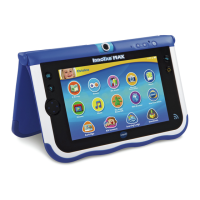
VTech InnoTab Max - User Manual

VTech InnoTab Max
25 pages
Print Icon
To Next Page IconTo Next Page
Loading...
User's Manual
For troubleshooting tips, visit: www.vtechkids.com/tutorials/innotabmax

Other manuals for VTech InnoTab Max

Questions and Answers

  • X
    xbeasleyAug 1, 2025
    What to do if VTech InnoTab Max has no screen display after pressing the Power button?
    • N
      Noah CarterAug 1, 2025
      If your VTech Tablet's screen doesn't turn on when you press the Power button, it's likely that the battery is low. Try recharging the battery or plugging the tablet into a wall outlet.
  • A
    annette51Aug 7, 2025
    Why VTech Tablet screen turns on, then immediately off?
    • A
      Andrew SandersAug 7, 2025
      If your VTech Tablet screen turns on and then immediately off, the battery power is likely low. Recharge the battery to resolve this issue.
  • T
    Todd CookAug 13, 2025
    What to do if VTech InnoTab Max Tablet has no picture on screen and Power button has no effect?
    • D
      debbienashAug 13, 2025
      If there's no picture (or an incorrect picture) on the screen and the Power button doesn't work, the program may need to be reset. Force the VTech InnoTab® to turn off by holding down the Power button until the screen shuts off (approximately 8 seconds). Then, turn the tablet back on again.
  • E
    Elizabeth HensleyAug 18, 2025
    How to fix VTech InnoTab Max Tablet screen with no sound?
    • C
      Christina GarciaAug 18, 2025
      If your VTech Tablet screen displays but there is no sound, it could be due to a couple of reasons. First, check if the volume is turned down and adjust the volume control. Second, if headphones are connected, unplug them from the headphone jack.
  • R
    Ronald MendezAug 25, 2025
    What to do if the cartridge icon does not appear on VTech InnoTab Max Tablet desktop?
    • C
      Caleb MooreAug 26, 2025
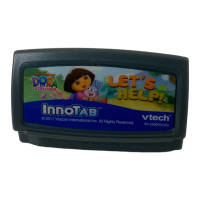
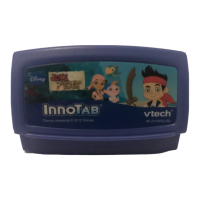
      If the cartridge icon is missing from your VTech Tablet desktop, it could be due to a poor cartridge connection. Remove the cartridge, clean it if necessary, and then re-insert it into the InnoTab® MAX. Alternatively, the cartridge might not be compatible. Check the InnoTab® MAX desktop for a message indicating cartridge incompatibility.

Summary

Register Now!

Getting Started with Your InnoTab MAX

Follow these five essential steps to charge, set up, register, and start using your InnoTab® MAX.

The Basics

Charging and Powering On;Off

Instructions for charging the tablet, turning it on and off, and managing screen lock.

Attaching the Cover

Wi-Fi Setup

The Desktop Interface

VTech Kid Connect

Getting Started and Managing Contacts

Register your tablet, download the app, and manage your child's contact list.

Managing Kid Connect Contacts

Kid Connect Features

Parental Controls Overview

Accessing and Understanding Options

How to access Parental Controls and an overview of available settings like Wi-Fi and Time Limits.

Parental Control Settings Explained

Key Parental Control Settings

Details on Progress Log, Tablet Settings, Learning Lodge, Gift Gallery, and Download Manager.

Managing Apps

Playing InnoTab Cartridges

Transferring Media Files

Updating the Firmware

Care & Maintenance

Troubleshooting

Safety Precautions

Battery and Charger Safety

Important safety notes regarding the charger, battery, and preventing hazards.

Technical Support

VTech InnoTab Max Specifications

General IconGeneral
BrandVTech
ModelInnoTab Max
CategoryTablet
LanguageEnglish

Related product manuals