EasyManua.ls Logo

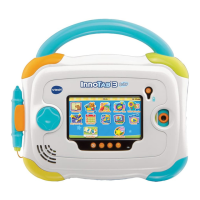
VTech Innotab 3 - User Manual

VTech Innotab 3
40 pages
Print Icon
To Next Page IconTo Next Page
Loading...
User’s ManualUser’s Manual

Questions and Answers

  • D
    Diane RoyAug 14, 2025
    How to fix VTech Tablet when the screen displays with no sound?
    • D
      Daniel WolfAug 14, 2025
      If the VTech Tablet screen displays with no sound, first, adjust the volume control. If that doesn't work, unplug any headphones from the headphone jack.
  • E
    Eric SotoAug 17, 2025
    What to do if the cartridge icon does not appear on the VTech Tablet desktop?
    • D
      Dan SmithAug 18, 2025
      If the cartridge icon does not appear on the desktop of your VTech Tablet, remove the cartridge, clean it if necessary, and then re-insert it.
  • T
    Tammy JacksonAug 21, 2025
    Why USB connection window does not pop up after connecting VTech Tablet to computer?
    • M
      Matthew Keller DDSAug 21, 2025
      If the USB connection window does not pop up after connecting your VTech Tablet to the computer, make sure the USB cable is securely connected to both the tablet and the computer. Also, ensure that the tablet is connected directly to the computer and not through a USB hub.
  • S
    Stephen LawrenceAug 25, 2025
    What to do if there is no picture on VTech Tablet screen?
    • A
      Autumn EwingAug 25, 2025
      If there is no picture on the screen of your VTech Tablet (or the picture is incorrect) and pressing the Power button has no effect, disconnect and then reconnect all power supplies (batteries). Also, press the Power button. Finally, remove the cartridge, clean it if necessary, and then re-insert it into the InnoTab® 3 Baby.
  • M
    marcus19Aug 28, 2025
    Why is there no screen display after pressing the Power button on my VTech Tablet?
    • C
      Carrie SmithAug 28, 2025
      If you have no screen display after pressing the power button on your VTech Tablet, replace the battery. Also, make sure all batteries are installed correctly in the battery compartment.
  • R
    Robin CookAug 31, 2025
    Why does my VTech Tablet screen turn on, then immediately off?
    • C
      Casey ChavezAug 31, 2025
      If your VTech Tablet screen turns on and then immediately off, replace the battery.
  • P
    Pam LaraSep 4, 2025
    How to fix VTech Tablet when it cannot recognise a microSD card?
    • M
      Martha WatsonSep 4, 2025
      If your VTech Tablet cannot recognize the microSD card, format the microSD card to FAT32 on your computer.
  • N
    Nathaniel TorresSep 7, 2025
    Why did files copied to the VTech Tablet's internal memory disappear?
    • M
      Mrs. Nicole Serrano DDSSep 7, 2025
      If files copied to the internal memory of your VTech Tablet disappeared, make sure the tablet's memory is formatted to FAT32.
  • W
    william59Sep 10, 2025
    Why is the clock time not accurate on my VTech Tablet?
    • T
      twhiteSep 12, 2025
      If the clock time is not accurate on your VTech Tablet, replace the backup battery and make sure it is installed correctly.

Summary

Introduction to InnoTab 3

Product Features Overview

Device Components and Ports

Identifies and describes the physical buttons, ports, and components of the InnoTab® 3.

Feature Actions Explained

Explains the function and action associated with each product feature.

Getting Started with InnoTab 3

Battery Installation and Notices

Guide on inserting batteries, battery types, and important usage notices.

Initial Setup and Personalization

Step-by-step instructions on turning on and personalizing the InnoTab® 3.

Desktop Menu Overview

Explanation of the desktop menu, icons, and status bar.

InnoTab 3 Content and Apps

Settings App

How to manage profile, settings, and system information.

Online Features and Connectivity

Inserting a microSD Card

Guide on expanding memory with a microSD card for more storage.

Connecting to Learning Lodge

Steps to connect the InnoTab® 3 to the computer for Learning Lodge™ access.

Learning Lodge Installation

Instructions for installing Learning Lodge™ via CD or website.

Transferring Photos and Videos

Care and Maintenance

Touch Screen and Stylus Usage

Proper techniques for using the touch screen and stylus to prevent damage.

Backup Battery Replacement

Step-by-step guide to replace the device's backup battery.

Safety Warning (Epilepsy)

Important safety information regarding screen use and potential health effects.

Troubleshooting Common Issues

Common Issues and Solutions

A guide to diagnosing and resolving common problems with the InnoTab® 3.

Specific Cartridge Troubleshooting

Steps to take if the InnoTab® 3 does not recognize an inserted cartridge.

End User License Agreement

Product Warranty Information

One-Year Limited Warranty

Details the terms and conditions of the one-year product warranty.

VTech Innotab 3 Specifications

General IconGeneral
BrandVTech
ModelInnotab 3
CategoryToy
LanguageEnglish

Related product manuals