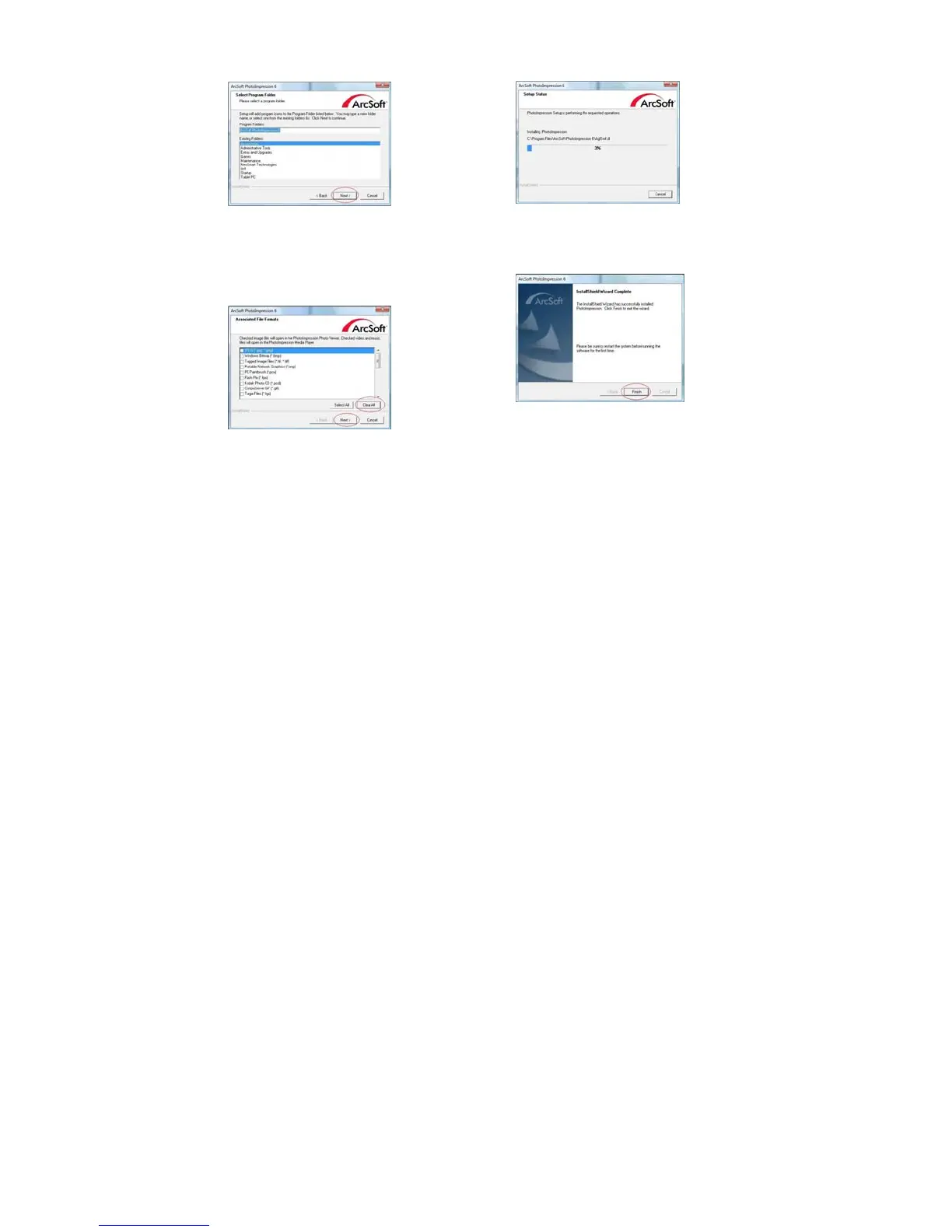
5. Click Next to continue. 6. PhotoImpressions will start the setup process.
7. Once you get this to this screen select 8. Click on Finish to complete installation.
"Clear All" so that PhotoImpression does
not take over the files on your computer.
9. Remove the installation disk and restart the computer.
The installed software will automatically create a “PhotoImpression 6” logo on your desktop.


 To Next Page