Contents Index
Contents
30
Index
30
TROUBLESHOOTING TABLES
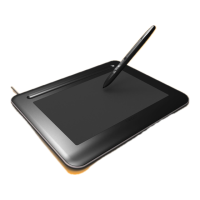
If you encounter problems with your Bamboo One pen or tablet, refer to the following tables. Your problem
may be described here, and you can try the solution offered. Be sure you refer to the Read Me file for the
latest information updates.
For additional information, visit Wacom’s web site at http://www.wacom.com/productsupport and follow
the links to the FAQs.
General problems
Windows-specific problems
Macintosh-specific problems
GENERAL PROBLEMS
The computer does not have
an available USB port.
Check if there is an available USB port on a USB hub device. If not
available you will need to add a USB hub or USB card.
The tablet status LED does
not illuminate.
Verify that your tablet’s USB cable is properly connected to an active
USB port. If your are connecting to a USB hub device, make sure the
hub is connected to an active USB port and that the hub is active.
The pen works only in M
OUSE
M
ODE, and does not ink or
sketch with pressure
sensitivity.
The tablet driver software was not installed or did not load properly.
Make sure the tablet driver software is installed and functioning.
Insert the Bamboo One installation CD into your computer and install
the driver software for the tablet.
The pen does not ink or
sketch with pressure
sensitivity.
Some applications require that you turn on the pressure capabilities
within the application or the selected tool before the pen will respond
as a pressure-sensitive tool.
Clicking is difficult. Try using a lighter T
IP FEEL (see adjusting tip feel and double-click).
Select the C
LICK SOUND option so that you can hear when the pen
registers a mouse click. Your computer speakers must be turned on
and the volume audible before you can hear C
LICK SOUND.
Double-clicking is difficult. Be sure you are quickly tapping the tablet twice in the same place on
the tablet active area.
Using a pen button to double-click is recommended (review the
techniques in clicking
).
• See adjusting tip feel and double-click
:
• Try increasing the D
OUBLE CLICK DISTANCE.
• Try using a lighter T
IP FEEL.
Windows
: Try setting your system to launch programs with a single
click. See clicking
.




 To Next Page