CommLink IV Technical Guide
10
Operator Interface
USB Driver Installation for Windows
®
XP
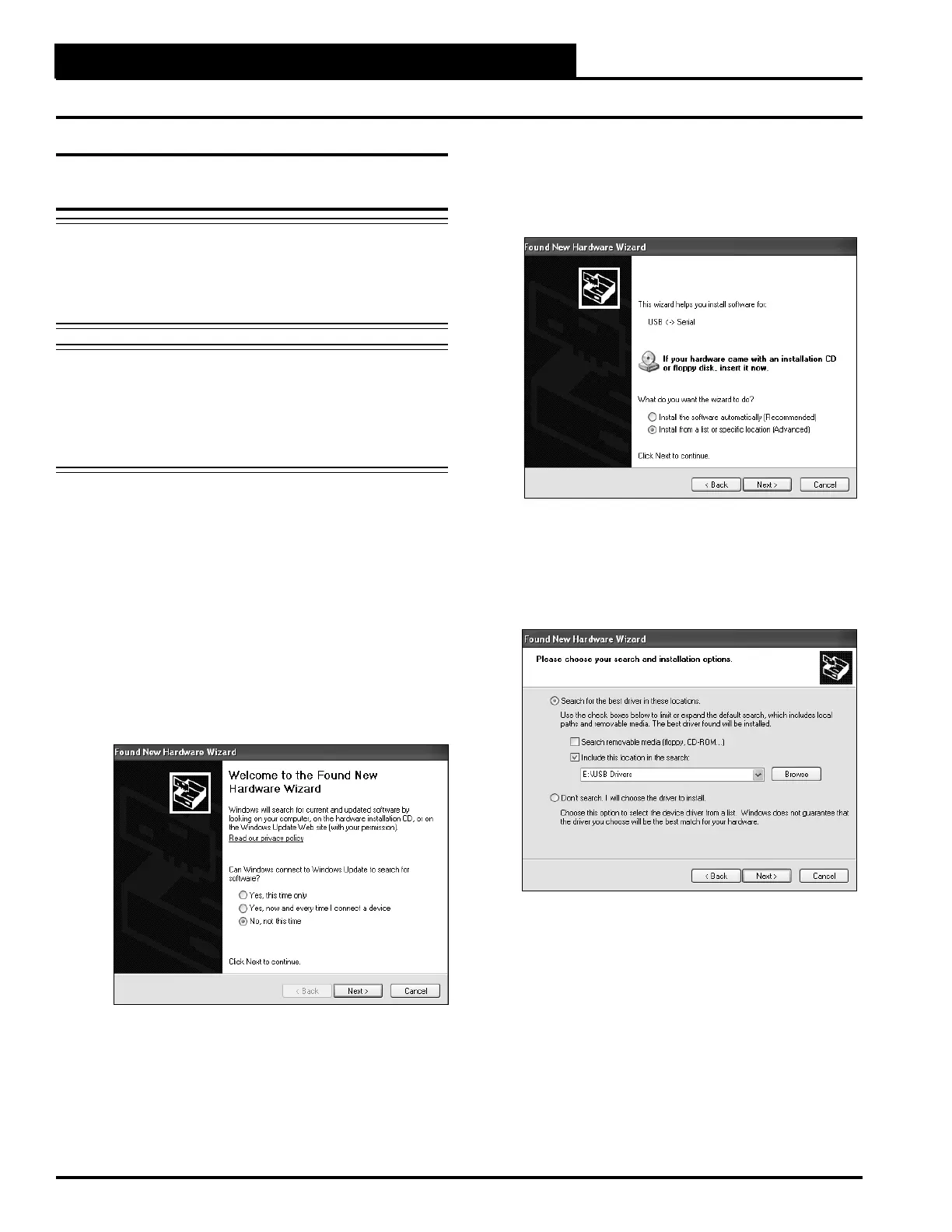
5. The next window that appears will ask, “What do you
want the wizard to do?” Select “Install from a list or
specifi c location (Advanced)” as shown below and
click <Next>.
6. In the next window that appears, select the radio
button in front of the option “Search for the best
driver in these locations.” Uncheck the box that reads,
“Search removable media” and instead check the box
“Include this location in the search:”
7. Click
<Browse> and locate the drive that your
CD-ROM is located on. Click <Next>.
USB Serial Converter Driver
Installation for Windows
®
XP
CAUTION: You must use the drivers on the CD-ROM
supplied with the CommLink IV. DO NOT
download drivers from the FTDI website,
because they will not work for the CommLink
IV Interface!
NOTE: If for any reason you cancel out of the New Hardware
Wizard before installing the USB drivers or if you
receive an error message during installation, the
drivers will not be installed. You must then install the
drivers using the directions in the XP Troubleshooting
Section on page 20.
1. Plug the USB cable attached to your CommLink into
your computer’s USB port.
2. Insert the USB Drivers CD-ROM into your
CD-ROM drive.
3. A message should pop up from the toolbar that reads,
“Found New Hardware.” Click on the Found New
Hardware Wizard application from the toolbar.
4. The window that appears will ask the question, “Can
Windows connect to Windows Update to search for
software?” as shown below. Select “No, not this
time” and click <Next>.


 To Next Page