CommLink IV Technical Guide
19
Operator Interface
Troubleshooting the USB Drivers for Windows
®
Vista
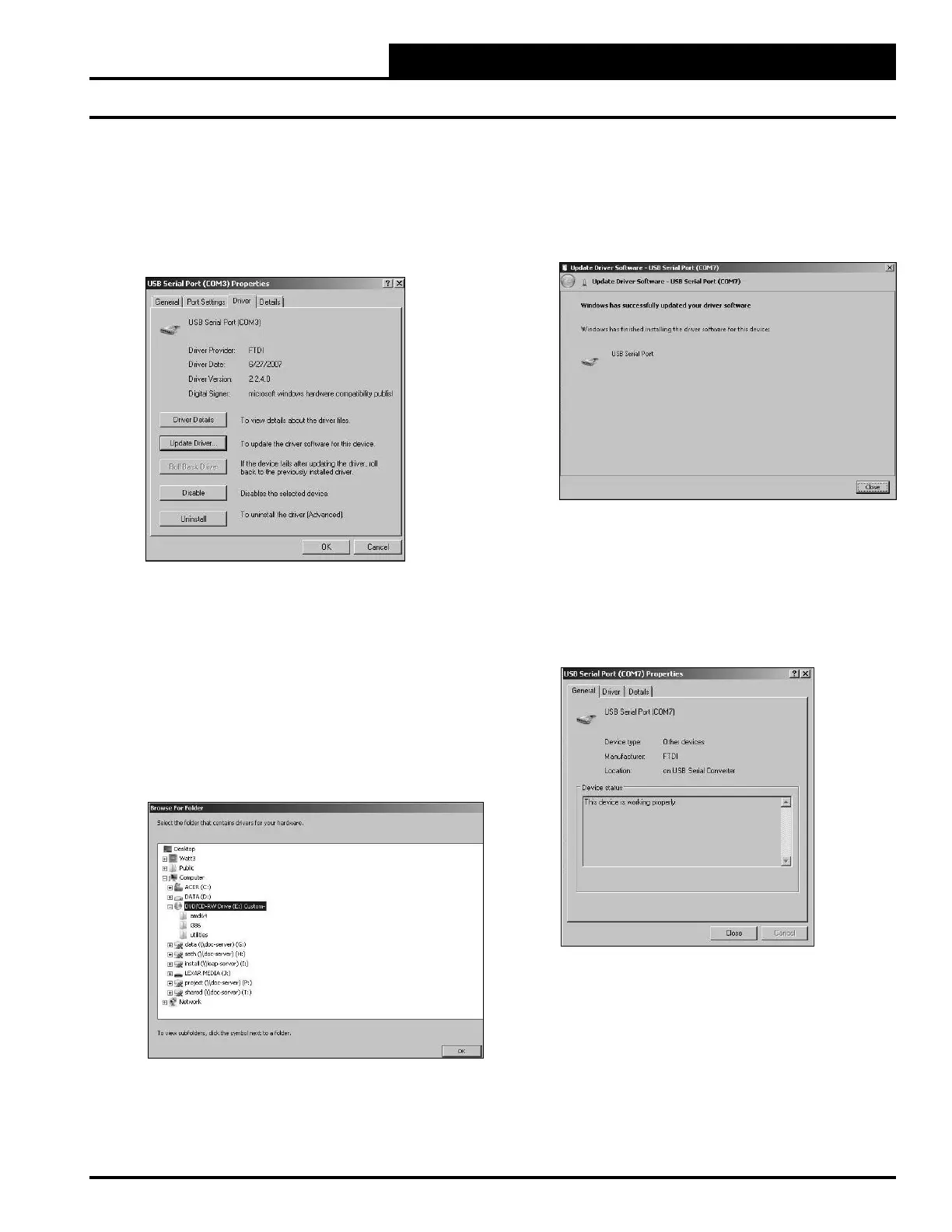
5. The USB Serial Port Properties Window will appear.
This window will have information pertaining to the
device listed in the Device Status area of the window.
Click on the <Driver> tab at the top.
6. In the Driver tab, select <Update Driver>.
7. The Update Driver Software Window will appear.
Click the option <Browse my computer for
driver software>
.
8. The screen will now display the message, “Search for
driver software in this location:” If the location is
correct, click <Next> and go to step 10. If not, click
<Browse>.
9. Select the CD-ROM location from the list of folders
and then click <OK>.
10. A message will appear that states, “Installing driver
software...”
11. When the installation is complete, the window below
will appear. Click <Close>.
12. If the problem was in the Universal Bus drivers -
USB Serial Converter, then the Found New Hardware
Screen for the USB serial port will appear. You will
have to go through the screens to install that driver.
13. If the USB serial port driver was the only driver
updated, you will see this screen:


 To Next Page