EasyManua.ls Logo

Wedge Innovations SmartLevel - Hold and Range Features; Freezing a Reading; Choosing Accuracy Range

Default Icon
13 pages
Print Icon
To Next Page IconTo Next Page
To Previous Page IconTo Previous Page
Loading...
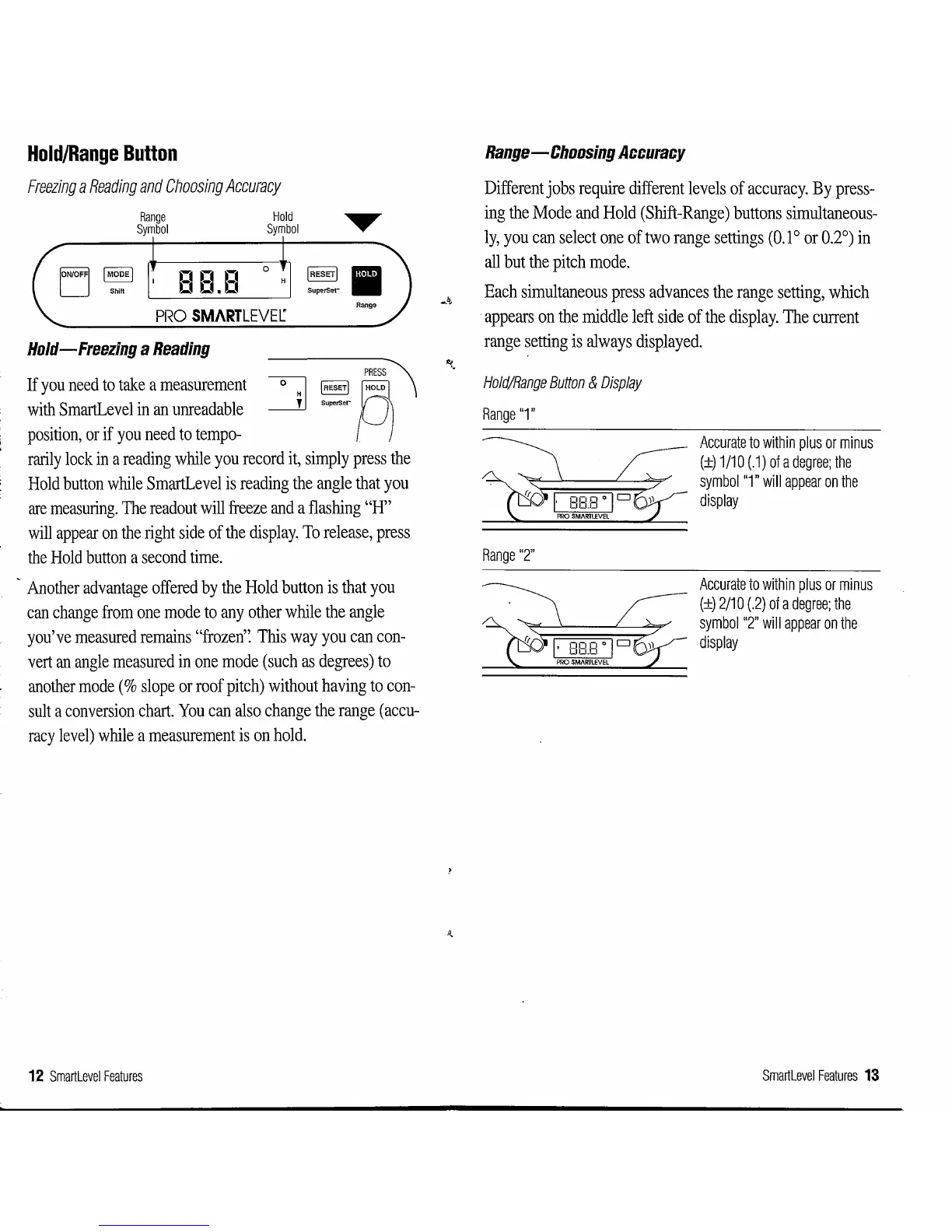
Hold/Range
Button
Freezing
a
Reading
and
Choosing
Accuracy
Range
Symbol
IMooel
1
Shill
nn
n
00.0
Hold
Symbol
0
PRO
SMJ\RTLEVEL:
Hold-Freezing
a
Reading
,...,..
I RESET I
SuperSet""
Range
PRESS
If
you
need
to
take
a
measurement
with
SmartLevel
in
an
unreadable
position,
or
if
you
need
to
tempo-
:]~R
rarily
lock
in
a
reading
while
you
record
it,
simply
press
the
Hold
button
while
SmartLevel
is
reading
the
angle
that
you
are
measuring.
The
readout
will
freeze
and
a
flashing
"H"
will
appear
on
the
right
side
of
the
display.
To
release,
press
the
Hold
button
a
second
time.
,
Another
advantage
offered
by
the
Hold
button
is
that
you
can
change
from
one
mode
to
any
other
while
the
angle
you've
measured
remains
"frozen':
This
way
you
can
con-
vert
an
angle
measured
in
one
mode
(such
as
degrees)
to
another
mode
(%
slope
or
roof
pitch)
without
having
to
con-
sult
a
conversion
chart.
You
can
also
change
the
range
(accu-
racy
level)
while
a
measurement
is
on
hold.
12
Smartlevel
Features
_ij.
Range-Choosing
Accuracy
Different
jobs
require
different
levels
of
accuracy.
By
press-
ing
the
Mode
and
Hold
(Shift-Range)
buttons
simultaneous-
ly,
you
can
select
one
of
two
range
settings
(0.1
o
or
0.2°)
in
all
but
the
pitch
mode
.
Each
simultaneous
press
advances
the
range
setting,
which
appears
on
the
middle
left
side
of
the
display.
The
current
range
setting
is
always
displayed.
Hold/Range
Button
&
Display
Range
"1"
Range
"2"
Accurate
to
within
plus
or
minus
(±)
1/10
(.1)
of
a
degree;
the
symbol"1"
will
appear
on
the
display
Accurate
to
within
plus
or
minus
(±)
2/10
(.2)
of
a
degree;
the
symbol"2"
will
appear
on
the
display
Smartlevel
Features
13