7 of 10
Document Number: 9295087 03/12/2021
Subject: BIC Tune Up 2021 (USA)
55. Once the 35 psi dynamic setting has been achieved
push the knob back to the downward position and turn
OFF the water solenoid and/or the product solenoid.
56. Re-install all exterior panels and move unit into place.
Verify drain line is connected correctly.
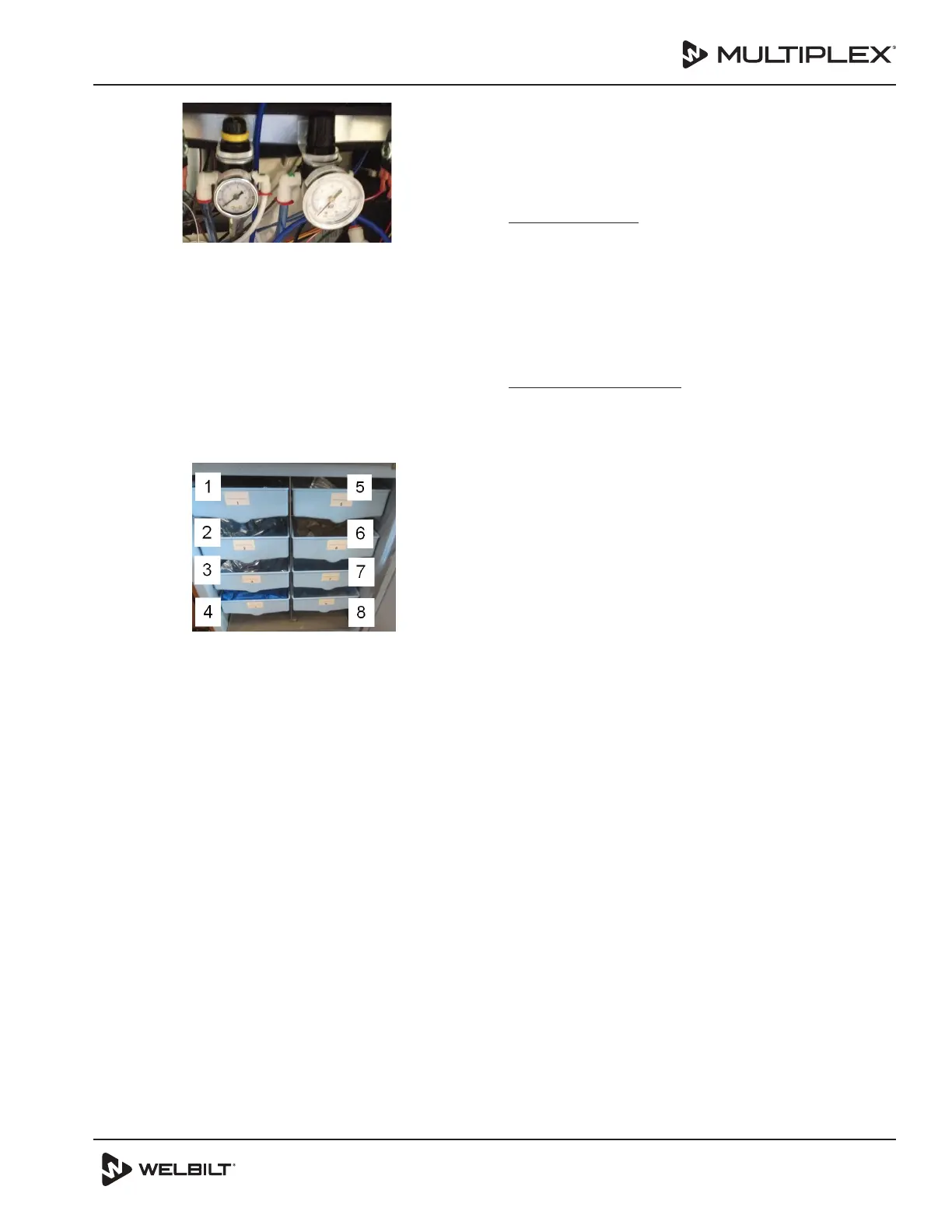
57. Retrieve the product from the walk in cooler and return
it to the assigned slot position within the BIC unit.
A. Verify flavor slot assignments are in accordance
with corporate direction. If the product
assignments are not in accordance they must be
reassigned.
Strawberry
Banana
Mocha
Caramel
Not
Assigned
Slushy
Not Assigned
or Seasonal
Mango
Pineapple
Yogurt
B. If reassignment is required follow the next steps
from the easyToUCH screen:
Select the MANAGER MENU Icon
Select “A” for the password
Select the GREEN check
Select the Configure Slots Icon
Select Slot Flavor
Select the slot requiring reassignment
Select Unassign Flavor and then select the GREEN
Check
Select the newly Unassigned Slot and select the
correct flavor assignment
Select the Return Arrow three (3) times to return to
the main easyToUCH screen
Select product Inventory Icon
Select the reassigned flavor and follow the steps for
replacing a product bag.
Follow the same procedures for each reassigned
product.
58. From the easyToUCH screen select the hand icon. Then
select the Zone 2 icon and follow the instructions to
complete the weekly cleaning.
NOTE: The manager will need to be informed that the
weekly cleaner timer was reset following the Zone 2
cleaning. To get the weekly cleaning back to the stores
normal cleaning schedule they will need to perform the
weekly cleaning on the normal scheduled day.
UPDATE FIRMWARE
59. Follow the included separate instruction “BIC UI Update
to 4.0.10 instructions” (PN 020008384) with preloaded
USB included with this Tune Up kit.
60. Record firmware and recipe versions on checklist
after the separate instruction “BIC UI Update to 4.0.10
instructions” has been completed. ( See Step 3 page
2 for instructions if needed.)
CALIBRATION & SETTINGS
61. Fill the ice bin with ice.
62. Allow cabinet and nozzle temperatures to drop below
40°F. Cabinet temperature will need to be 40°F or below
before beginning next step.
63. From easyToUCH screen select the MANAGER MENU:
Select “A” for the password
Select the GREEN check
Arrow DOWN two (2) times
Note the UI Version on Checklist
Note the SRB Version on Checklist
Note the Left and Right Mixer Version on Checklist
Note the File on Checklist
Note the Menu Connect version on Checklist
64. From easyToUCH screen select MANAGER MENU Icon:
Select “A” for the password
Select the GREEN check
Arrow DOWN three (3) times
Under the DRINKS SINCE INSTALLATION heading
note the Left Mixer count, Total Count, and Right
Mixer Count on Checklist.
65. Confirm the “CONFIGURE YOGURT SMALL DISPENSE” is
set to zero (0) from the easyToUCH screen:
Select the MANAGER MENU
Select “A” for the password
Select the GREEN check
Arrow DOWN one (1) time
Select SERVICE
Select “A” for the password
Select the GREEN check
Arrow DOWN two (2) times
Select CONFIGURE YOGURT SMALL DISPENSE
Confirm SLOT NUMBER is zero (0).
If SLOT NUMBER is not zero (0), select the box to the
left> Enter 0> Select the GREEN check> Arrow back
twice> and Save if prompted.



 To Next Page
 Loading...