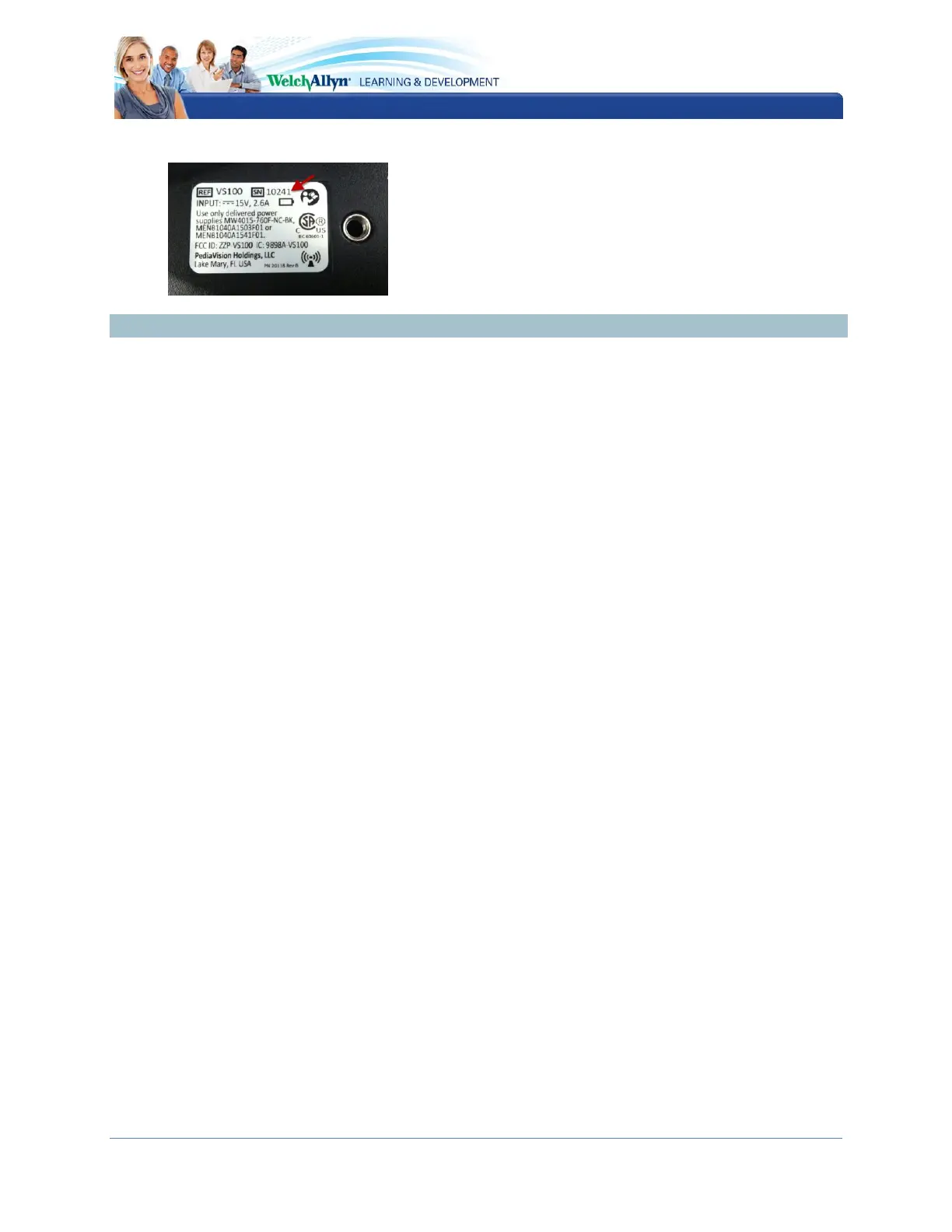
Spot VS100 Serial Number location. (SN is at right upper corner of label)
Vision Screener Menu and Display
Now, turn screener over on its belly so screen is facing you, and turn it on by pressing power
button once. (it may take 30 seconds to boot up) Are you seeing screen with kids faces?
Look at Top right hand corner at battery icon
When plugged in, Battery will have lightening bolt symbol
When not plugged in, you see up to 4 bars to indicate battery charge.
Next to battery symbol is Wireless symbol
If you want to print, wireless symbol has to be grayish white color in order to print
If wireless symbol is red, you can screen, but you cannot print (network issue)
Now press Tools Button:
Press About
Software version (there are 4 versions) 2.1.4 (Latest) 2.0.13, 1.1.51, and 1.0.3
(oldest version)
Serial Number is here – will match SN on asset tag/label
Internal and External storage - file maintenance may occasionally be required
1. Green bar lights up to indicate number of records stored on unit
2. If whole bar green, or says 60 or 70%, there are too many records in system
and you need to clear out records
3. System performance may be affected if too many records are left in storage
Press Criteria
This is how the device works, (data it is running off of): These criteria are set by
eyecare specialists
These are all the things the Spot screens for- it does not screen for anything but what
is on this screen
Criteria numeric values (not the Conditions, just the numeric values) can be edited
and changes imported in by an Eyecare Specialist, if desired
Press Date and Time
Whatever is here will show up on subject record
Make sure this is correct before beginning first use of unit
Press Import/Export
Use to import data, (such as a large group of patients)
Always use 8 gig USB or higher – Insert in thumb drive
Press Location



 To Next Page
 Loading...