Page 6
Westek App
How-To and Feature Guide
SMARTPLUG1, SMARTPLUG2, SMARTINWALL,
SMARTPLUG2A, SMARTLAMP
Program
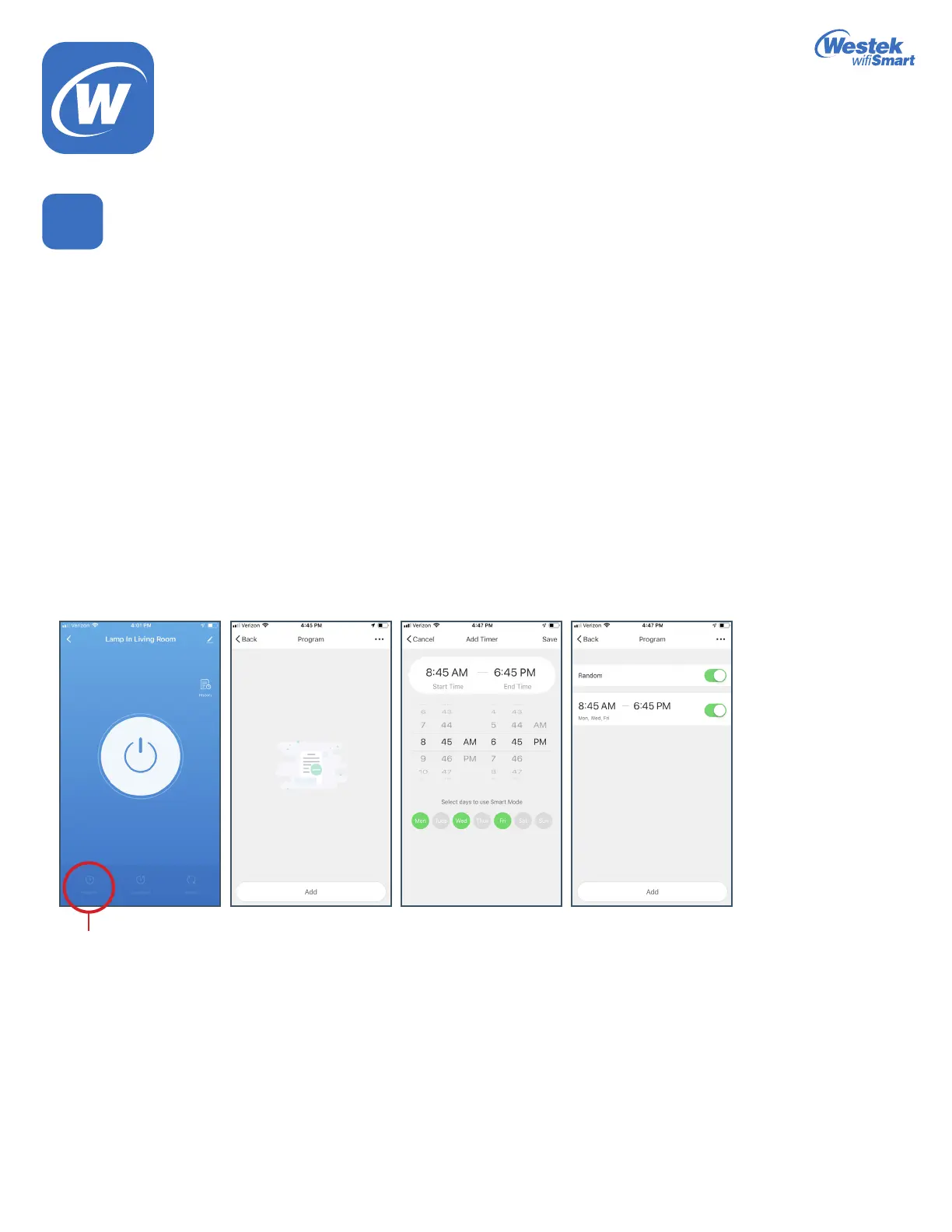
1. When you touch the Program option, it will take you to the list of programs you have set.
When you start, there will not be any in the list.
2. Tap the Add button on the bottom of the screen.
3. On the left, scroll until you get to the time you want the device to turn on. Select AM or PM.
4. On the right, scroll until you get to the time you want the device to turn off. Select AM or PM.
5. Then select which day or days you want this program to run.
6. Hit Save when you are done.
7. You can select the Random function by tapping the button on the right. It will slide to the right and turn green when it is selected.
a.Therandomfunctionwillturnthedeviceonanytimewithintherst30minutesoftheprogrammedscheduledontimeandthen
will turn off anytime 30 minutes before the programmed scheduled off time.
b.Thebenettothisfunctionistomakethetimerlookmorenaturalandhelpincreasesecuritymeasures.
8. If you ever want to turn off a program but not delete it, touch the slide button on the right. It will slide to the left and turn a grey color.
9. Click Add to create additional programs.
10.Youwillseealistofyourexistingprogramsinthemainprogramscreen.
11. If you wish to delete a program, touch and hold the program option you would like to delete.
Apop-upwindowwillcomeupaskingyoutoconrmyouwanttodeletetheprogram.
Note: You do not need to keep the app open in order for the program function to keep working
6(a)
Program
WiFi_TL_002_0619_How-To and Feature Guide
Rev. 2


 To Next Page