REPLACING A DRIVE
133
WD MY CLOUD EX2 PERSONAL CLOUD STORAGE
USER MANUAL
Replacing a Drive
Identifying a Faulty Hard Drive
Replacing a Drive
Returning a WD Drive
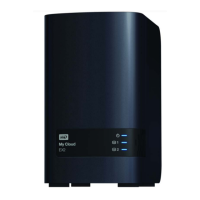
The My Cloud EX2 device is a limited user-serviceable product that allows you to replace the
hard drives in the enclosure. You can use WD hard drives or another brand’s hard drive.
Note: For a complete list of compatible drives, visit wd.com/mycloudex2
Following are instructions for replacing a faulty drive or, if your WD My Cloud EX2 model did
not come with drives, for inserting drives.
Identifying a Faulty Hard Drive
If the LEDs on the unit are flashing or you have received an alert, a hard drive may be faulty.
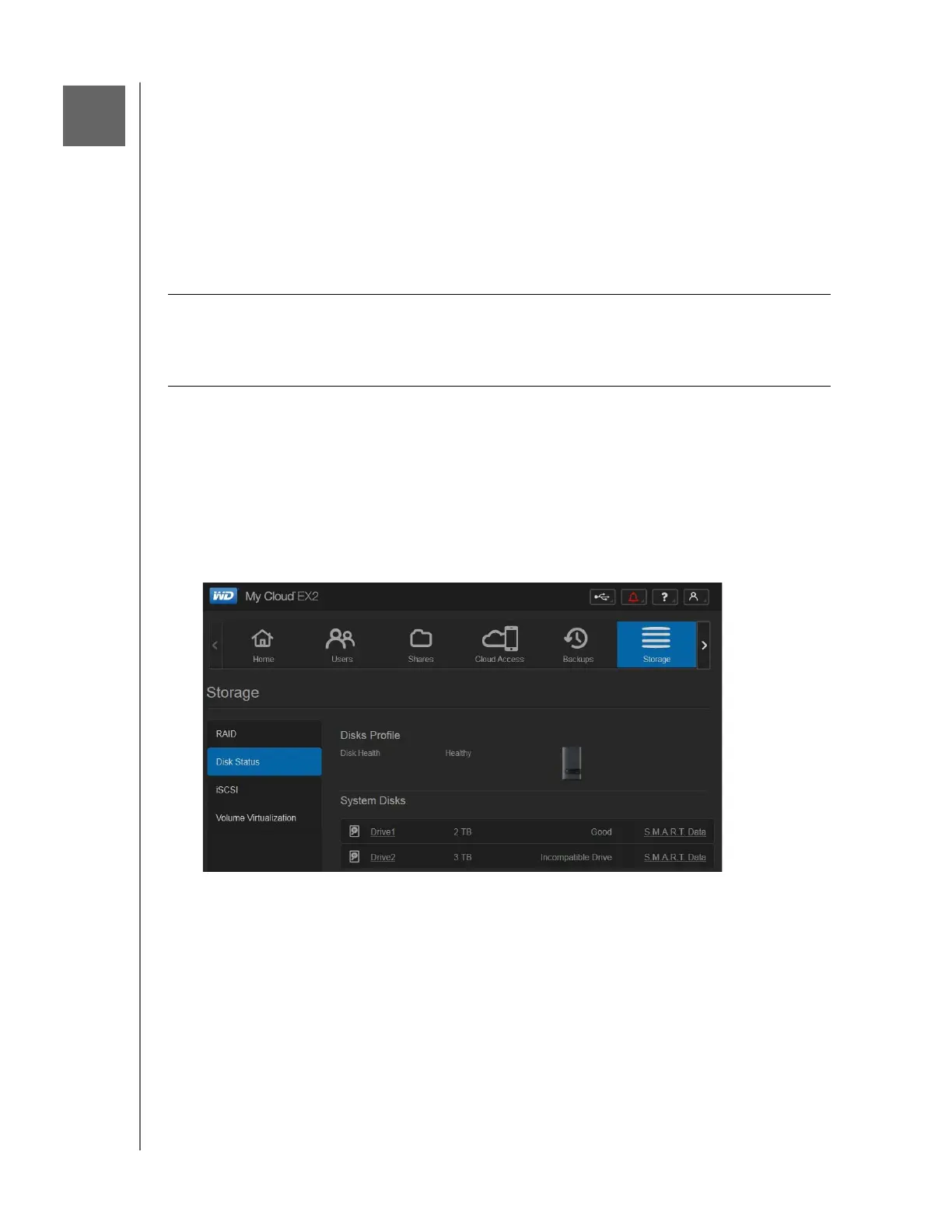
To determine which drive is faulty, do the following:
1. On the dashboard’s navigation panel, click Storage, and then click Disk Status.
Important: For best performance, WD recommends inserting WD Red
TM
hard drive
assemblies into the unit’s enclosure. Visit
support.wdc.com and search the knowledge
base for Knowledge Base Answer ID 8 to get detailed instructions on obtaining a
replacement drive for this product.


 To Next Page