MANAGING USERS, GROUPS, AND SHARES
43
WD MY CLOUD EX2 PERSONAL CLOUD STORAGE
USER MANUAL
Editing Group Settings
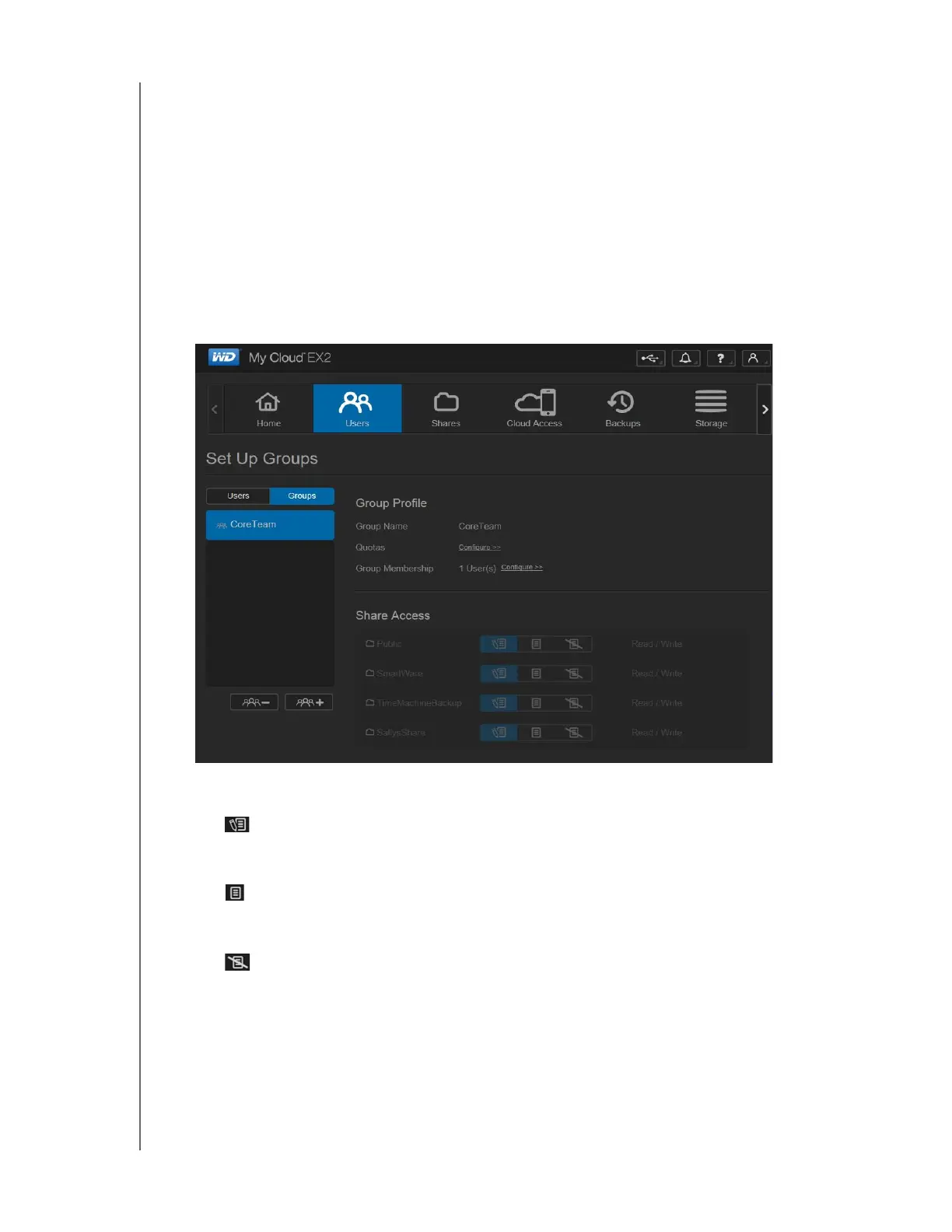
1. On the Set Up Groups screen, select the Group whose information you’d like to edit.
The Group Profile and Share Access panel displays.
2. Modify the required and optional settings as desired. To update the group’s access to
shares, see
“Assigning Share Access to Groups” on page 43
Assigning Share Access to Groups
Once a group account is created, you can assign access to the various shares on your
WD My Cloud EX2 device using the following steps.
1. On the Set Up Groups screen, select the group for which you’d like to assign a share.
2. In the Share Access area, select the type of access you’d like to assign to the selected
user:
Read/Write Access: Select this option to provide the group account with read/
write access to the selected share. The group members can view and update the
share.
Read Only Access: Select this option to provide the group account with read
only access to the selected share. The group member can view the share but can't
update it.
Deny Access: The group has no access to this share.
The group is updated with your share access selection.


 To Next Page