MANAGING USERS, GROUPS, AND SHARES
48
WD MY CLOUD EX2 PERSONAL CLOUD STORAGE
USER MANUAL
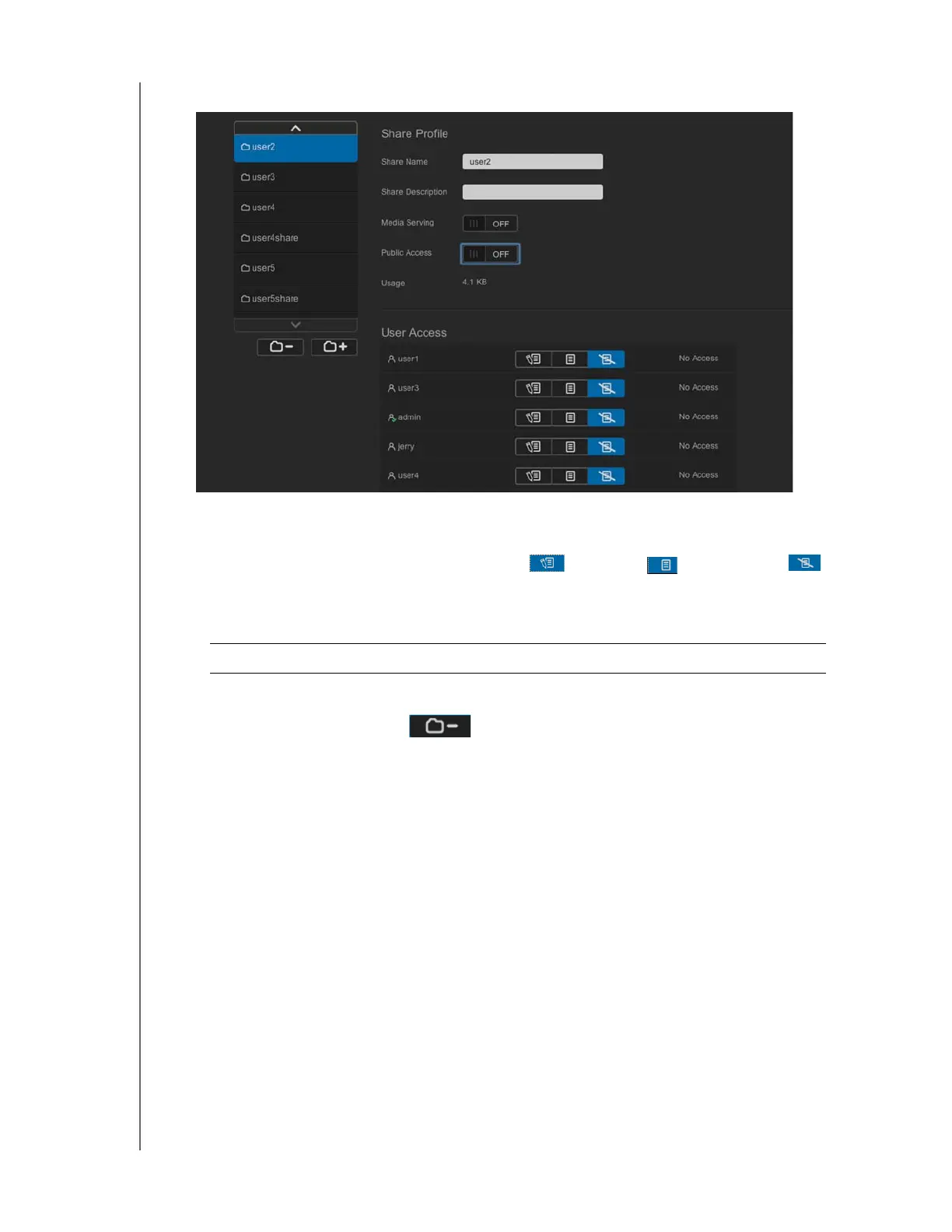
1. On the Set Up Shares screen, select the share:
2. Switch the Public Access button to OFF.
3. For each user listed in the User Access section, select the level of access by clicking
the appropriate icon for the share (read/write
, read only , or no access ).
Deleting a Share
1. Select the share in the list of shares on the About Shares page.
2. Click the Delete Share icon .
3. In response to the confirmation message, click OK.
Accessing the Contents of a Share Locally
Note: For information on accessing the contents of a share remotely, see
“Accessing Your Cloud Remotely” on page 21.
Several options are available for opening a WD My Cloud EX2 share. For a private share, the
user must have:
A user name and password assigned to the share name
Read-only or full access to the share
WARNING! Deleting a share erases all files and folders on the share.


 To Next Page