THE DASHBOARD AT A GLANCE
51
WD MY CLOUD EX2 PERSONAL CLOUD STORAGE
USER MANUAL
Note: WD Quick View and WD SmartWare are helpful WD apps that you can download
from the online Learning Center Downloads page at
wd.com/setup/mycloudex2apps.
Accessing the Dashboard for the First Time
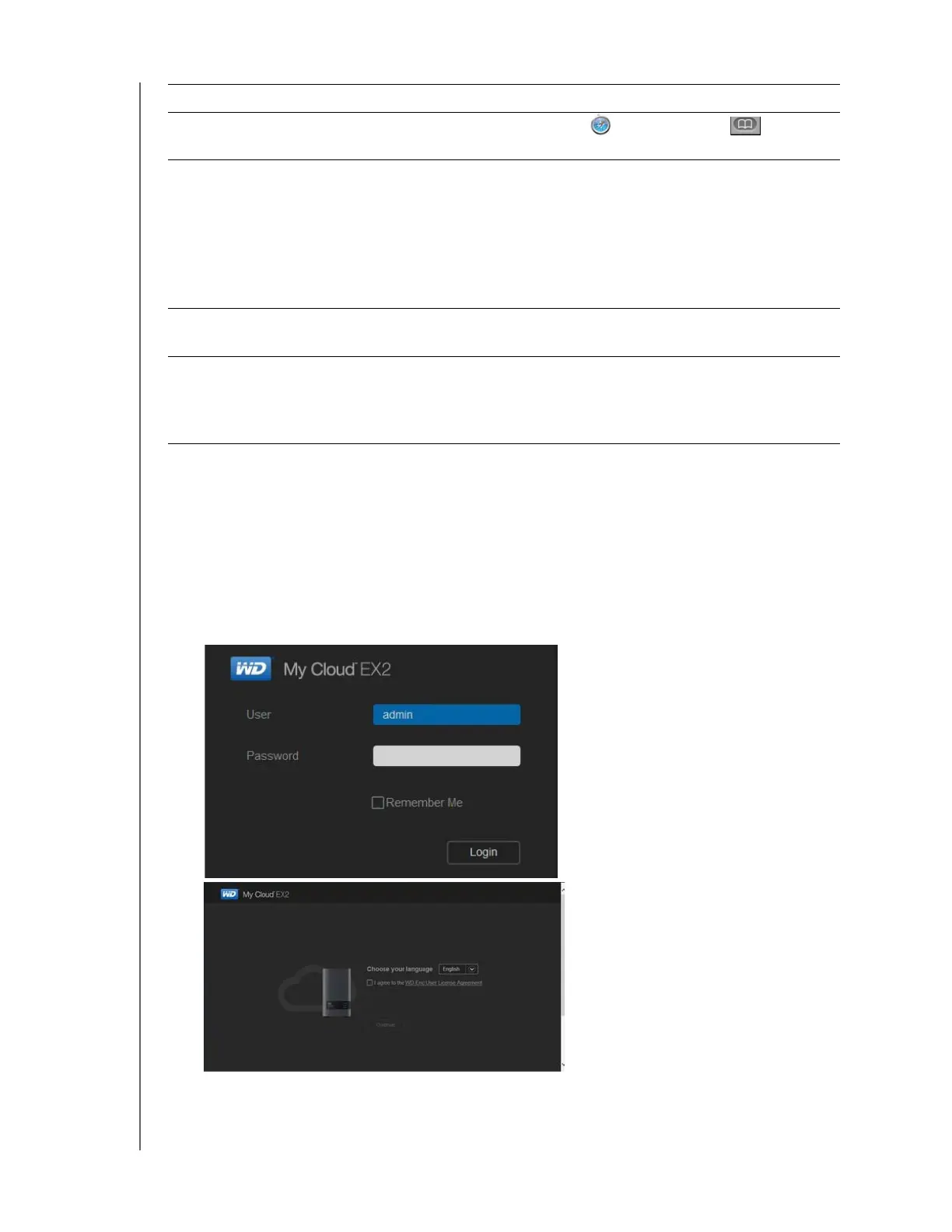
Use the following steps when you initially access the WD My Cloud EX2 dashboard.
1. When you initially log into WD My Cloud EX2, leave the Password field blank.
2. Click Login. Select a language from the drop-down menu.
3. Click the WD End User License Agreement link, review the agreement, and then click
the I agree to the WD End User License Agreement check box.
Mac OS X 1. Click the Safari icon > bookmark icon > Bonjour.
2. Double-click the WD My Cloud EX2 device on the network.
Mobile Devices iOS Devices:
1. Open a browser.
2. In the Address bar, enter https://<device name>.local.
Android Devices:
1. Open a browser.
2. In the Address bar, enter http://<device name>.
WD Quick View icon 1. Left- or right-click the WD Quick View icon.
2. Select your WD My Cloud device and then Dashboard.
WD SmartWare 1. On the WD SmartWare Home page, select your WD My
Cloud device.
2. Click the Settings tab to display the Main Settings page.
3. Click Setup Drive.
IF you want to launch from . . . THEN . . .


 To Next Page