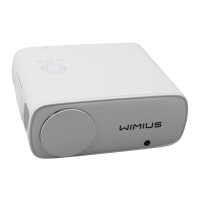
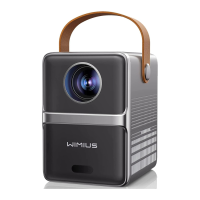
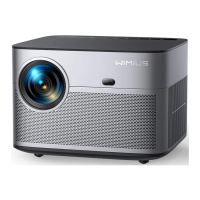
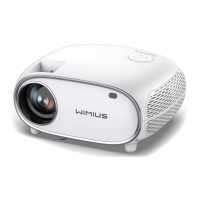
support01@wimius.com
EN11
STARTING PROJECTOR
1. Remove the lens cap, connect the projector to the power supply via the power cord, then press the
power button, it starts to work. (Light changes from red to blue)
2. Use the
Automatic or Electronic Keystone Correction/Focus Function
of the projector to obtain a
rectangular and clear image;
3. Adjust the focus buttons
"F+" and "F-"
on the projector remote control to get the best image
performance; (If it is still blurry, please try to adjust the projection distance.)
4. Connect external devices (Smartphone(Android), Fire Stick, TV box, DVD player, PC, etc. to the projector
at the corresponding position, and be sure to select the corresponding signal source. **If you do not
select the correct source, the projector will will not be able to detect the signal)
5. Select " "and then go to the menu and select
[ Setup ]
to enter
[ OSD Language ]
to set your preferred
language.
A. Connect the power cord:
After powering on, the indicator light will ash red 8 times. During the self-test
of the machine, you need to wait patiently and then press the power button to turn it on.
B. Power on:
The blue indicator light is always on, indicating the power on working status.
C. Power off:
The red indicator light is always on, indicating the shutdown state.
D. Standby:
Pink indicator light, in the process of standby (5s), please do not press the power button
repeatedly.
Indicator Light Description


 To Next Page