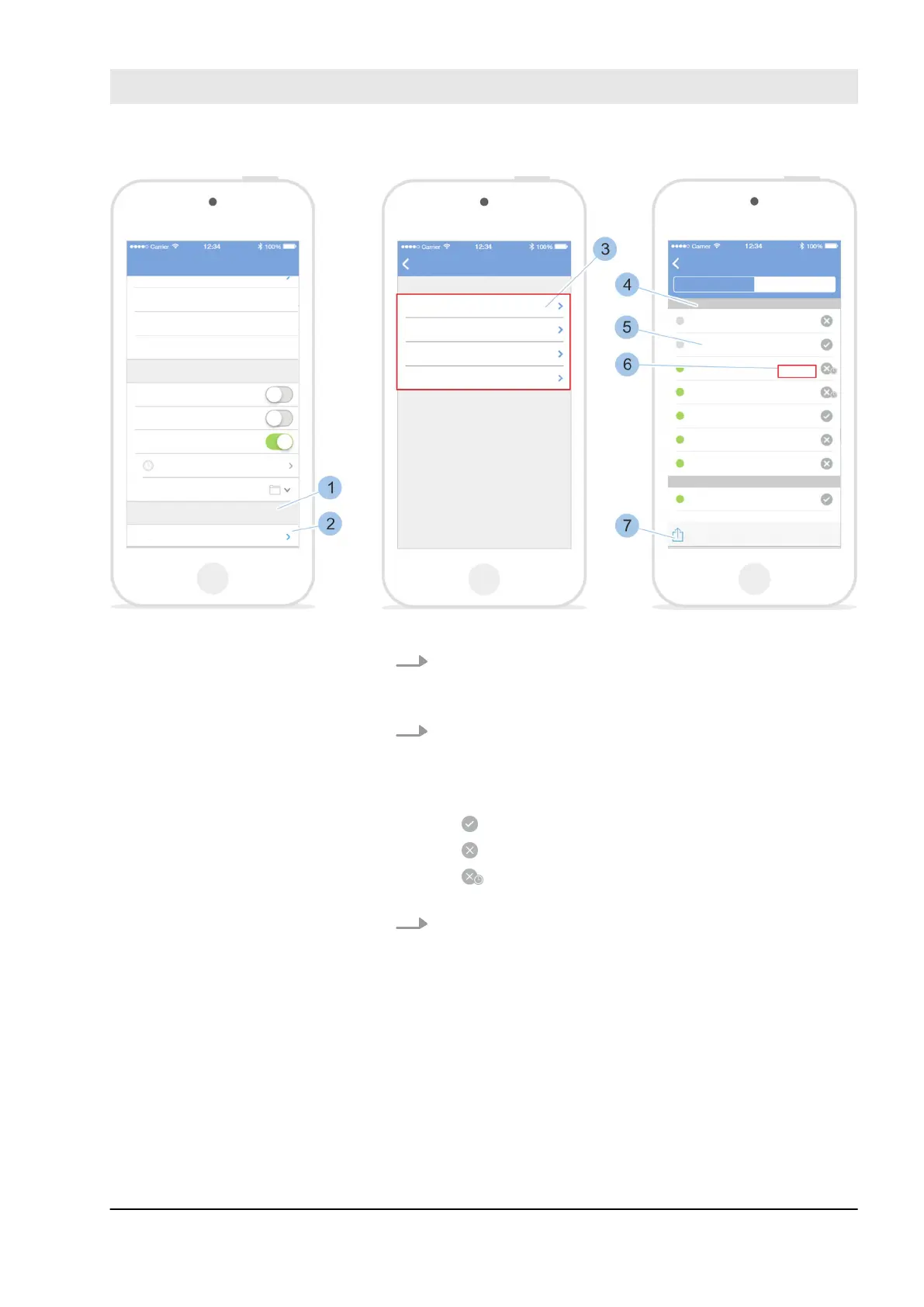
Fig. 72: Open locking events
3. Touch Additional options (2) in Locking events(1).
ð
The selection of intervals (3) for locking events will
appear.
4. Select required interval (3).
ð
The locking events are displayed with their respec-
tive key (4), date (5) and time (6).
The type of locking authorisation is still shown:
The key was authorised to lock.
The key was not authorised to lock.
The key was generally authorised to lock via a
time profile, but not at this time.
5. Touch the share symbol (7).
ð
The locking events can be forwarded in the same
way as the locking plan.
Ä
Chapter 6.7.1 “Forward locking plan manually”
on page 94 –
Ä
Chapter 6.7.2 “Create a locking
plan change reminder” on page 96
Send locking events
Manage locking system
23.05.2018 blueCompact Electronics locking system 91



 To Next Page